Business Email Access: Essential Roles and Shared Inboxes

Business email access management is the process of controlling who can read, manage, and send messages from company email accounts. Businesses should use individual employee accounts, assign role-based permissions, and manage shared mailboxes through approved access controls instead of shared passwords.
To manage business email access securely, follow six steps:
- Inventory all employee accounts, shared mailboxes, aliases, and forwarding rules.
- Assign permissions based on job responsibilities.
- Use named employee accounts and delegated mailbox access.
- Appoint a business owner and administrator for every shared mailbox.
- Review access regularly and whenever employees change roles.
- Remove access during offboarding while preserving required business records.
This guide explains how to manage business email permissions, configure shared mailbox responsibilities, and maintain secure access using Microsoft 365 as a documented example.
Your decision checklist
- Inventory personal, role-based, and shared addresses before granting access.
- Match read, manage, and send permissions to the actual task.
- Name an accountable owner and a backup administrator for each mailbox.
- Test removal, forwarding, recovery, and retention through approved procedures.
How should a business email access inventory be built?
List every domain, mailbox, alias, group address, and external forwarding route in use. For each entry, record the business purpose, accountable owner, people or roles with access, sending identity, recovery contact, and review date. Distinguish a person’s named mailbox from an address such as billing@ or support@ that must remain available across staff changes.
Use the inventory to find shared passwords, abandoned accounts, and addresses whose owner left. Treat an alias as a routing arrangement, not automatically as an independent mailbox or person. Keep secrets out of the worksheet. The document should tell an authorized administrator where to inspect settings, not expose credentials.

When does a shared mailbox fit better than a personal account?
A shared mailbox is generally better than an individual email account when multiple authorized employees need to read, respond to, and manage messages sent to a common business address, such as support@company.com or billing@company.com.
For example, a customer support team may need access to the same conversation history even when individual employees leave the organization. In Microsoft 365, administrators can grant mailbox access and separate sending permissions without requiring team members to share a mailbox password.
Key difference: A personal mailbox belongs to an individual employee, while a shared mailbox supports a business function that must continue across staffing changes.
Microsoft: Configure shared mailbox settings
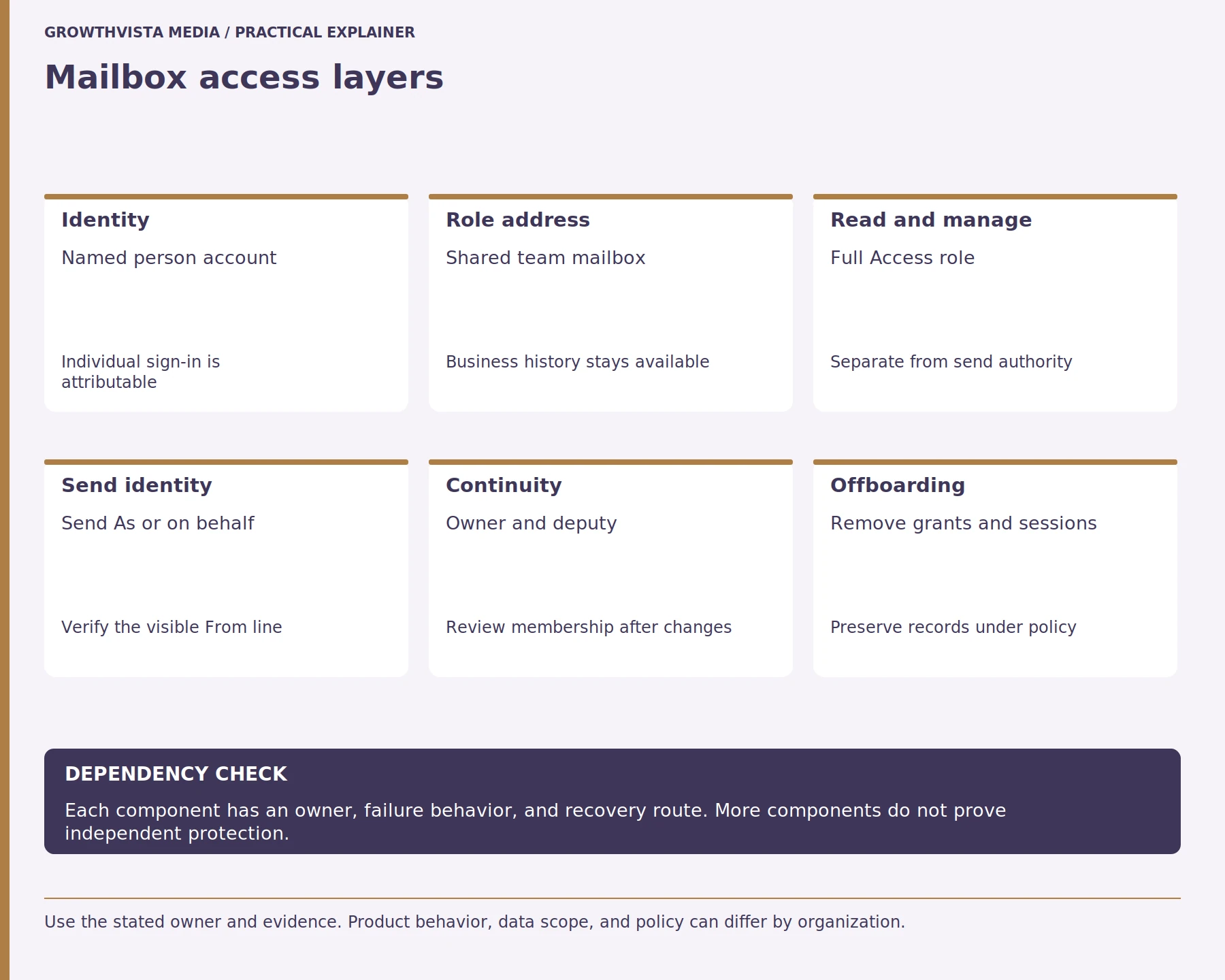
Decide whether staff need to read and manage messages, send as the role address, or send with their individual identity shown on behalf of the role. Those are different tasks. A group, distribution list, shared mailbox, and alias can serve different needs, so compare the actual workflow and retention requirement before choosing.
Personal Mailbox vs Shared Mailbox vs Email Alias
| Feature | Personal mailbox | Shared mailbox | Email alias |
|---|---|---|---|
| Primary purpose | Individual communication | Team communication | Alternate receiving address |
| Typical access | Named employee | Authorized members | Underlying mailbox users |
| Independent mailbox | Yes | Yes | Usually no |
| Shared conversation history | Not inherently | Yes | Uses underlying mailbox |
| Separate sign-in needed | Individual account | Normally delegated access | No independent sign-in |
| Example | employee@company.com | support@company.com | hello@company.com |
| Task | Permission to verify | Evidence to retain |
|---|---|---|
| Read role mail | Mailbox access | Named user and approved owner |
| Send from role address | Send As or Send on Behalf | Internal test result |
| Change membership | Administrative authority | Approver and review date |
| Departing employee | Identity and retention process | Completed removal check |
| Recover correspondence | Provider-supported method | Retention owner and procedure |
How should mailbox permissions be divided?
In Microsoft 365, shared mailbox permissions should be assigned according to the actions each employee needs to perform. Three important permissions are:
- Full Access: Allows an authorized user to open and manage mailbox contents but does not independently grant permission to send from the mailbox.
- Send As: Allows a user to send messages that appear to come directly from the shared mailbox address.
- Send on Behalf: Allows a user to send messages on behalf of the shared mailbox, with the sender relationship shown to recipients.
Example: A support employee who needs to read customer messages and reply as support@company.com may require both Full Access and Send As permissions.
Administrators should verify each permission in the Microsoft 365 or Exchange administration environment and test the resulting sender identity before allowing routine use.
Write permissions as verbs tied to work: read messages, organize folders, administer membership, send as the address, or send on behalf of it. Grant only the combinations the person needs. Do not infer that the ability to open a mailbox implies the right to send from it. Microsoft’s documentation explicitly describes separate mailbox and sending permissions. Microsoft: Manage mailbox permissions
Use named accounts and the provider’s supported access controls so activity can be associated with an authorized user. Record who approved each role and when it will be reviewed. For finance, HR, or regulated correspondence, follow the organization’s access policy and qualified administrator. A generic “team access” label is not enough to diagnose an unexpected message later.
Who owns each shared address when staff change?
Assign a business owner who decides what the address is for, plus an administrator responsible for the technical settings. Name a deputy so a single absence does not block access review. The owner should approve membership and sending identity; the administrator should apply and verify the provider’s controls.
Review membership after team changes and on a regular schedule chosen by the organization. Do not make a mailbox owner the only person who can recover the tenant. Separate business approval from technical execution where that matches policy. The inventory should show role, approver, administrator, and review date without storing passwords or recovery codes.
What should an employee offboarding sequence include?
Start with a verified request and a named authority. Identify the person’s account, role mailboxes, delegated permissions, mobile sessions, forwarding rules, connected applications, and recovery methods. Remove access using the provider’s supported identity process, then verify the person can no longer authenticate or send through a delegated mailbox. Follow the organization’s legal hold and retention policy before deleting or converting anything.
Employee Email Access Removal Checklist
Before completing an employee’s offboarding, the authorized administrator should verify the following:
- Confirm the employee’s identity and approved departure request.
- Review assigned personal and shared mailbox permissions.
- Block or disable sign-in according to the organization’s offboarding policy.
- Revoke active sessions and applicable authentication tokens.
- Remove delegated mailbox access and sending permissions.
- Review forwarding rules, connected applications, and recovery methods.
- Reassign ownership of business-critical email addresses.
- Preserve required correspondence under the approved retention policy.
- Verify that the former employee can no longer access or send from business mailboxes.
- Record the administrator, approval, completion date, and verification results.
Important: Mailbox deletion, conversion, and retention must follow the organization’s legal requirements and the provider’s current documentation.
Preserve business correspondence under the approved retention route and reassign role ownership before closing access. Microsoft documents that converting a user mailbox to a shared mailbox retains existing mail and calendar information in that service, but eligibility and account handling still require its current instructions. Microsoft: Convert a user mailbox to a shared mailbox Do not treat a conversion as a universal archive or legal-retention solution.
How can sending authority be tested safely?
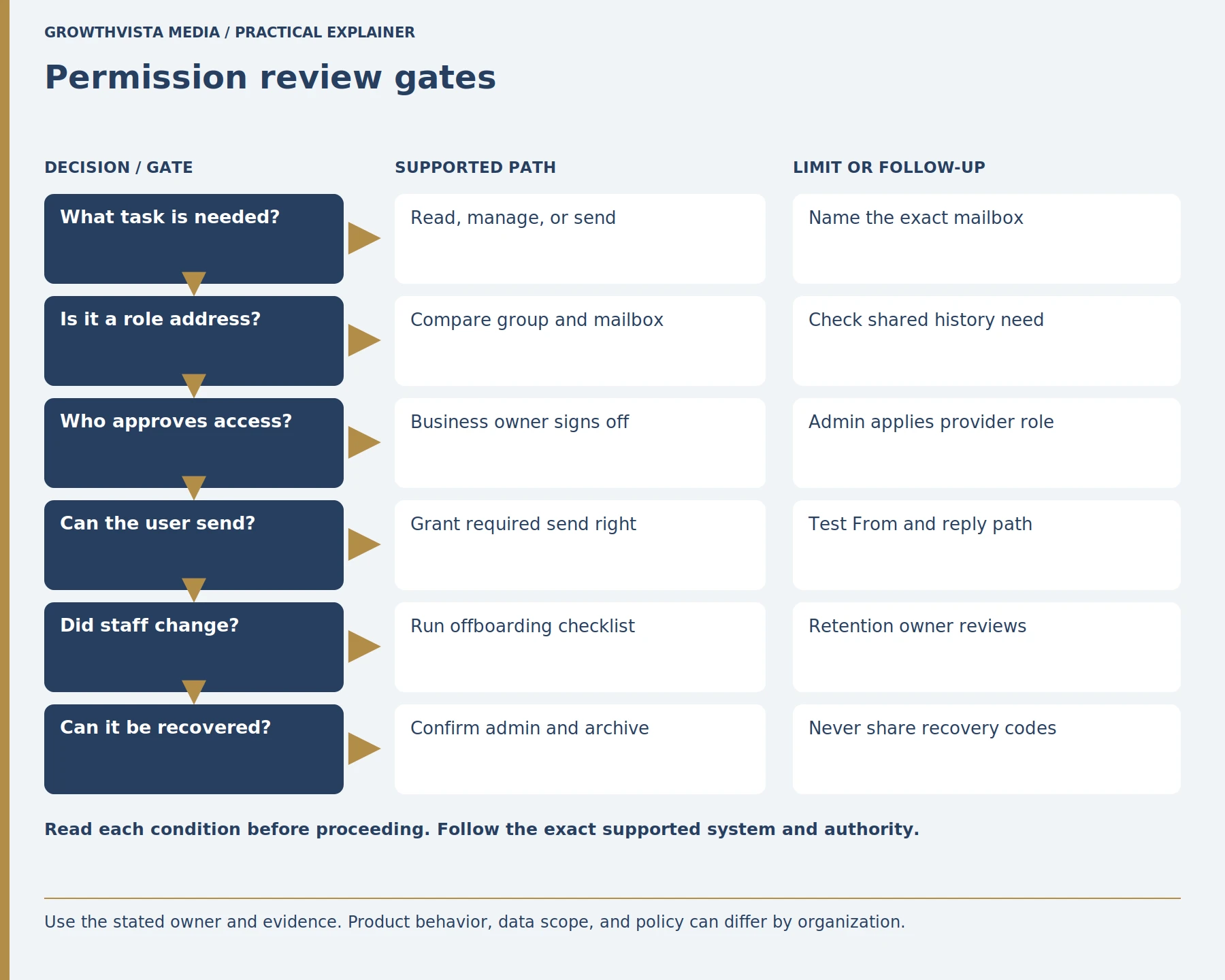
Use an approved test message to verify the intended From identity, reply handling, and sent-item behavior. Check whether the team expects messages to appear as the shared address or to identify the individual sender. Confirm that replies return to the monitored mailbox and that staff can see the resulting conversation under the organization’s settings.
Test with designated internal recipients and no sensitive customer content. Record the permission used and the observed outcome. If the client silently substitutes an individual address, stop and review the administrator’s settings rather than training staff to work around them. The test confirms a particular route at a point in time; it does not prove every mobile client or integration behaves identically.
Which safeguards matter for recovery and continuity?
Protect tenant administrator accounts through the organization’s identity and multifactor-authentication controls. Keep recovery contacts current and separate from the mailbox they are meant to recover. Review forwarding rules and delegated access through approved administrative views, especially after a suspicious message or staffing change.
Decide how the organization restores a deleted message or mailbox and who is allowed to request it. Retention, backup, litigation hold, and a shared mailbox are distinct capabilities. Verify each with the provider and legal or compliance owner. Never place recovery codes in the access inventory. A continuity plan that depends on one person’s personal account is fragile even if the team address still receives messages.
How should a business email access review be run?
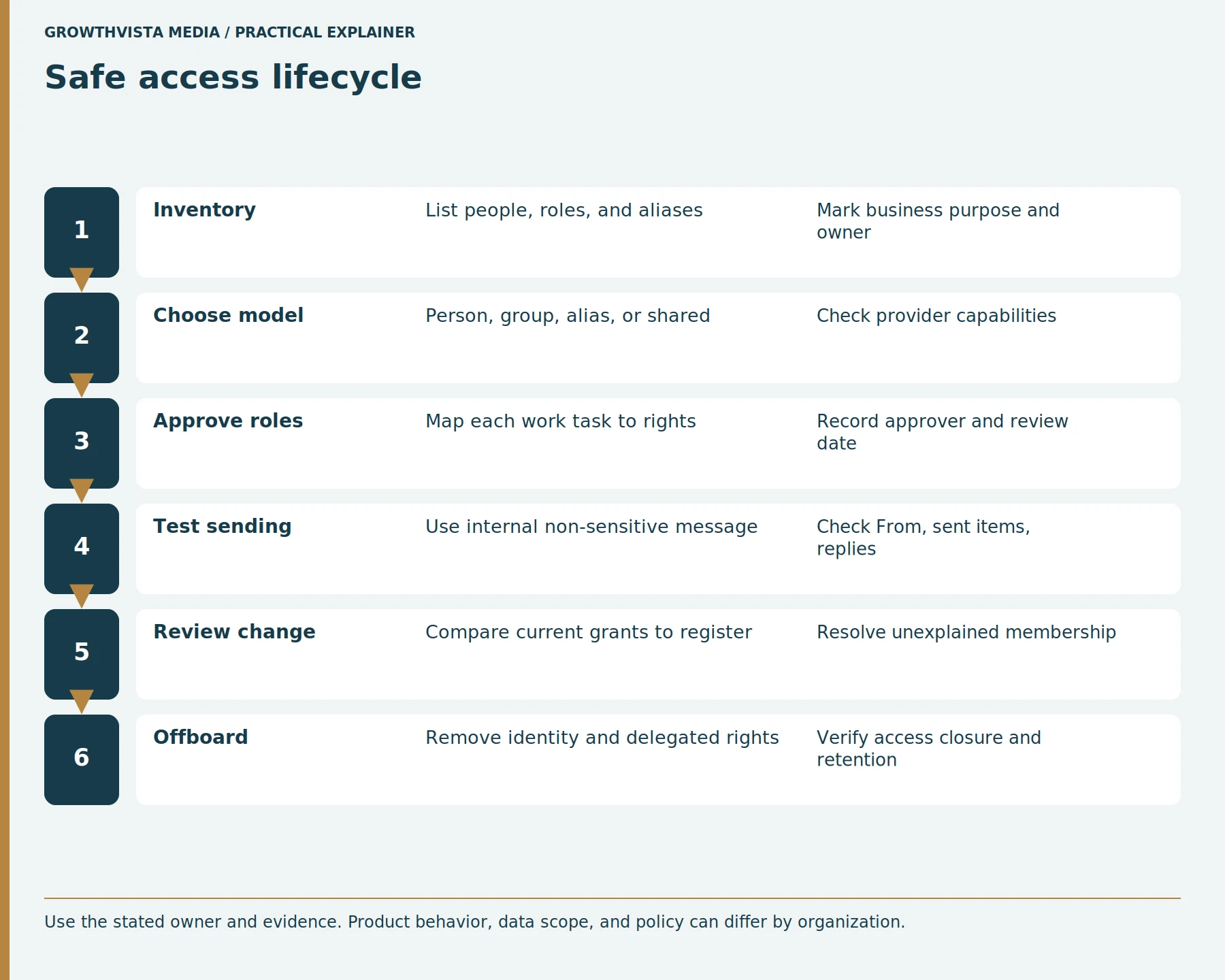
Compare current provider membership and permissions against the approved inventory. Ask the business owner to confirm each person still needs the access and sending role. Check aliases, forwarding, delegated access, and application connections that may not appear in a simple mailbox member list. Resolve stale or unexplained entries through the authorized process.
Record the date, reviewer, changes requested, and proof of completion. Review again when the mailbox purpose, team, or provider changes. The goal is not to remove access mechanically; it is to make every active permission explainable and recoverable. A small organization can use a short register, while a larger one may require an access-review system and a formal evidence trail.
What Do Microsoft 365 Guidelines Say About Shared Mailbox Security?
Microsoft 365 documentation establishes several important distinctions for managing shared mailboxes:
- Mailbox access and sending rights are separate. Full Access does not automatically grant Send As or Send on Behalf permission.
- Shared mailboxes support delegated team access. Authorized users can work with a common address through their own accounts rather than sharing a password.
- Mailbox conversion is not the same as long-term archiving. Converting a user mailbox to a shared mailbox can preserve existing email and calendar information, but retention and licensing requirements must be evaluated separately.
- Permission changes require verification. Administrators should confirm both the assigned rights and the behavior users experience in their email clients.
For implementation details, consult Microsoft’s official shared mailbox configuration, mailbox permissions, and mailbox conversion documentation. Provider behavior and licensing conditions can change.
Frequently asked questions
Does Full Access automatically let someone send as a shared mailbox?
No. Microsoft documents separate Full Access and Send As or Send on Behalf permissions. Verify the exact role and client behavior.
Should employees share the shared mailbox password?
Use named user accounts and supported delegated permissions so access can be reviewed and removed individually.
Is an email alias always a mailbox?
No. An alias can route mail without providing an independent mailbox or sign-in. Check the provider’s definition.
Can a shared mailbox replace an archive?
Do not assume so. Retention, backup, legal hold, and collaboration are distinct requirements.
What should happen to a departed employee mailbox?
Follow the approved identity, retention, reassignment, and legal process. Do not delete or forward it casually.
How often should permissions be reviewed?
Set a schedule that fits the organization’s policy and repeat reviews after role, ownership, or security changes.
Final Takeaway: How Can Businesses Keep Email Access Secure?
Secure business email access depends on three principles: individual accountability, minimum necessary permissions, and documented ownership.
Businesses should avoid shared passwords, use delegated access for team mailboxes, review permissions after staffing changes, and preserve important correspondence through approved retention procedures.
For organizations using Microsoft 365, separating Full Access, Send As, and Send on Behalf permissions is an important starting point. The goal is to ensure that every business email account has a clear purpose, an accountable owner, and an access process that remains manageable as the organization grows.
Sources and further reading
Official documentation supports the technical guidance. Examples and worksheets are editorial methods, not hands-on product benchmarks. Reviewed October 2026.
- Microsoft: Configure shared mailbox settings
- Microsoft: Manage mailbox permissions
- Microsoft: Convert a user mailbox to a shared mailbox