Gaming Laptop Displays: Resolution, Refresh, and VRR
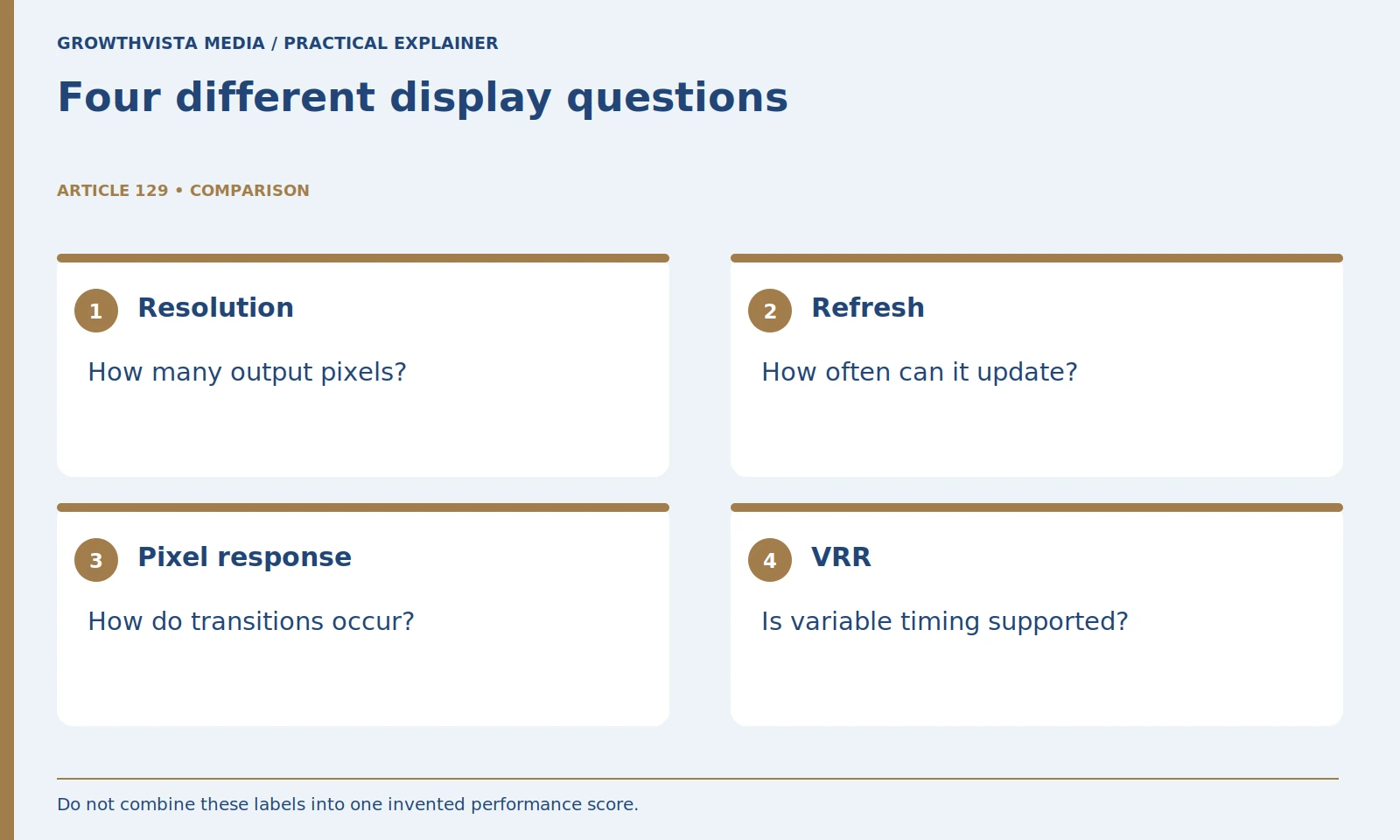
Gaming laptop displays should be compared by the exact panel option and how it works with the system and your tasks. Resolution describes the pixel grid; refresh rate describes display-update capability; rendered frame rate comes from the workload. Pixel response and variable refresh support add separate questions rather than completing one universal motion score.
Check the screen option in the actual listing and the supported graphics and connection path. The guide below includes mathematical refresh intervals, not measured input latency or original panel benchmarks. Keep rendering, upscaling, and frame-generation conditions visible when comparing game evidence, and test everyday applications as well as games.
Your decision checklist
- Confirm the exact panel variant.
- Separate refresh, rendering, response, and latency.
- Verify supported variable-refresh and connection paths.
- Test representative games and normal applications.
How do you compare gaming laptop displays in a listing?
Confirm the exact size, resolution, refresh capability, panel option, and documented features. Intel’s buying guidance includes display considerations alongside the system. A review of one screen variant should not silently describe every laptop sold under that family name. Intel: choosing a gaming laptop
Start with the games and other work you do. A competitive game, a visually detailed game, and text-heavy office work create different priorities. Include the ordinary desktop experience because the laptop may spend substantial time outside games.
Keep the panel specification attached to the configuration. Do not assume that a discounted variant differs only in storage. If a screen detail is missing, ask for confirmation before treating another listing's figure as applicable.
Does a 144 Hz screen guarantee 144 frames per second?
No. Display refresh capability and game rendering rate are different. The system, game, settings, and power conditions determine the frames rendered. Keep the panel mode and the workload evidence separate rather than assuming the installed screen creates a matching frame rate.
Use comparable game evidence at the intended settings. Record resolution, preset, operating mode, and whether upscaling or frame generation was used. Keep those details visible when evaluating whether the screen capability matches the system.
Do not buy by adding the largest GPU and panel numbers independently. The useful question is how the complete configuration behaves in your games and whether the display trade-off fits the rest of your work.
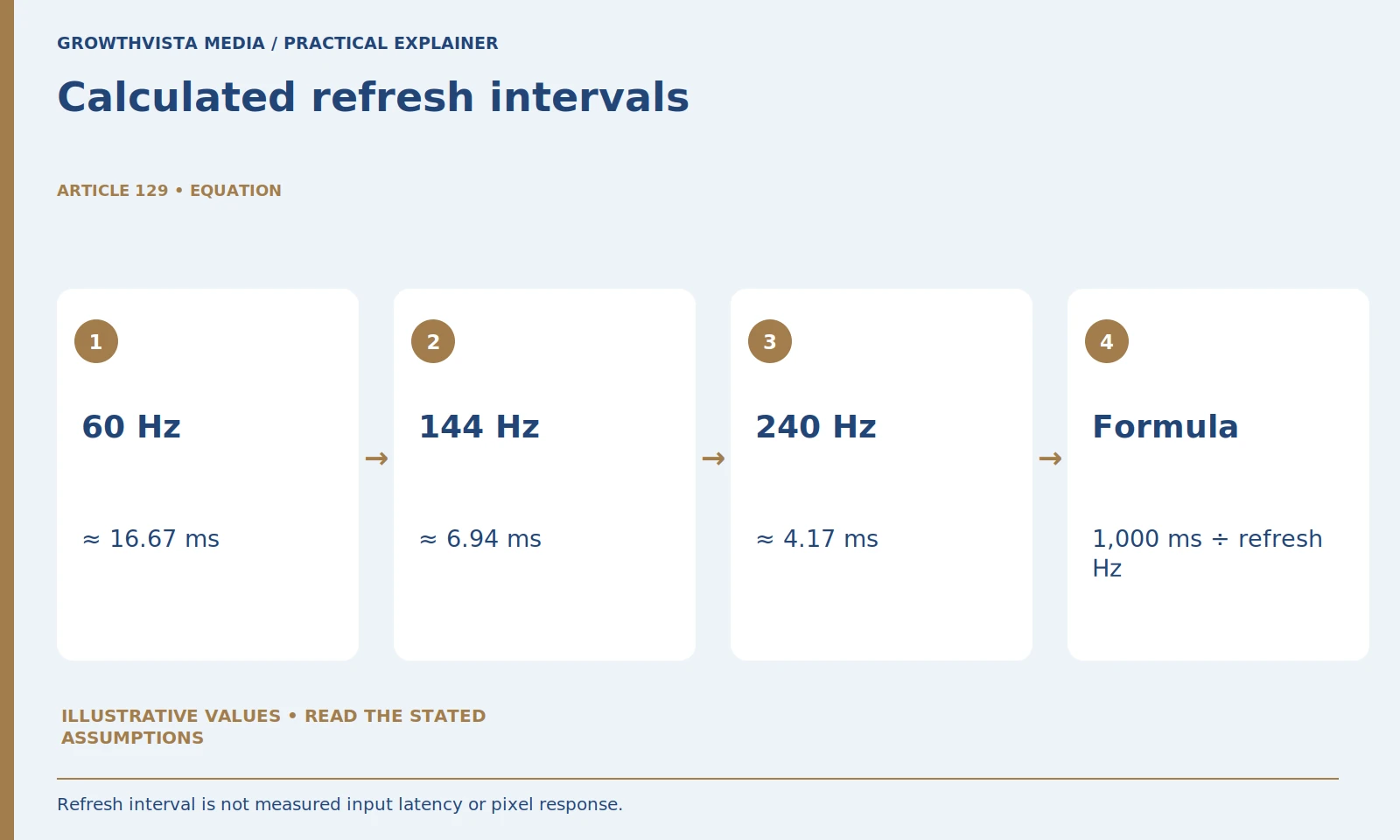
| Refresh capability | 1000 ÷ Hz | What it means |
|---|---|---|
| 60 Hz | 16.67 ms | Refresh interval |
| 144 Hz | 6.94 ms | Refresh interval |
| 240 Hz | 4.17 ms | Refresh interval |
Is the refresh interval the same as input latency?
No. Dividing 1,000 milliseconds by hertz gives the mathematical interval between refresh opportunities. It does not include every stage of an input-to-display path. The examples below illustrate timing arithmetic and should not be labeled as measured system latency.
Divide 1,000 milliseconds by refresh rate to calculate the interval between refresh opportunities. At 60 Hz, it is about 16.67 ms. At 144 Hz, about 6.94 ms. At 240 Hz, about 4.17 ms. These values are mathematical examples, not measured input latency.
The complete interaction also involves input processing, game rendering, scheduling, display behavior, and other conditions. Do not label the reciprocal of refresh rate as total system latency or a guaranteed response time.
Use the calculation to understand what the specification means. Then look for suitable motion and latency evidence for the actual configuration when those differences matter. A higher number on the panel is useful only in the context of the system and task.
Is advertised pixel response the same as refresh rate?
No. Pixel transitions and update capability are distinct. Read the transition, mode, and measurement conditions behind a response figure. Inspect relevant motion evidence rather than combining unmatched millisecond claims into an invented panel ranking.
Look for relevant motion evidence rather than relying on one headline millisecond value. Different settings can create different visual trade-offs. Keep the mode used in a review or demonstration beside the conclusion.
During an appropriate trial, inspect ordinary motion in the games and desktop tasks you use. Label that as your observation, not a laboratory measurement. Do not invent a response score to fill a missing specification.
How do you confirm variable refresh rate support?
Verify the exact panel, supported graphics path, range where documented, and settings. NVIDIA describes G-SYNC as a display technology within supported arrangements. A technology label alone does not establish that it is active in every laptop mode or external connection. NVIDIA: G-SYNC display technology
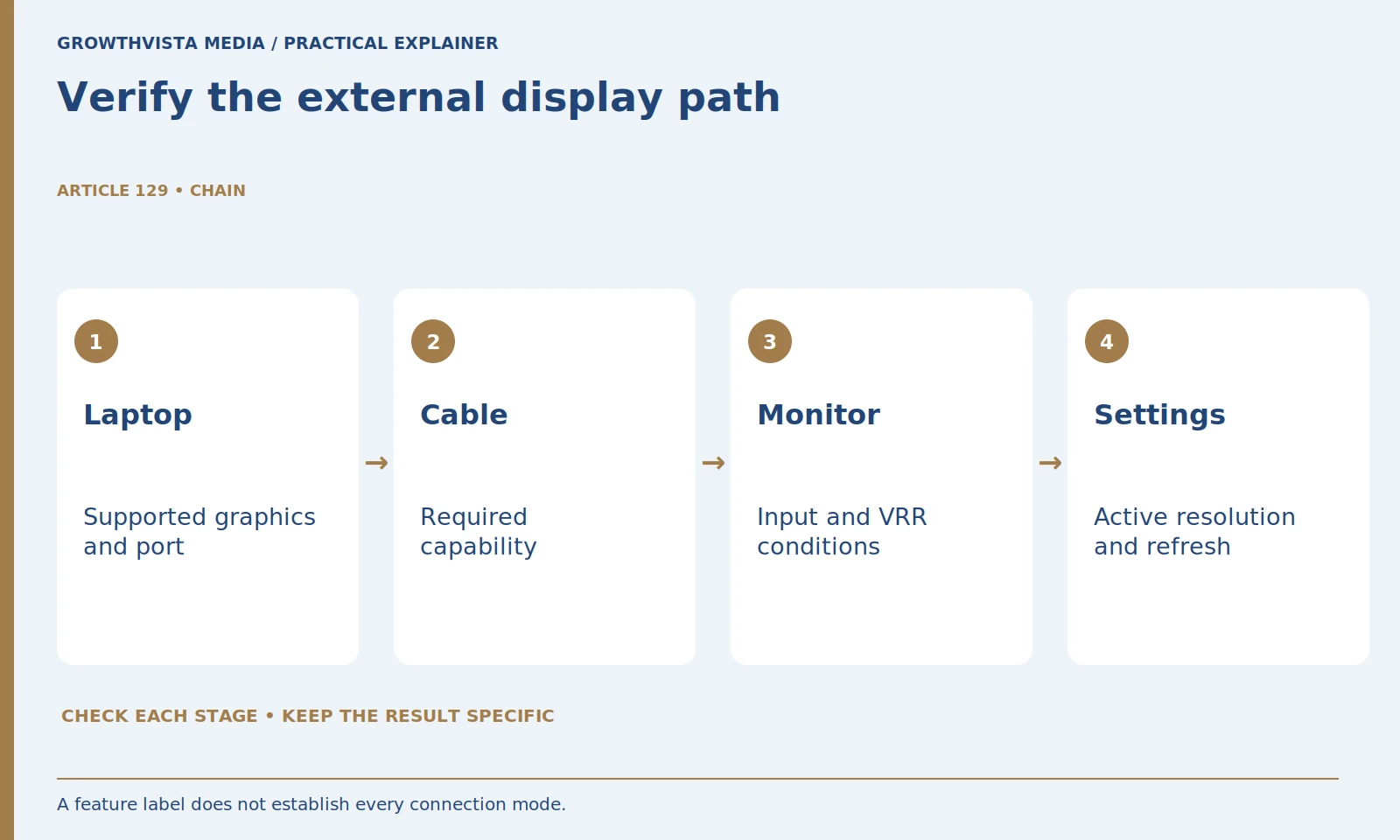
NVIDIA's G-SYNC material describes its display ecosystem; use the laptop documentation to establish your own configuration. For an external monitor, verify the host port, cable, monitor input, and supported mode as well.
Do not assume that VRR creates frames the GPU cannot render or eliminates every visual issue. Keep it separate from upscaling and frame-generation features. Each addresses a different part of the display and rendering workflow.
How should resolution be balanced with games and work?
Use relevant game evidence for the intended output and rendering settings, then check readable text and workspace in normal apps. Higher pixel dimensions are an input to the workload, not a universal performance penalty or a guarantee of a better office experience.
For office use, inspect text at a readable scaling level. For games, evaluate the intended native or scaled rendering arrangement and how it appears on that panel. A lower internal rendering resolution and a lower display output resolution are not always the same workflow.
Use the screen option that fits both the system and your priorities. A high-density panel can be attractive for text or detailed content, while another configuration may better fit your games and budget. Keep the actual task in the decision.
What should you check for an external gaming display?
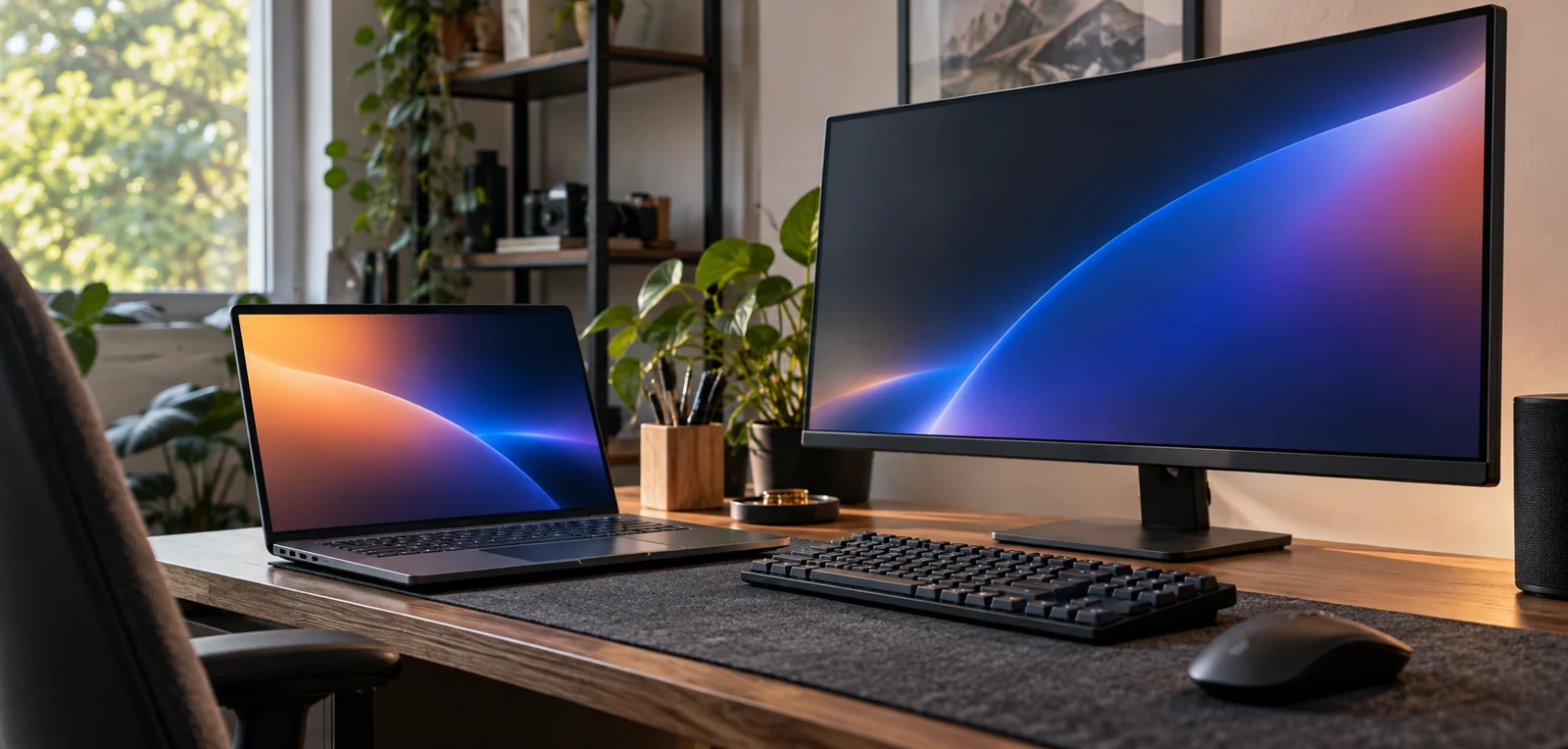
Verify the computer output, cable, monitor input, supported mode, and graphics settings as one path. Dell’s connection guidance distinguishes multi-display arrangements. An attractive internal panel specification does not establish the desired external resolution, refresh, or independent-display behavior. Dell: multi-display connections and compatibility
If using an external display, test the intended settings through the actual port and cable. Intel's gaming-laptop guide discusses the display as part of the complete purchase; the port guide provides a separate connection checklist.
Consider normal desktop tasks, video calls, and shared use alongside gaming. A screen that looks impressive in one demo can still have practical trade-offs that matter during the rest of the day.
What makes a useful display acceptance session?
Confirm the selected mode and run representative games and ordinary apps during the permitted evaluation period. Record settings and conditions. Distinguish a panel characteristic from a software or connection limitation before choosing a change or declaring the whole machine unsuitable.
Separate a connection limitation, a software setting, and a panel characteristic when a problem appears. Changing the entire laptop is not automatically the right answer to an unsupported cable path or a missing configuration setting.
Confirm the exact panel variant. Separate refresh, rendering, response, and latency. Verify supported variable-refresh and connection paths. Test representative games and normal applications. Keep verified facts, examples, and unanswered questions distinct when making the final decision.
Frequently asked questions
Does a 144 Hz panel guarantee 144 FPS?
No. Refresh capability and game rendering rate are different. Evaluate the complete system at the intended settings.
Is 1,000 divided by hertz total input latency?
No. It calculates a refresh interval, excluding other stages of the input-to-display path.
Does variable refresh create more rendered frames?
It is a supported display-timing arrangement, not a replacement for rendering performance.
Can one response-time label rank every panel?
No. Read the transition, mode, and measurement conditions and use relevant motion evidence.
Does a family name identify the screen I will receive?
Not necessarily. Confirm the exact panel option in the actual listing.
Should office applications also be tested?
Yes, if they are part of your use. Check readable scaling and ordinary controls alongside representative games.
Sources and further reading
Official documentation supports the technical guidance. Examples and worksheets are editorial methods, not hands-on product benchmarks. Reviewed October 2026.
- Intel: choosing a gaming laptop
- NVIDIA: G-SYNC display technology
- Dell: multi-display connections and compatibility