Office Chair Adjustments: Set Up Your Desk Together
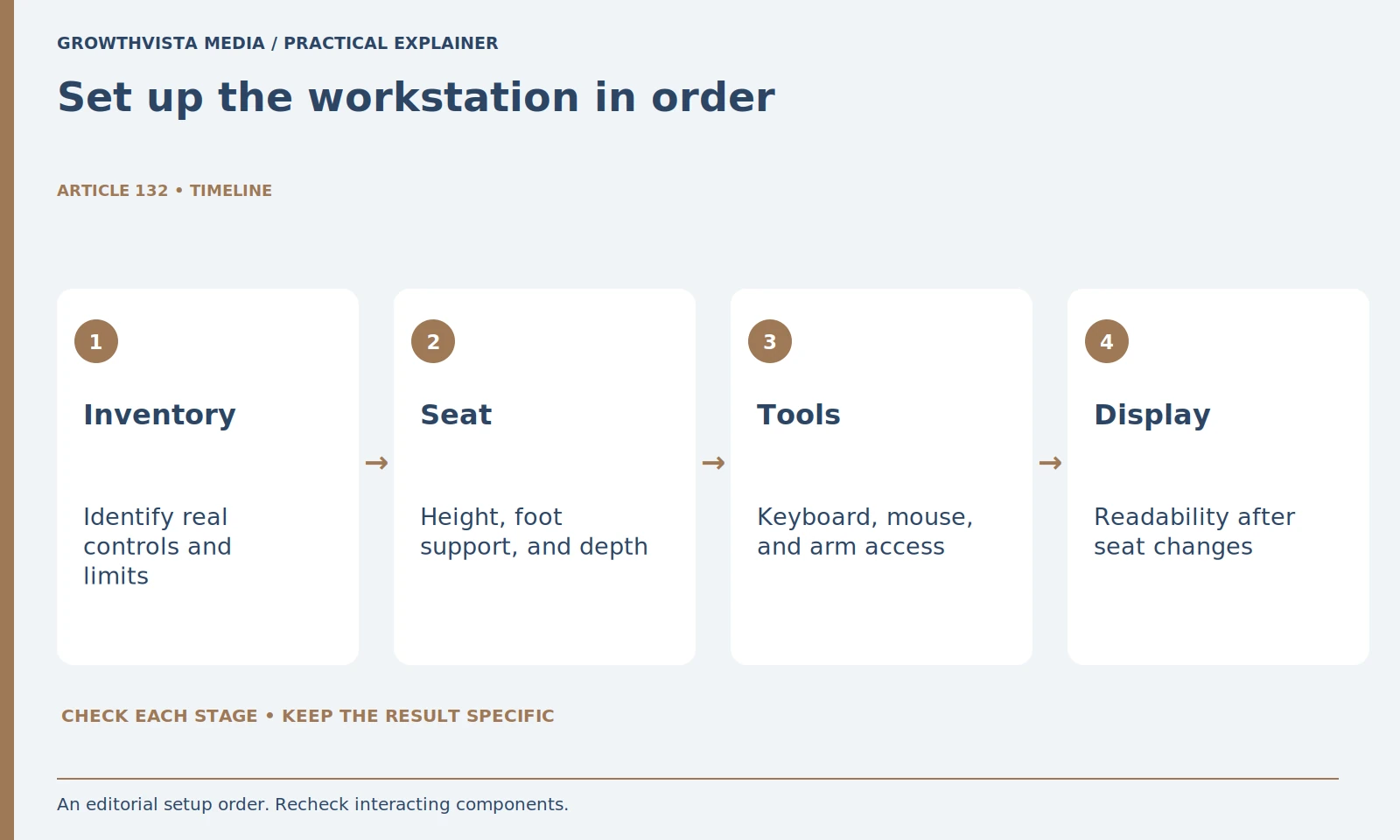
Office chair adjustments should be made together with the working surface, input tools, and screen. Identify the actual controls, establish usable height and foot support, review seat and back settings, then check armrests, reach, and display readability. Change one supported setting at a time so you can tell what helped.
There is no single configuration for every person or desk. This guide gives an orderly setup and troubleshooting method, not individual medical advice. Use the model’s manual and save a practical settings record. Recheck the arrangement when the workstation, main task, or user changes rather than assuming an old lever position remains appropriate.
Your decision checklist
- Identify the actual controls and a starting task.
- Set up the seat in relation to the working surface.
- Recheck arms, tool reach, and display readability.
- Change one setting and save what it solved.
How should office chair adjustments be started?
Inventory the controls and workstation components before moving them. Identify which lever performs each function using the manual, then choose one representative task and record a baseline. A recoverable starting point makes changes easier to assess and reverse.
Then define one starting task, such as writing a document with the keyboard and mouse. Clear unnecessary objects from the work area so the setup is not distorted by temporary clutter. Record the starting arrangement with a photograph and a few notes. This baseline lets you reverse an unsuccessful change instead of trying to remember which control you moved several steps earlier.
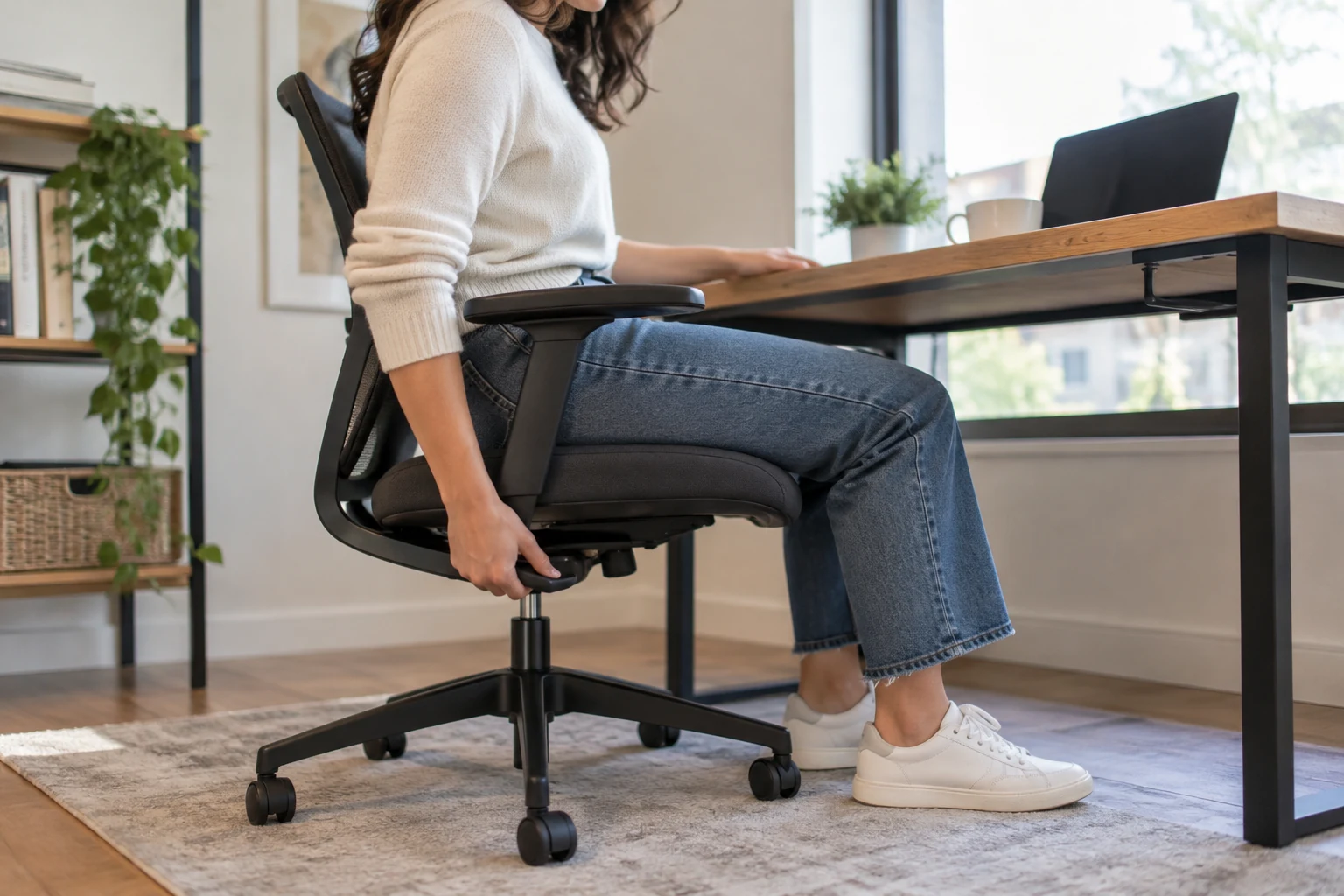
Should chair height be set independently of the desk?
No. Check the supported position in relation to the primary work surface, leg space, and input tools. OSHA’s desk guidance treats workstation clearance and arrangement as relevant considerations. A height change can require revisiting foot support, armrests, and screen position. OSHA: desks
A height change can affect several things at once: armrest clearance, screen position, and leg space under drawers. Recheck these before continuing. Do not judge success by one angle copied from a diagram. The useful question is whether the complete workstation supports the task without forcing you to reach around an obstruction. A desk that cannot accommodate the arrangement may need a separate change.
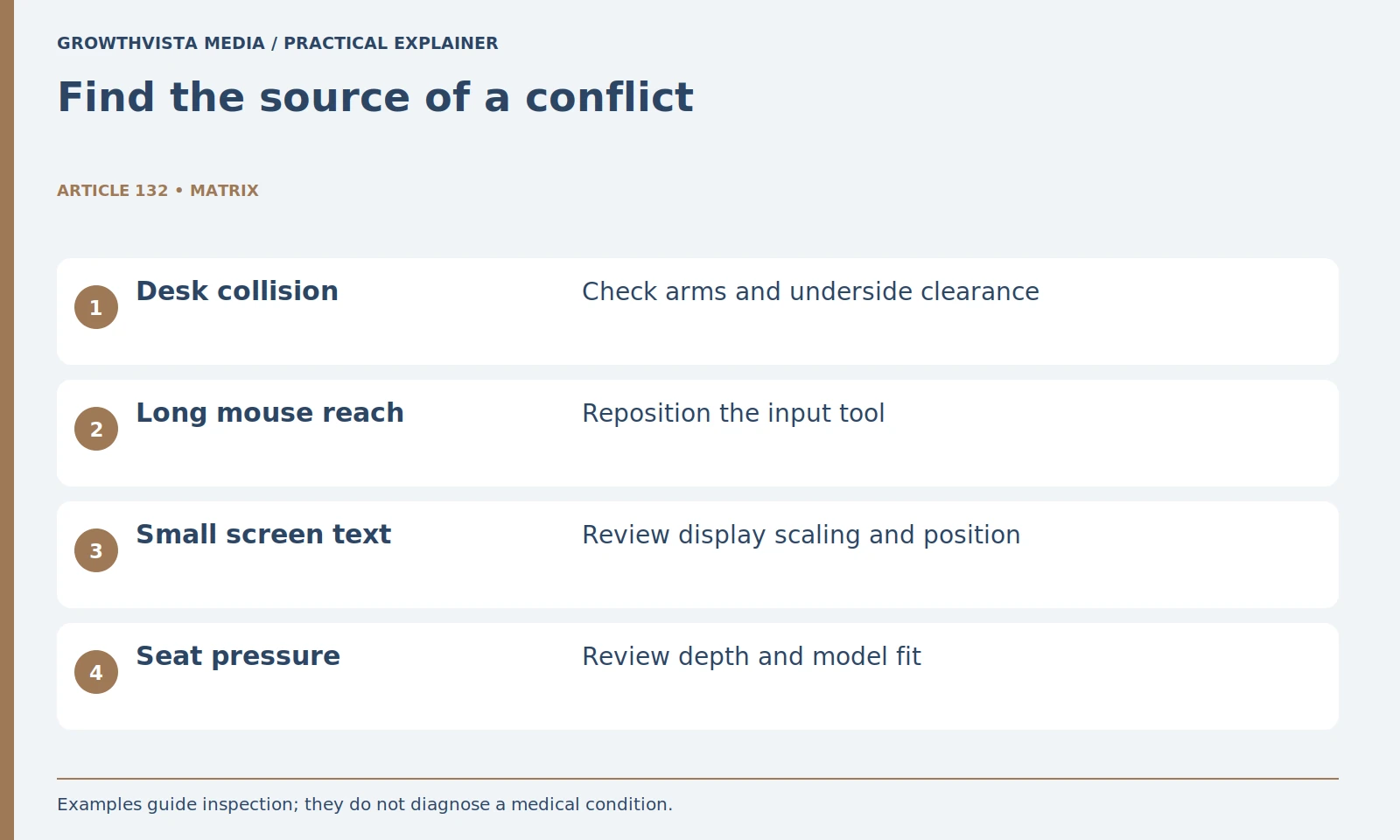
| Observation | One change to test | Verification |
|---|---|---|
| Desk collision | Supported armrest setting | Approach the keyboard |
| Feet unsupported | Suitable foot support | Repeat the primary task |
| Mouse too far | Move the mouse area | Use normal pointer tasks |
| Text hard to read | Display scaling or position | Read an actual document |
Why review seat depth before fine-tuning the back?
The usable seat position affects whether the backrest remains accessible during the task. Try the available depth setting, then the supported back controls. Where a model lacks an adjustment, record the limitation instead of forcing a compensation that undermines the intended arrangement.
Next explore the available backrest or lumbar controls. Change one control, return to the primary task, and note the result. Avoid combining several dramatic changes and then assigning the outcome to one feature. Some chairs offer a fixed backrest shape with adjustable recline tension, while others provide independent components. The model’s actual control system determines what can be changed.
How should armrests and the mouse be adjusted together?
Check approach to the desk and ordinary keyboard and pointer use. Reposition frequently used tools and supported armrest settings before concluding that the chair alone is responsible. An obstruction in the work area can make an otherwise usable setting difficult.
Check the setup during real actions, including typing, selecting text, and reaching for a notebook. If the desk edge or tray prevents a workable position, document the obstruction. Supported armrest removal or a different desk configuration may be options, but consult the relevant instructions first. Avoid loosening structural hardware as an improvised way to create extra clearance.
Why revisit the screen after changing the chair?
Your new seat position changes the relationship to the display. Check readable content and supported screen positioning separately from chair settings. Software scaling or a documented laptop arrangement may address a display problem more directly than repeated height changes.
A laptop creates a common tradeoff because the screen and keyboard are physically connected. Consider a supported stand with separate input devices if that suits your work and budget. Record the complete configuration, including display scaling. Otherwise, a later change in text size or monitor position may make your original chair settings appear unsuitable even though the underlying issue is somewhere else.
What is a useful way to troubleshoot a setup conflict?
Name one observation, make the smallest supported relevant change, and repeat the same task. OSHA’s evaluation checklist considers multiple workstation factors, so keep the actual source of the conflict visible. Do not attribute a combined set of changes to one control. OSHA: workstation evaluation
Keep notes in plain language. “Can approach the keyboard without hitting the desk” is clearer than “ergonomics improved.” If a control cannot provide the needed range, stop treating repeated adjustment as the solution. The limitation may belong to the chair, desk, or combination. Persistent symptoms warrant appropriate professional advice, especially when ordinary adjustments do not resolve the problem.
How should shared chair settings be managed?
Each user should check their own arrangement and save understandable landmarks or photographs. Supported adjustment and ordinary task variation matter more than copying another person’s position. Do not invent numbered precision when the model’s controls have no numbered settings.
For a shared chair, make a simple settings card for each user. Record lever positions or practical landmarks that the model supports; do not invent precision where there are no numbered controls. A photograph can show the configuration of the desk, screen, and footrest. Each person should repeat their own fit checks after restoring the settings. One user’s preferred configuration should not become a default that everyone else must tolerate.
What belongs in a reusable workstation record?
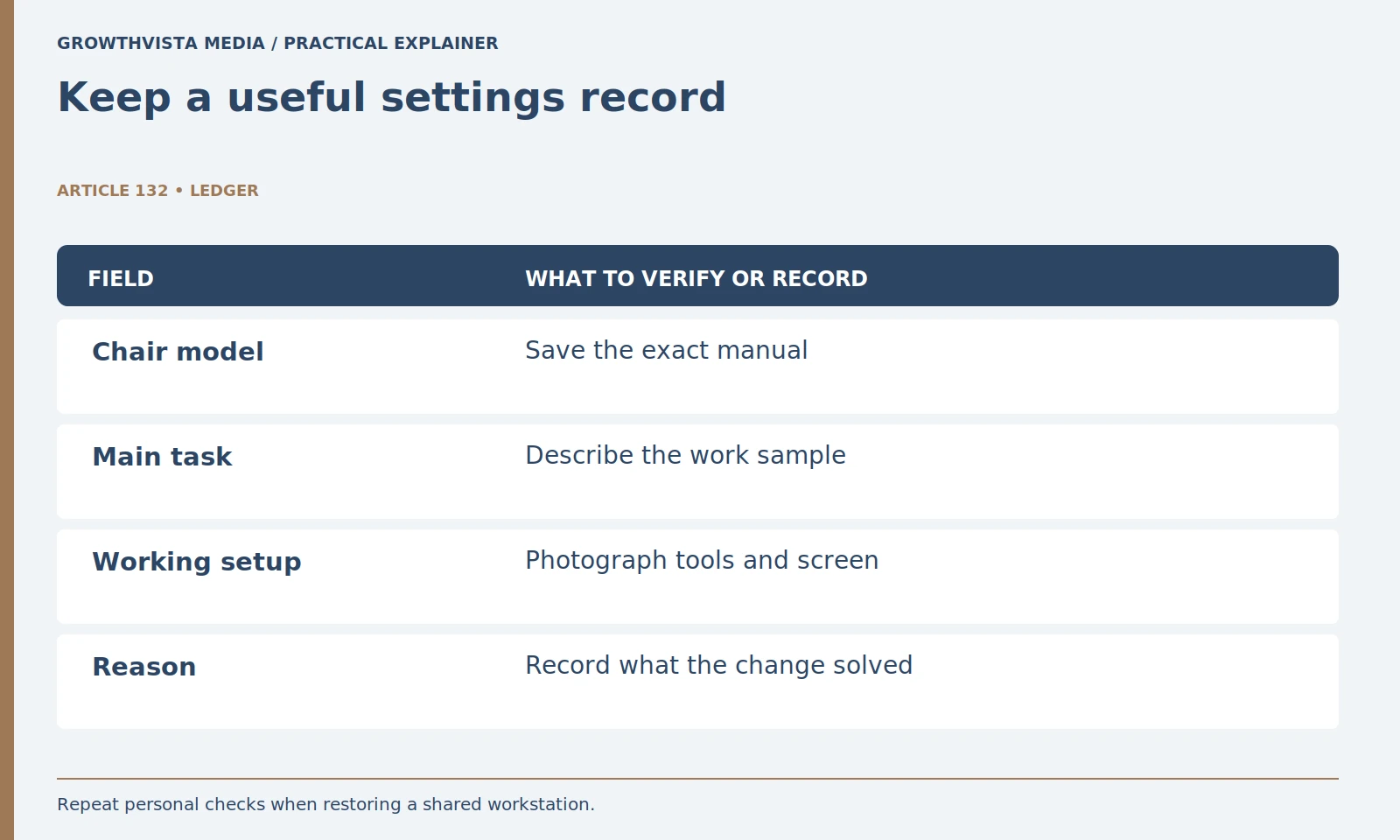
Record the exact chair, desk arrangement, task, screen settings, and what each change solved. Keep the manual available and revisit the record after a material change. A useful note explains the working arrangement rather than merely listing lever positions.
A useful final check is to step away, return, and perform a short sample of normal work without consciously managing every movement. If an obstruction reappears, revise the relevant component and repeat the sample. Your record should explain why the setting works, not merely list lever positions. That makes the arrangement easier to reproduce and easier to improve later.
Identify the actual controls and a starting task. Set up the seat in relation to the working surface. Recheck arms, tool reach, and display readability. Change one setting and save what it solved. Keep verified findings, illustrative examples, and unresolved requirements separate in the final decision.
Frequently asked questions
Should the chair or screen be adjusted first?
Start with the supported seat and working-surface arrangement, then revisit the display. The final setup is iterative because the parts affect one another.
What if the desk requires a higher chair position?
Evaluate the complete supported arrangement, including appropriate foot support or documented desk changes. Do not leave one useful adjustment isolated from its consequences.
Can I copy a colleague’s chair settings?
Use them only as a possible starting point and repeat your own task and fit checks. Different users and desks can need different arrangements.
Why does a laptop create a setup trade-off?
Its screen and keyboard are connected physically. A supported stand and separate input devices can create independent positioning choices where appropriate.
How many changes should I make while troubleshooting?
Test one supported relevant change at a time and repeat the same task so the result can be attributed more clearly.
When should saved settings be reviewed?
After changes to the desk, display, tools, main task, or user. Save what each setting solved, not only the lever position.
Sources and further reading
Official documentation supports the technical guidance. Examples and worksheets are editorial methods, not hands-on product benchmarks. Reviewed October 2026.