Best Password Managers in 2026: 10 Options Compared
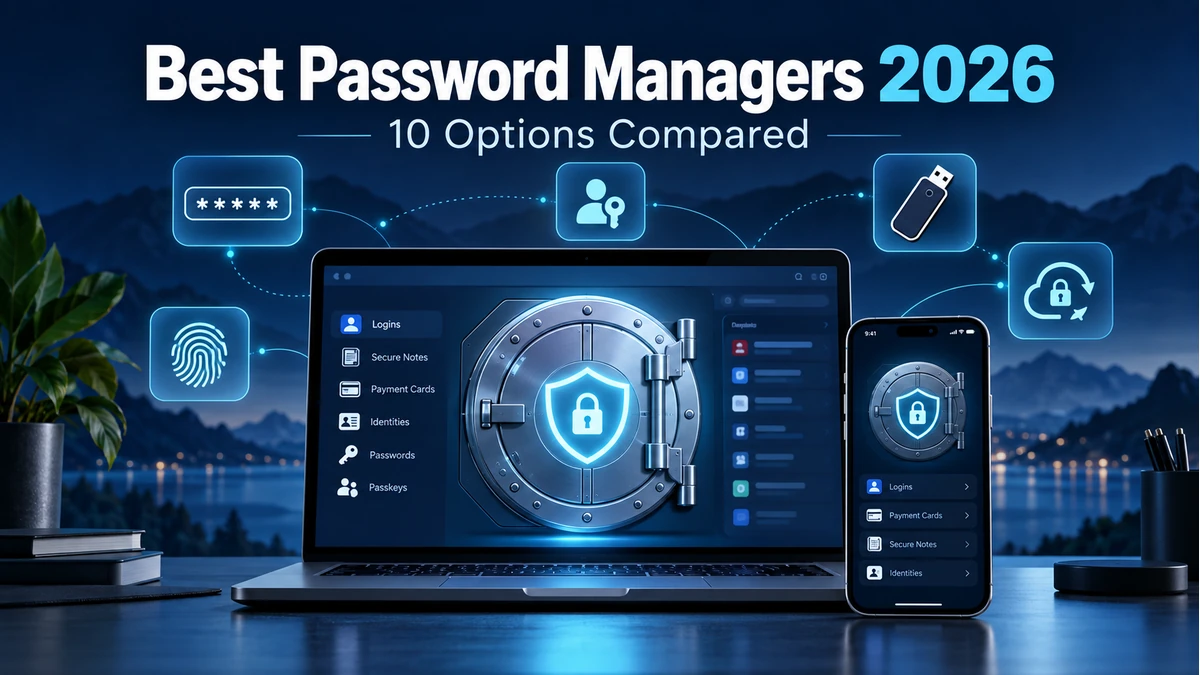
A password manager solves a basic security problem: people have too many accounts to create and remember a unique, strong password for every one. Instead of reusing credentials, you keep encrypted login data in a vault and unlock that vault with a strong account credential, passkey or supported device authentication.
The best password managers in 2026 do more than store passwords. Leading services can generate credentials, autofill logins, sync across devices, store passkeys, flag weak or breached credentials and provide controlled sharing for families or teams.
Passkeys are increasingly important. 1Password, Bitwarden and Proton Pass all document the ability to store and use passkeys, although account-unlock support and platform details differ. Bitwarden, for example, distinguishes between saving passkeys for websites and using a passkey to log in to or unlock the Bitwarden vault.
This guide compares 10 password managers and explains encryption, zero-knowledge architecture, passkeys, two-factor authentication, emergency access, sharing and what to check before trusting a service with your credentials.
What is the best password manager in 2026?
The best password manager depends on your devices, security priorities, sharing needs and budget. 1Password is a strong polished all-round option, Bitwarden stands out for open-source value and a capable free plan, and Proton Pass is appealing to privacy-focused users. Apple Passwords and Google Password Manager can be sufficient for users who stay mainly within those ecosystems, while KeePassXC suits technical users who prefer local vault control. Before choosing, compare encryption architecture, passkey support, multi-factor authentication, recovery options, cross-platform compatibility, sharing and plan limits.
What is the best free password manager?
Bitwarden is one of the strongest free password-manager options for users who want broad credential management without immediately paying for a subscription. Proton Pass is another option for users who prioritize privacy and want features such as aliases alongside password and passkey storage. Built-in options such as Apple Passwords and Google Password Manager can also be sufficient when most devices belong to the same ecosystem. Compare device support, sharing, passkeys, recovery and other limits before choosing a free option.
Quick Comparison: Best Password Managers
Plan terms and platform capabilities change frequently. Verify current passkey, sharing, recovery and free-plan limits before publication.
| Password Manager | Best For | Free Plan | Passkeys | Standout Feature | CTA |
|---|---|---|---|---|---|
| 1Password | Polished all-round use / families | Trial, not permanent free tier | Yes | Watchtower + strong sharing | View Plans → |
| Bitwarden | Open-source value | Yes | Yes | Strong free tier + transparency | Try Bitwarden → |
| Proton Pass | Privacy-focused users | Yes | Yes | Aliases + Proton ecosystem | Try Proton Pass → |
| NordPass | Simple cross-platform use | Yes / limits vary | Yes | Clean interface + modern crypto | View Plans → |
| Keeper | Security-focused families / business | Limited/trial varies | Yes | Granular security + sharing | View Plans → |
| Dashlane | Premium security extras | Limited / current terms vary | Yes | Security monitoring + extras | View Plans → |
| RoboForm | Form filling + value | Yes | Support varies by platform | Mature autofill/form filling | View Plans → |
| KeePassXC | Offline/local-control users | Yes | Limited / ecosystem dependent | Local open-source vault | Download → |
| Apple Passwords | Apple ecosystem | Included | Yes | Deep Apple integration | Use Passwords → |
| Google Password Manager | Chrome / Android convenience | Included | Yes | Built into Google ecosystem | Open Manager → |
1. 1Password — Best Polished All-Round Password Manager
1Password combines a mature cross-platform vault with strong sharing and security-health features. Its Watchtower system flags compromised websites, vulnerable credentials and accounts where passkeys are available.
1Password supports creating, saving, using and sharing passkeys across supported apps and browsers. Its account security also uses a Secret Key alongside the account password in its traditional sign-in model, with passkey-based account access available on supported setups.
It does not offer the kind of permanent free personal tier found at Bitwarden or Proton Pass, so cost matters for users who only need basic storage.
Best for: Families and individuals who value polished apps, sharing and proactive security guidance.
2. Bitwarden — Best Open-Source Value
Bitwarden is especially attractive to technical and budget-conscious users because of its open-source ecosystem and capable free plan.
It can save and autofill passkeys for websites, and Bitwarden also documents passkey login/unlock for the vault under supported browser and authenticator conditions. That distinction matters because passkey-based vault decryption has additional PRF requirements.
Bitwarden offers more configuration than some consumer-focused rivals, which is useful for enthusiasts but can make the interface feel less guided to beginners.
Best for: Users wanting strong value, open-source transparency and broad credential control.
3. Proton Pass — Best for Privacy-Focused Users
Proton Pass fits naturally for people already using Proton Mail, VPN or the broader Proton privacy ecosystem.
Proton documents passkey storage, use, sharing and export across its supported apps, and its free plan includes unlimited logins, notes and devices plus a limited number of hide-my-email aliases.
One important nuance is that Proton’s current passkey documentation says passkeys can secure external accounts, while logging into Proton Pass itself still uses supported Proton account authentication rather than a passkey.
Best for: Privacy-focused users who value aliases and integration with Proton services.
4. NordPass — Best for a Simple Modern Interface
NordPass focuses on a clean consumer experience across common desktop and mobile platforms and supports modern credential features including passkeys.
It is a practical fit for users who want a conventional hosted password manager without the configuration depth of some open-source tools.
Plan limits and bundled security features can change, so compare the current free and premium tiers rather than relying on older reviews.
Best for: Users who prioritize an approachable interface and straightforward cross-device use.
5. Keeper — Best for Security-Focused Families and Teams
Keeper provides consumer, family and business products with a strong emphasis on vault security, sharing and administrative controls.
It is especially relevant when credential management extends beyond one person and needs controlled sharing or organizational policy.
Some monitoring and add-on features can sit outside the base plan, so total cost should be compared using the exact current package.
Best for: Families, professionals and organizations needing granular sharing and management.
6. Dashlane — Best for Premium Security Extras
Dashlane combines password management with security-monitoring features and premium extras that can appeal to users who want more than a basic vault.
It supports passkey workflows and cross-device autofill on supported platforms, while its security tools focus on identifying weak, reused or compromised credentials.
The feature bundle has changed over time, so readers should verify current plans and device support before choosing it for a specific extra.
Best for: Users willing to pay for a polished manager with broader security features.
7. RoboForm — Best for Autofill and Complex Web Forms
RoboForm has a long history in password management and remains particularly strong at filling login and form data.
That makes it attractive to users who regularly complete addresses, identities and other repetitive web forms in addition to normal credential autofill.
Passkey and passwordless capabilities are evolving across the industry, so verify the exact current platform support if passkeys are a primary buying criterion.
Best for: Users who prioritize mature autofill and form-filling behavior.
8. KeePassXC — Best for Local and Offline Control
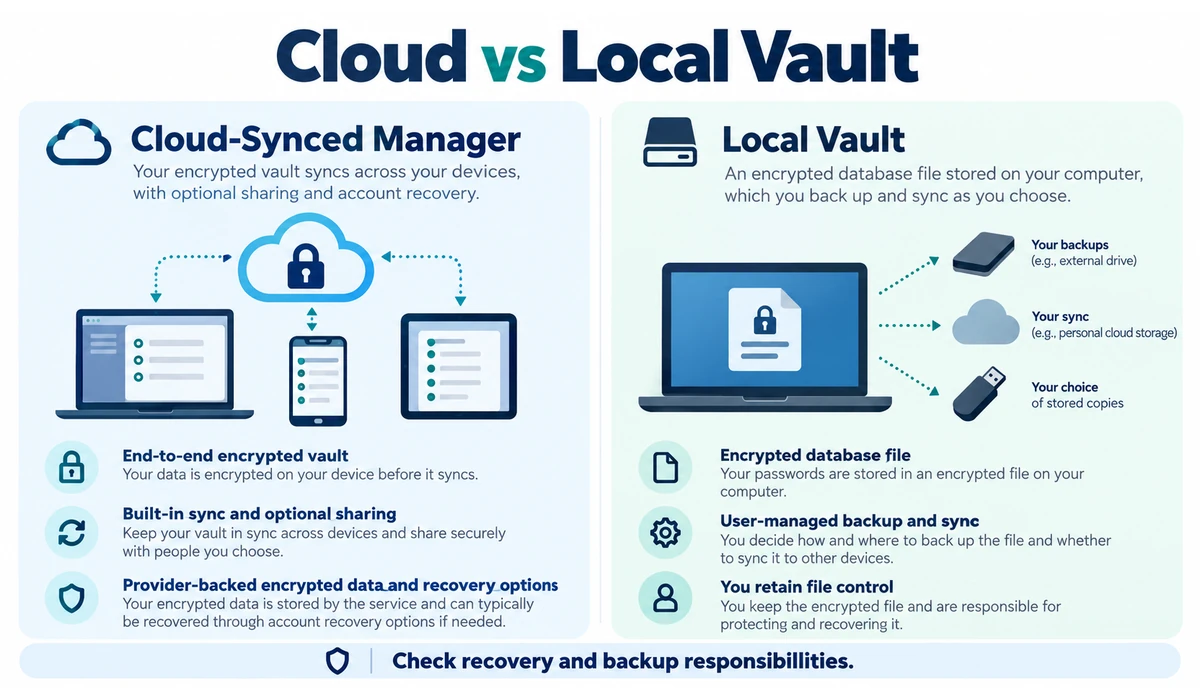
KeePassXC takes a different approach from cloud-first subscription services. It stores an encrypted database file that the user controls locally.
This provides strong portability and independence but also transfers more responsibility to the user for synchronization, backup and recovery.
Browser integration is available, but the experience is less turnkey than hosted services, and passkey workflows depend on the broader local ecosystem rather than a unified cloud account.
Best for: Technical users who prefer local vault ownership and are comfortable managing backups and sync.
9. Apple Passwords — Best for Apple-Only Households
Apple’s Passwords app is integrated into the Apple ecosystem and handles passwords, verification codes and passkeys across supported Apple devices.
It is convenient for users whose devices are primarily iPhone, iPad and Mac because credential creation and autofill are built into the operating system.
A dedicated cross-platform manager is generally more flexible for households mixing Apple, Windows, Android and Linux.
Best for: Users deeply invested in Apple’s device ecosystem who want built-in credential management.
10. Google Password Manager — Best Built-In Option for Chrome and Android
Google Password Manager is integrated with Google accounts, Chrome and Android, making it a low-friction option for users already living inside that ecosystem.
It can generate and autofill passwords and supports passkey workflows on compatible websites and devices.
Dedicated managers generally offer richer vault organization, family/team controls or cross-ecosystem features, but the built-in option may be sufficient for straightforward personal use.
Best for: Chrome and Android users who want credential management without installing a separate subscription service.
Open Google Password Manager →
Cloud Password Manager vs Local Password Vault
| Factor | Hosted / Cloud-Synced Manager | Local Vault (e.g. KeePassXC) |
|---|---|---|
| Device sync | Built in | User-managed / third-party sync |
| Backups | Provider architecture + recovery options | User responsibility |
| Setup | Usually simple | More technical |
| Sharing | Often built in | Usually manual / external workflow |
| Control | Provider hosts encrypted vault data | User controls vault file |
| Best fit | Most consumers / families | Technical local-control users |
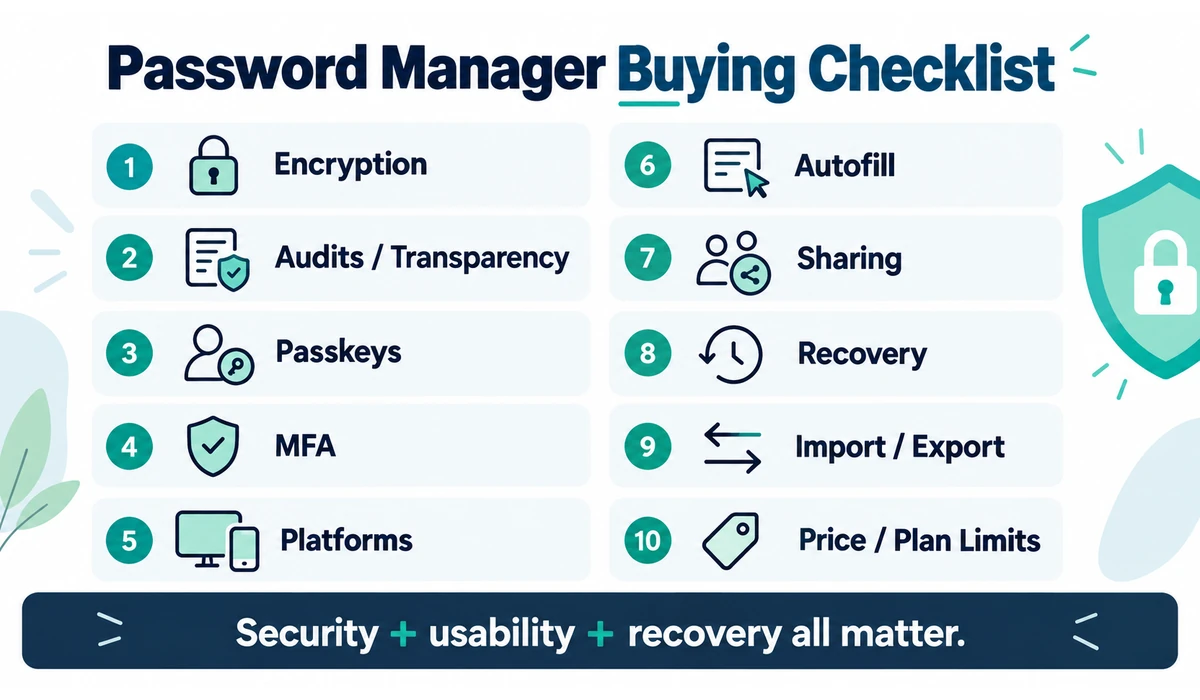
What Should You Look for in a Password Manager?
1. Encryption and Security Architecture
Look for well-documented encryption, secure key derivation and a design intended to prevent the provider from reading vault contents.
2. Independent Audits and Transparency
Security audits, open-source clients or published technical documentation provide additional evidence for evaluating a provider.
3. Passkey Support
Check whether the manager can save and use passkeys, whether mobile platforms are supported and whether passkeys can also secure the manager account itself.
4. Multi-Factor Authentication
Protect the password-manager account with strong MFA. Hardware security keys or passkeys can provide phishing-resistant authentication where supported.
5. Cross-Platform Apps
Confirm support for every desktop, phone and browser you actually use.
6. Autofill Reliability
A secure vault is frustrating if autofill is unreliable. Browser extensions and mobile autofill should work consistently without filling credentials into suspicious contexts.
7. Sharing
Families and teams should use controlled vault or item sharing rather than sending passwords through messages or email.
8. Recovery and Emergency Access
Understand what happens if you forget the account password, lose a device or lose a passkey/security key. Recovery models vary significantly.
9. Import and Export
A good manager should make migration possible. Exports can contain highly sensitive plaintext data, so temporary export files must be protected and deleted securely.
10. Price and Plan Limits
Compare device limits, sharing, breach monitoring, aliases, emergency access and business features—not only the headline subscription price.
Passwords vs Passkeys
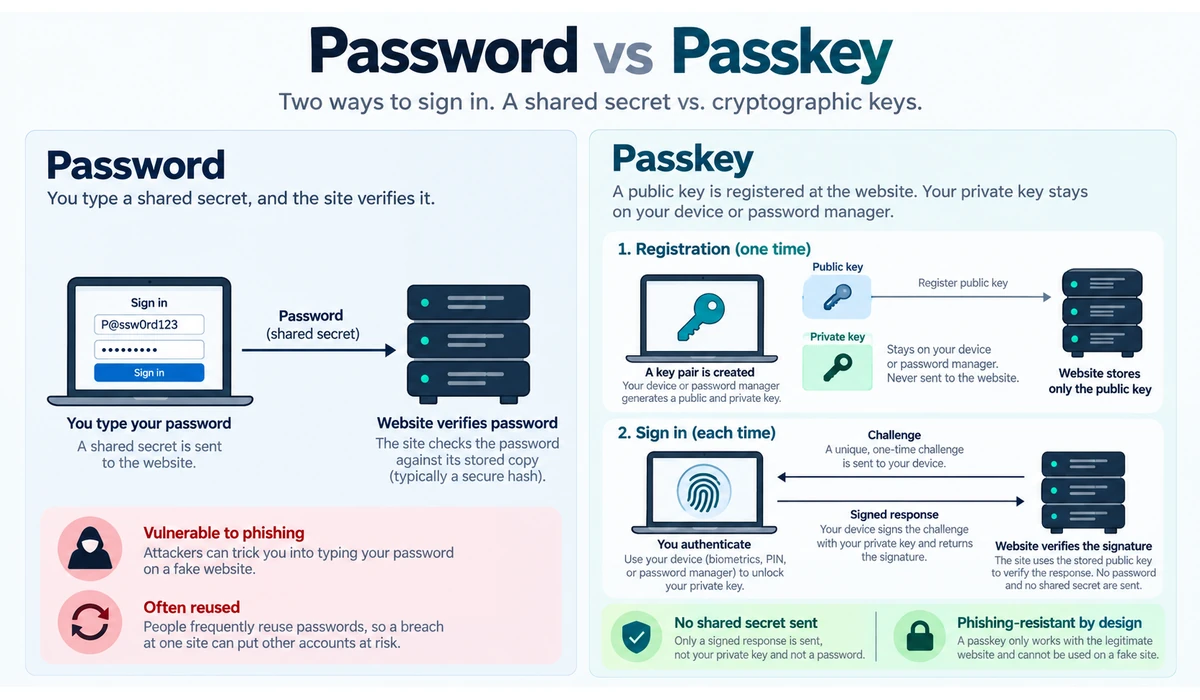
Passkeys do not make password managers obsolete. During the transition, users often need one place to manage passwords, passkeys, recovery information and other secure items.
| Factor | Password | Passkey |
|---|---|---|
| Secret typed into website | Yes | No |
| Needs memorization | Usually | No |
| Phishing resistance | Depends on user/site | Designed to be phishing-resistant |
| Credential stored by service | Password verifier/hash model | Public key |
| User-side secret | Password | Private cryptographic key |
| Password manager role | Generate/store/autofill | Store/sync/invoke on supported platforms |
Why Reusing Passwords Is Risky
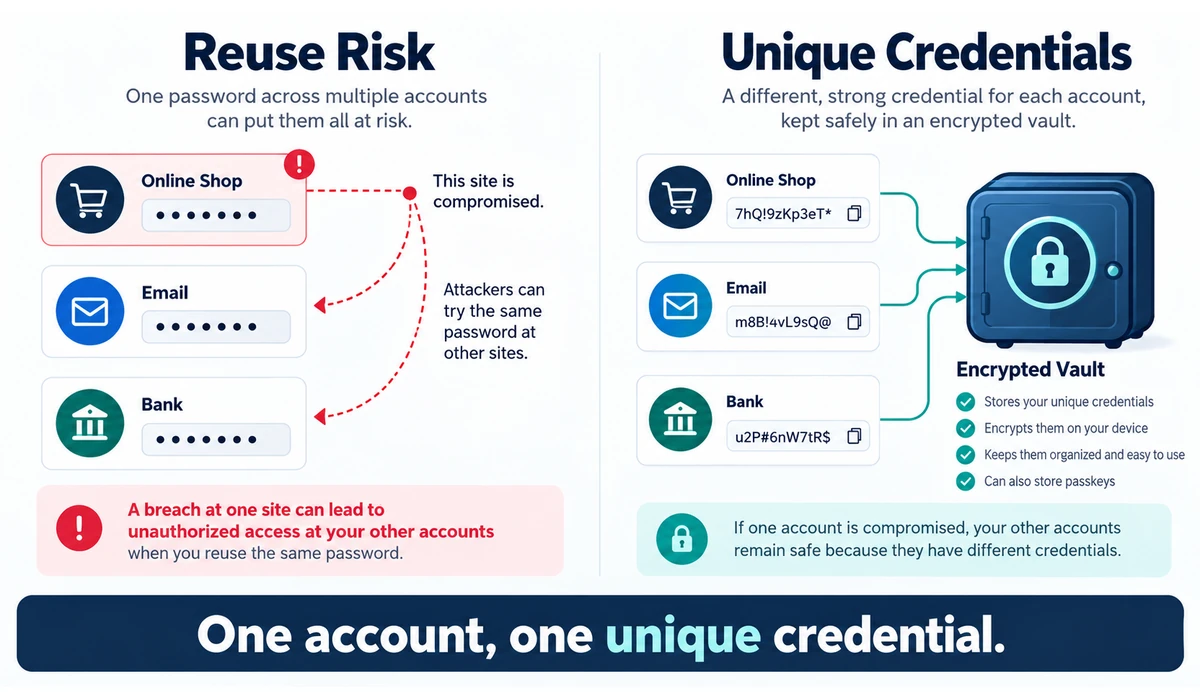
When the same password is reused, a credential exposed by one service can be tried against unrelated accounts. A password manager makes unique credentials practical because users do not need to memorize each one.
A safer pattern is a unique generated password or passkey for each account, strong protection for the password-manager account itself, and multi-factor authentication where appropriate.
How to Set Up a Password Manager Safely
-
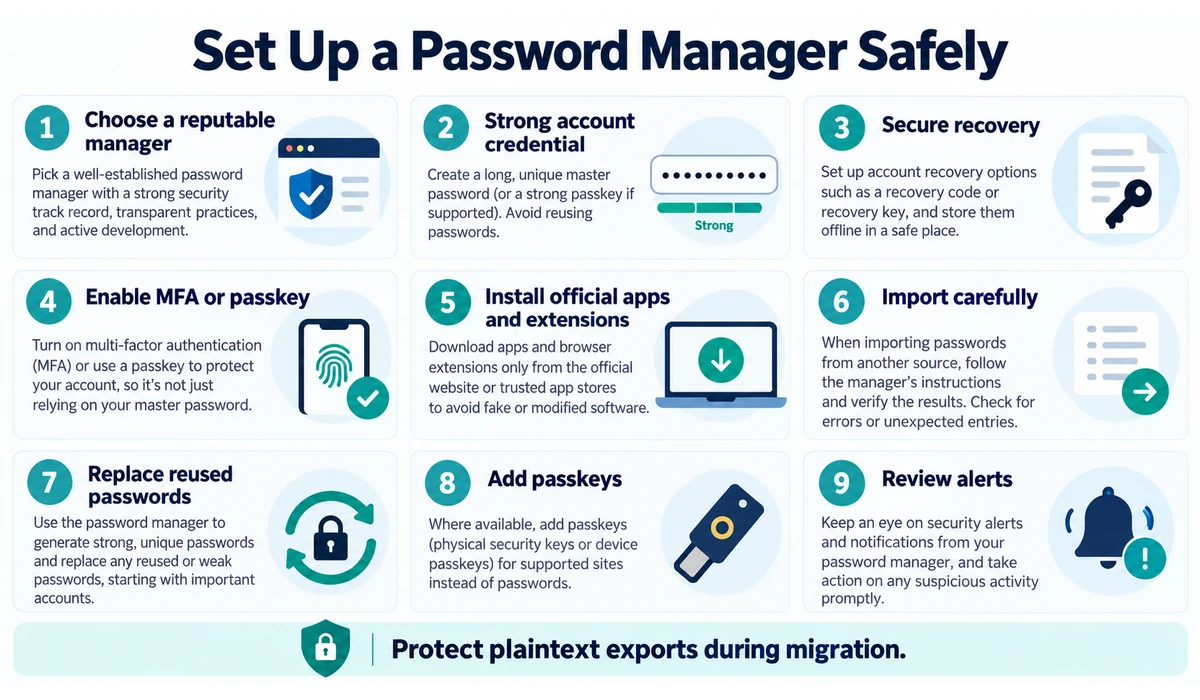
- Choose a reputable manager and download it from the official source.
- Create a strong, unique account password if the service uses one.
- Store recovery information using the provider’s recommended process.
- Enable strong multi-factor authentication or supported phishing-resistant account protection.
- Install the official browser extension and mobile app.
- Import existing credentials carefully; protect and securely remove any plaintext export file afterward.
- Replace reused and weak passwords gradually, starting with email, banking, cloud storage and other high-value accounts.
- Create passkeys for supported accounts when appropriate.
- Review security-health or breach-monitoring alerts regularly.
- Keep devices, browsers and password-manager apps updated.
Can You Trust a Password Manager With Everything?
A password manager concentrates valuable credentials, so provider selection and account protection matter. The alternative—reusing memorable passwords across many sites—creates a different and often larger risk.
No software should be described as unhackable. Evaluate the provider’s security design, audits, incident history, update practices and recovery model, then protect the account with a strong unique credential and MFA or passkeys where supported.
For especially sensitive recovery codes or offline backups, some users may also keep an appropriately secured offline copy separate from the everyday vault.
Frequently Asked Questions
Are password managers safe?
Reputable password managers are designed to protect vault data with strong encryption, but no product eliminates all risk. Choose a well-documented provider, keep software updated and strongly protect the manager account.
What is the safest password manager?
There is no single password manager that is objectively safest for every user. Security depends on the provider’s encryption architecture, authentication design, transparency, audits, recovery model and incident response, as well as how securely the user protects the account. Bitwarden, 1Password and Proton Pass are examples of established options with documented security approaches, but users should evaluate the current technical details and choose the service that fits their threat model and device ecosystem.
What happens if I forget my master password?
Recovery varies by provider. Some services offer family/admin recovery or recovery codes; others intentionally cannot recover a vault without the required secret. Understand the recovery process before migrating everything.
Should I store passkeys in a password manager?
A cross-platform manager can make passkeys available across supported devices and ecosystems. Whether that is preferable to an operating-system credential store depends on your device mix and threat model.
Is Bitwarden really open source?
Bitwarden publishes source code for major components and documents its security model. Open source improves transparency but does not by itself guarantee security.
Do I still need two-factor authentication?
For accounts still using passwords, MFA adds an important layer. For the password-manager account, use the strongest supported protection and keep recovery methods secure.
Can I switch password managers later?
Usually yes. Most leading services support imports and exports, but exported vault files may be unencrypted plaintext and must be handled carefully.
Are built-in Apple or Google password managers enough?
They can be sufficient for users strongly centered on those ecosystems. Dedicated managers tend to provide broader cross-platform support, sharing and vault-management features.
Final Thoughts
The best password managers make secure behavior easier: unique credentials, reliable autofill, strong account protection and a practical path toward passkeys.
1Password is a polished choice for users who value sharing and security guidance; Bitwarden stands out for open-source value; Proton Pass is compelling for privacy-focused users and people already in the Proton ecosystem. Other options can be better fits for specific device ecosystems, business controls or local vault ownership.
The right choice is the one you can use consistently across every important device. Before migrating, verify current platform support, recovery options, passkey behavior and plan limits.
Whichever manager you choose, protect the vault account carefully. It becomes one of the most important accounts you own.