Password Manager Setup: Move Logins Without Losing Access
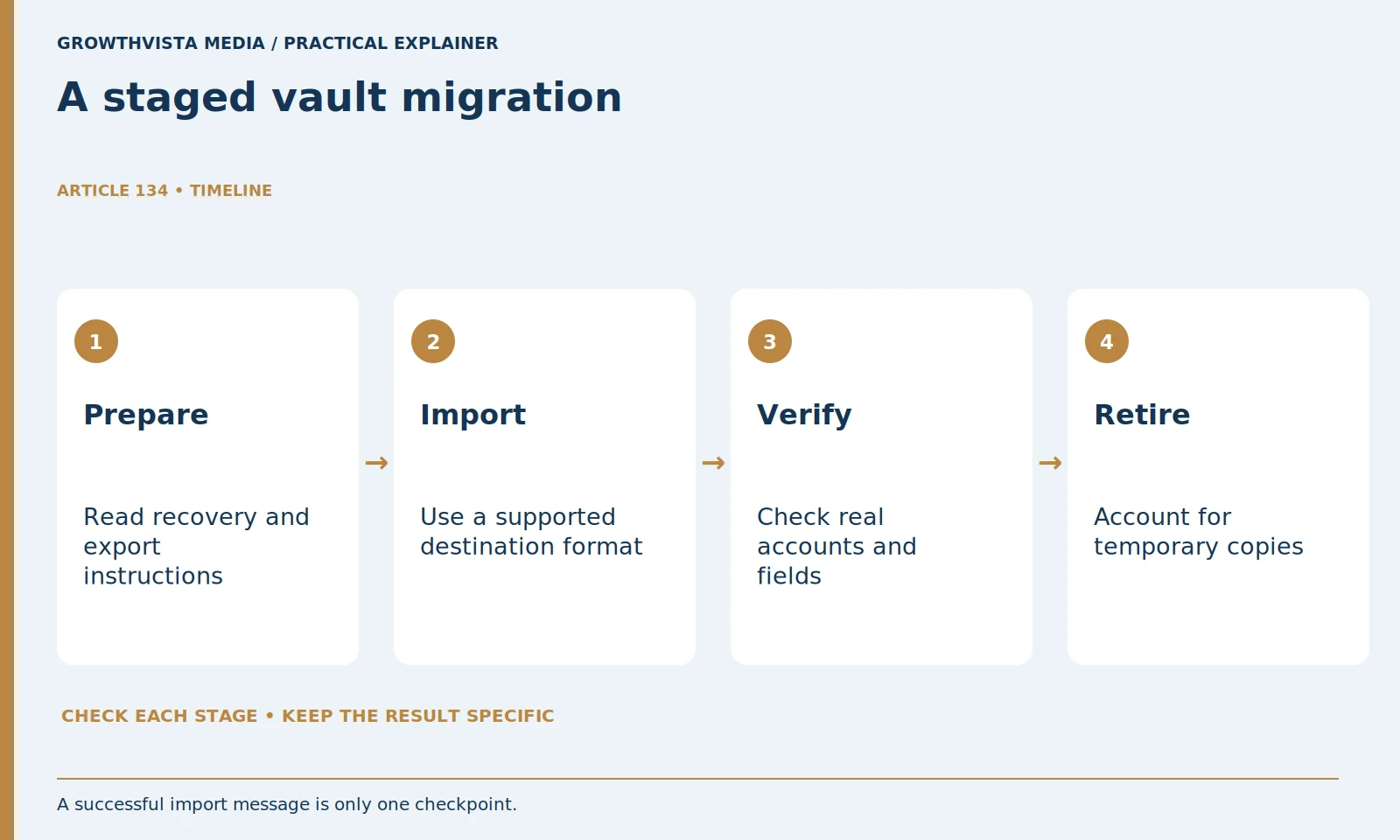
Password manager setup should be a staged migration with a recovery plan, supported import, verified logins, and controlled handling of temporary exports. Begin with the new manager’s access and recovery requirements, inventory current sources without copying secrets into a worksheet, and retire old storage only after important accounts and devices work.
An import-complete message is a checkpoint, not proof that every item or field transferred. Providers differ in formats, attachments, shared items, passkeys, and recovery. The steps below are a researched workflow rather than product-specific menu instructions. Use current documentation and keep passwords, recovery codes, and readable exports out of public tools or support messages.
Your decision checklist
- Understand recovery before migration.
- Use supported export and import formats.
- Verify real accounts, fields, and required devices.
- Account for temporary copies before retiring old storage.
What is the first step in password manager setup?
Understand access and recovery before moving credentials. Identify the manager account, supported authentication, and a private recovery route that does not depend solely on the same locked vault. Review the actual provider’s instructions rather than testing recovery by deliberately losing access.
Protect the manager account with the authentication options supported by the provider. Avoid a circular plan in which the only copy of a code required to unlock the vault is stored inside that same locked vault. Keep private recovery records according to the service’s instructions and your circumstances. Test understanding through a safe documentation review or supported check; do not deliberately lock yourself out as an experiment.

How do you inventory logins without creating another secret store?
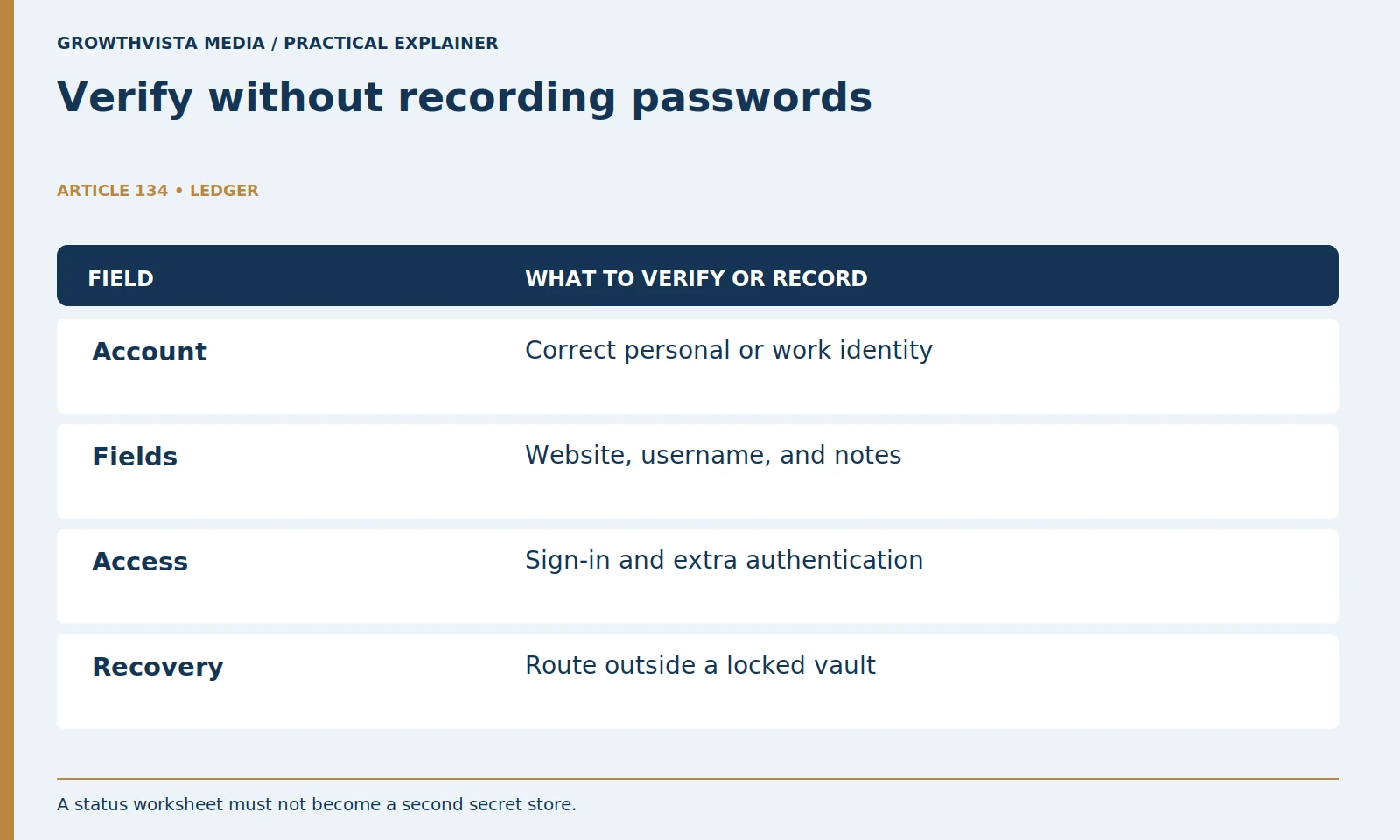
Record service names, source locations, item types, and migration status, not passwords. Include important accounts and special items. This gives the migration a checklist while avoiding a general spreadsheet that becomes a readable copy of the vault.
Also note item types that might need special handling: secure notes, attachments, shared entries, and passkeys. An export format may support some of these but not others. Consult both the exporting and importing documentation. A successful file import message does not prove that every field moved correctly. Keep the old source available until you have checked the relevant accounts and information.
| Stage | Evidence to keep | Secrets to avoid |
|---|---|---|
| Inventory | Service and item types | Passwords in the worksheet |
| Import | Supported format and result | Public file uploads |
| Verification | Account status | Login screenshots with secrets |
| Cleanup | Locations reviewed | Forgotten plaintext copies |
Is every encrypted vault export portable?
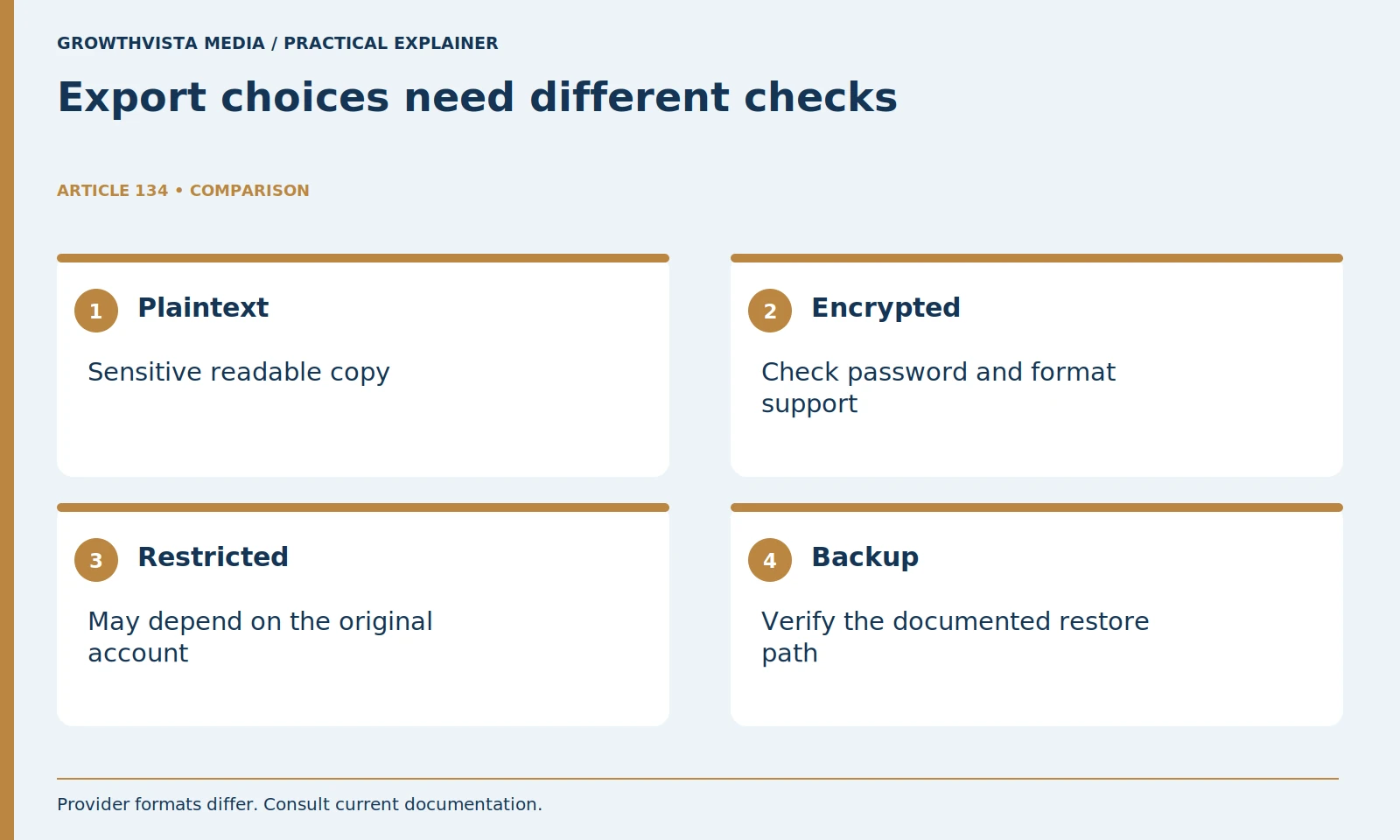
No. Bitwarden distinguishes export arrangements with different restore restrictions. Read the source and destination format requirements before choosing a file, and treat plaintext exports as sensitive readable copies. The word encrypted alone does not establish general import compatibility. Bitwarden: encrypted exports
Use a private device and a controlled location for the file. Avoid shared folders, automatic email attachments, or cloud syncing you have not considered. Close unrelated work and prevent other users from accessing the export. If a plaintext file is necessary, minimize how long it remains available and plan cleanup before creating it. Do not promise secure erasure merely because a file was deleted from a modern storage device.
What should be checked immediately after import?
Inspect representative entries and supported fields, including website association, username, notes, and relevant additional information. Bitwarden’s export documentation illustrates that formats and item support need attention. Keep the source until important accounts are verified, and do not use unknown converters for secret-bearing files. Bitwarden: export vault data
Look for duplicates and misunderstood fields. An entry title is not a substitute for a correct website association. If imports create multiple versions of the same account, mark the verified version and avoid deleting the source too early. Never paste an export into a random online converter to fix formatting. Use provider-supported tools and documentation, or ask support about a method that does not expose your secrets.
How do you verify an imported login safely?
Use a trusted service address and check the correct account with its normal authentication. Separate verification from later password changes. Record completion without recording secrets, and follow organizational rules before moving work credentials into a personal manager.
Do not change every password merely to demonstrate that import worked. First verify the stored information. Then prioritize unique replacements for reused, weak, or known compromised passwords using the account’s normal security controls. Record completion without recording the secret. If a work account is subject to organizational policy, follow that policy rather than moving it into an unapproved personal vault.
How should the daily device workflow be checked?
Use official apps or extensions and verify locking, entry association, and supported access on the devices you need. A successful laptop sign-in does not establish a phone is ready. Shared-device and overlapping browser-save prompts should be configured deliberately.
Decide which application will handle saved passwords so overlapping prompts do not create confusion. Make changes gradually and check the result. Shared devices need separate attention: do not leave a personal vault unlocked in another person’s session. Learn how to lock it manually and how the device itself locks. Convenience should be a conscious configuration choice, not an accidental consequence of installation.
When can old storage and export files be retired?
After the relevant entries, devices, and recovery arrangements have been checked. Account for temporary files and potential sync or backup copies before cleanup. Ordinary deletion does not guarantee forensic erasure or removal of historical backups, so avoid unnecessary copies at creation.
Retire the old manager or browser storage only when you understand the consequences and have a working recovery plan. Keep required subscription cancellation separate from data deletion. If you maintain an encrypted backup, verify the provider’s restore instructions and protect its credentials. Avoid keeping a forgotten plaintext export as a convenient backup; it creates a different exposure from the protected vault.
What should be maintained after migration?
Review duplicate and obsolete entries, account protection, recovery resources, and supported updates. Keep a private process record with no secrets. A staged setup is complete when ordinary access works, the recovery route is understood, and temporary sensitive copies are accounted for.
Record the migration date and which sources were retired. Keep enough process information to help yourself later without storing secrets in the record. If another person may need emergency access, use a supported arrangement appropriate to that relationship and service. Revisit it after major changes. A complete setup ends with ordinary sign-in working, recovery understood, and temporary sensitive copies accounted for.
Understand recovery before migration. Use supported export and import formats. Verify real accounts, fields, and required devices. Account for temporary copies before retiring old storage. Keep verified findings, illustrative examples, and unresolved requirements separate in the final decision.
Frequently asked questions
Does an import-complete message mean every item transferred?
No. Check relevant fields, item types, and real account access before relying on the destination or retiring the source.
Is every encrypted export usable in a different account?
No. Read the format’s portability and restore restrictions for the actual provider and destination.
Should the original vault be deleted immediately?
Wait until important accounts, devices, and recovery have been verified, then follow the deliberate retirement plan.
Can a spreadsheet hold the migration checklist?
Use service names and status only. Do not place passwords, recovery codes, or sensitive exported fields in a general worksheet.
Does deleting an export remove every historical copy?
Not necessarily. Sync and backup locations may retain copies, and ordinary deletion is not a promise of forensic erasure.
Where should the only vault-recovery code be kept?
Avoid a circular plan where the only required recovery resource is inside the same locked vault. Follow the provider’s private supported storage guidance.
Sources and further reading
Official documentation supports the technical guidance. Examples and worksheets are editorial methods, not hands-on product benchmarks. Reviewed October 2026.