Best Webcams for Zoom, Teams & Remote Work in 2026
Video meetings are now a routine part of work, but the camera built into a laptop is not always the best tool for looking clear and professional on screen.
The best webcams for Zoom can improve sharpness, exposure, framing and low-light performance while giving you more flexibility over where the camera sits. Many models also work with Microsoft Teams, Google Meet and other conferencing platforms, making a webcam one of the simplest upgrades for a remote-work desk.
However, resolution alone does not determine webcam quality. A well-tuned 1080p camera can be a better choice for everyday meetings than an expensive 4K model if the lighting, autofocus, field of view and software are better suited to your workspace.
This guide compares 10 webcam options for different budgets and workflows in 2026, then explains what to check before buying.
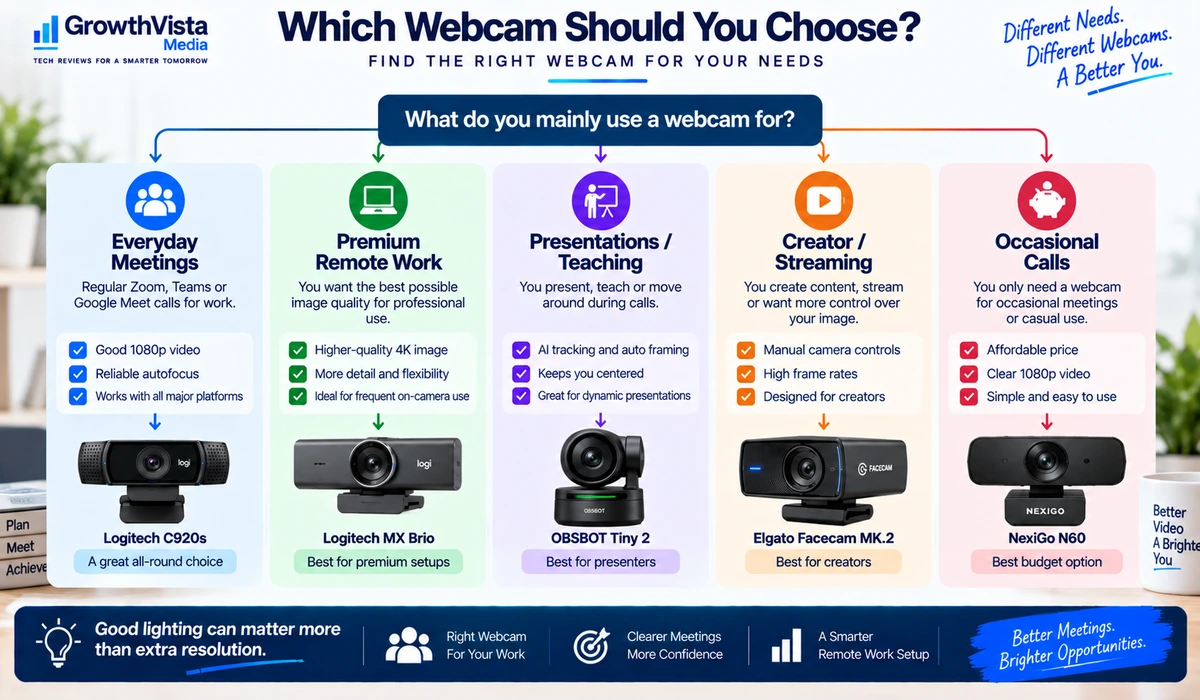
Quick Comparison: Best Webcams for Zoom & Remote Work
| Webcam | Resolution Class | Best For | Key Feature | Ideal User | CTA |
|---|---|---|---|---|---|
| Logitech MX Brio | 4K | Premium remote work | High-detail video | Professionals | Check Price → |
| Logitech Brio 500 | 1080p | Most users | Balanced meeting features | Hybrid workers | Check Price → |
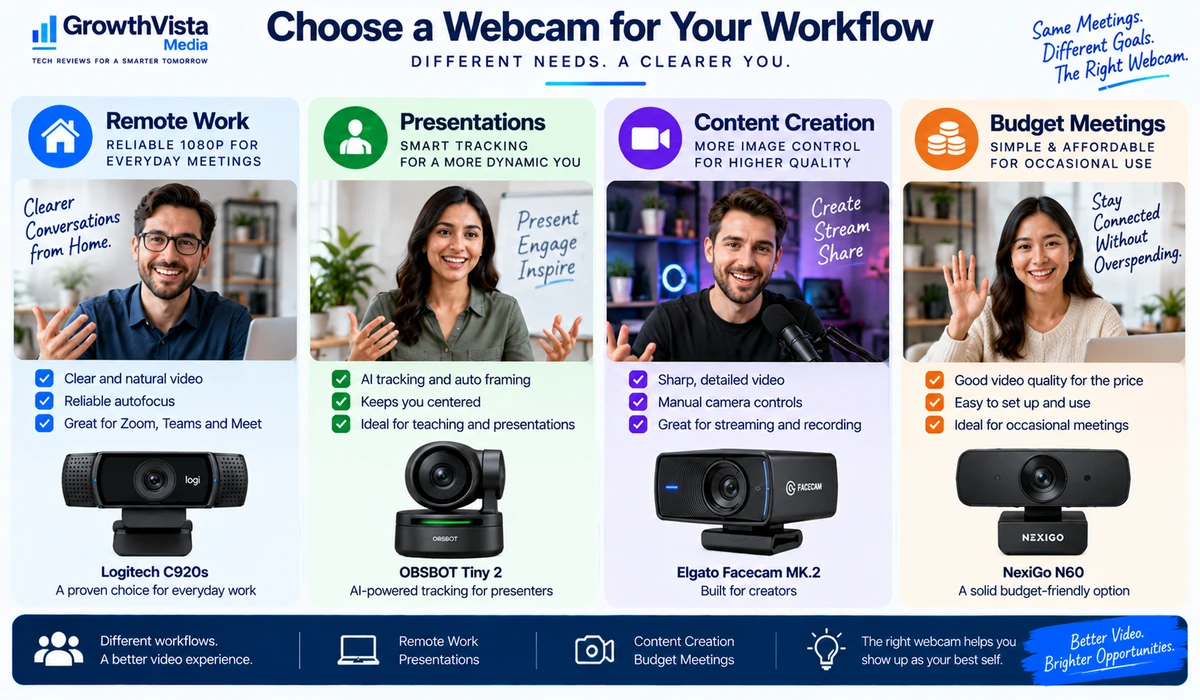
| Logitech C920s | 1080p | Value | Proven everyday setup | General office | Check Price → |
| Elgato Facecam MK.2 | 1080p high-frame-rate | Creators + meetings | Image control | Creators | Check Price → |
| Insta360 Link 2 | 4K | Smart framing | AI tracking / gimbal-style features | Presenters | Check Price → |
| OBSBOT Tiny 2 | 4K | Tracking | AI-powered movement | Presenters / teachers | Check Price → |
| Razer Kiyo Pro Ultra | 4K class | Low light | Large-sensor approach | Premium users | Check Price → |
| AnkerWork C310 | 4K | Value 4K | High resolution at practical price | Remote workers | Check Price → |
| Dell UltraSharp Webcam | 4K | Business desks | Professional design | Office users | Check Price → |
| NexiGo N60 | 1080p | Budget | Low-cost basic video | Occasional meetings | Check Price → |
Note: Resolution modes, frame rates, software features and platform certifications can vary by revision and operating system. Verify current manufacturer specifications before publication.
1. Logitech MX Brio — Best Premium Webcam for Remote Work
The Logitech MX Brio is aimed at professionals who want a more polished camera than the typical laptop webcam or entry-level 1080p model.
A premium 4K webcam can be useful when you want stronger image detail, better cropping flexibility and more control over how you appear in a meeting. It is particularly relevant for managers, consultants, sales professionals and creators who spend a large part of the week on camera.
4K is not essential for Zoom or Teams meetings, and conferencing platforms may reduce the transmitted resolution. The benefit is often the quality of the camera system as a whole rather than simply the 4K label.
Best for: Professionals who want a premium all-purpose webcam.
2. Logitech Brio 500 — Best Webcam for Most Home Offices
The Brio 500 sits in a practical middle ground between inexpensive webcams and high-end 4K models.
For ordinary remote work, 1080p is generally enough to produce a clear meeting image when lighting is reasonable. Features such as dependable autofocus, framing options and useful companion software can matter more than chasing maximum resolution.
This makes the Brio 500 a sensible type of webcam for users who attend meetings every day but do not need a creator-focused camera.
Best for: Hybrid workers, home offices and frequent video meetings.
3. Logitech C920s — Best Proven Value Webcam
The C920 family became popular because it covers the essentials without requiring a complicated setup.
For email-and-meeting productivity, a reliable 1080p webcam can remain perfectly adequate. The C920s is most appealing to buyers who want a familiar, straightforward option rather than advanced tracking or 4K capture.
Its value depends heavily on current pricing because newer models may offer better features when discounts narrow the gap.
Best for: General office users who want a simple 1080p upgrade.
4. Elgato Facecam MK.2 — Best for Creators Who Also Take Meetings
Creators often want more manual control than a conventional business webcam provides.
The Elgato Facecam MK.2 is designed around that kind of workflow, making it interesting for users who record video, stream or create content in addition to joining work calls.
For a person who only appears in a few meetings each week, those controls may be unnecessary. For a creator, they can make the webcam useful across several tasks.
Best for: YouTubers, streamers and creators who also need a work webcam.
5. Insta360 Link 2 — Best for Smart Framing and Presentations
A fixed webcam works well when you remain seated in one position. Presenters, teachers and people demonstrating products may benefit from a camera that can keep them framed as they move.
The Insta360 Link family focuses on intelligent tracking and presentation-oriented features. That makes it different from a conventional webcam whose main job is simply producing a clean head-and-shoulders image.
Smart tracking is useful only when your workflow needs it, so desk-based users should decide whether the extra complexity justifies the cost.
Best for: Presenters, educators and users who move during calls.
6. OBSBOT Tiny 2 — Best AI Tracking Webcam
The OBSBOT Tiny 2 is another option built around automated tracking rather than a completely static camera position.
This type of webcam can be useful for demonstrations, teaching, standing presentations and small meeting spaces where the speaker may move around.
For conventional desk meetings, image quality, autofocus and lighting performance may matter more than tracking. Buy the feature because you need it, not simply because it sounds advanced.
Best for: Presentations, teaching and movement-heavy video calls.
7. Razer Kiyo Pro Ultra — Best for Challenging Lighting
Lighting is one of the biggest reasons webcam footage looks poor. Small camera sensors have to work harder in dim rooms, often producing more noise and less flattering exposure.
The Razer Kiyo Pro Ultra takes a premium approach aimed at users who prioritize image quality and low-light capability.
A better camera cannot completely replace good lighting, so even premium webcam buyers should consider a simple desk light or window placement as part of the setup.
Best for: Premium users working in less-than-ideal lighting conditions.
8. AnkerWork C310 — Best Value 4K Webcam
A value-focused 4K webcam can appeal to buyers who want higher resolution without moving into the most expensive professional models.
The AnkerWork C310 is positioned for modern work calls and can be considered by users who want more detail and current-generation features at a practical price point.
As with every 4K webcam, check whether your actual meeting applications and internet connection will benefit from the higher capture resolution.
Best for: Remote workers seeking a reasonably priced 4K-class upgrade.
9. Dell UltraSharp Webcam — Best for a Professional Desk Setup
The Dell UltraSharp Webcam is designed to look at home in a polished office environment, particularly alongside business monitors and docking setups.
It is most relevant to users who want a premium, dedicated webcam and do not need the moving-camera features of an AI tracking model.
For business use, consistent exposure, useful framing and convenient mounting can be just as important as the headline resolution.
Best for: Professional home offices and corporate workstations.
10. NexiGo N60 — Best Budget Webcam for Occasional Meetings
Not everyone needs a premium webcam. If you join occasional calls and simply want something better positioned than the camera built into an older laptop, a basic 1080p model can be enough.
The NexiGo N60 represents the budget end of the category. Expectations should be realistic: inexpensive webcams generally provide fewer image controls and weaker performance in difficult lighting.
With decent room lighting, however, a basic webcam can still be perfectly serviceable for routine meetings.
Best for: Occasional calls, secondary computers and tight budgets.
What to Look for When Buying a Webcam
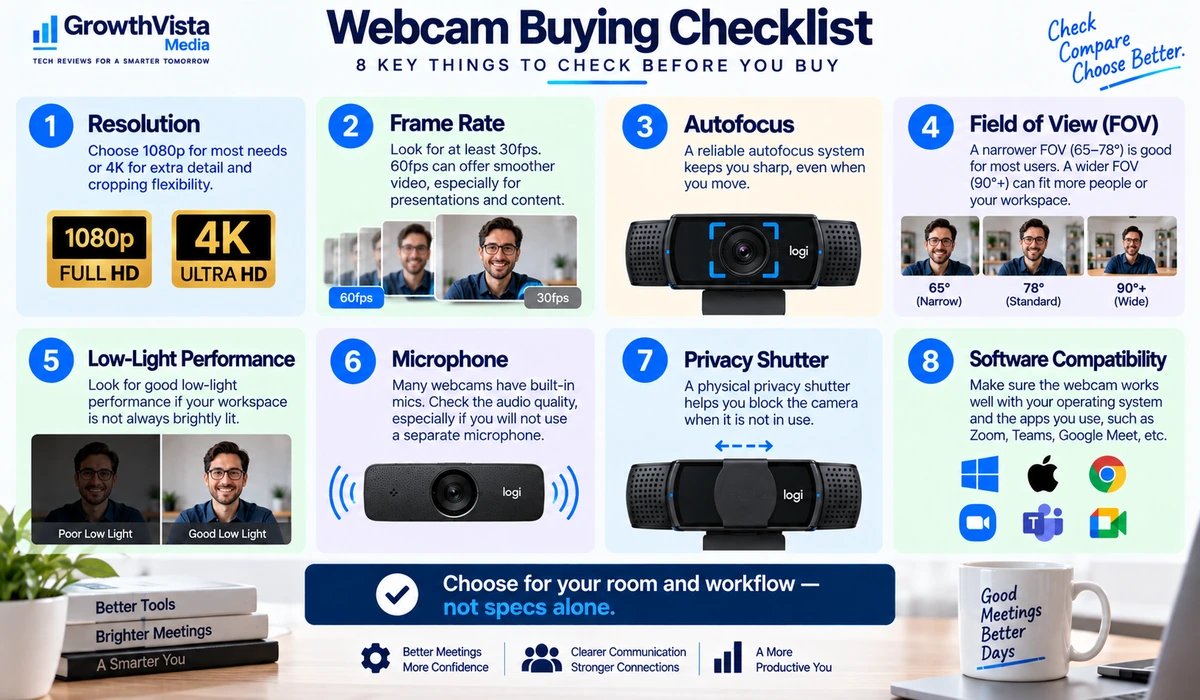
1. 1080p vs 4K
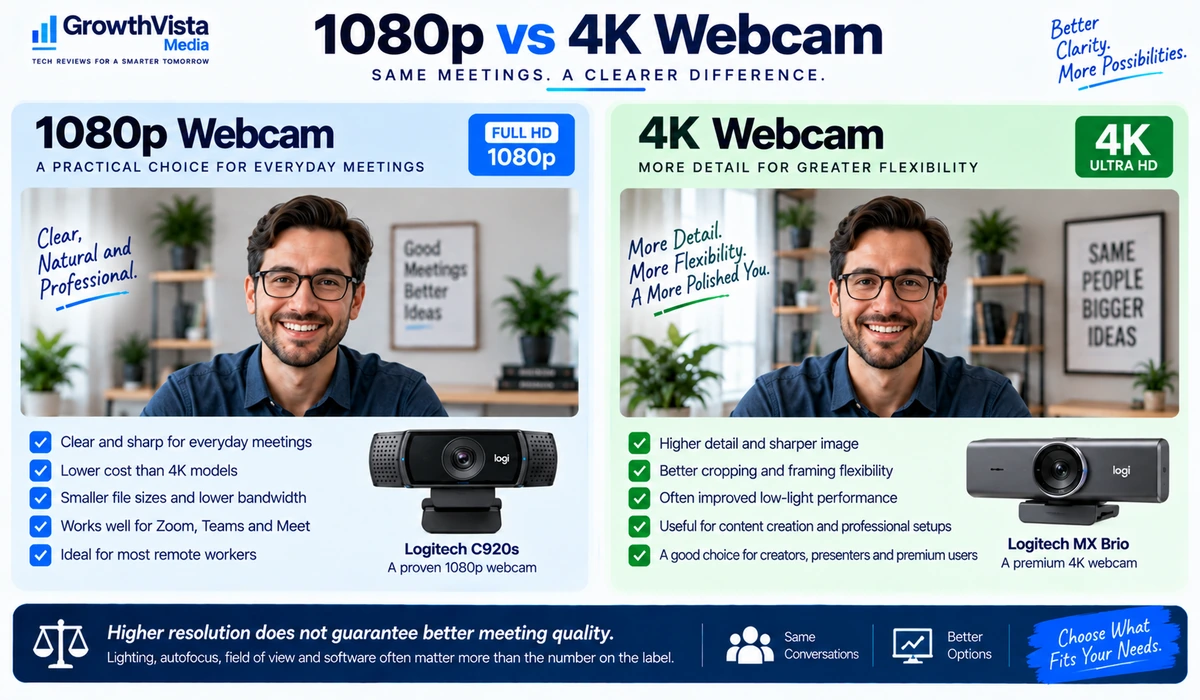
For most Zoom and Teams meetings, 1080p is sufficient. A 4K webcam can provide more capture detail and cropping flexibility, but meeting software, bandwidth and account settings may limit what other participants actually receive.
2. Frame Rate
A higher frame rate can make motion look smoother. For ordinary seated meetings, stable image quality matters more than maximizing frame rate. Creators and presenters may value higher-frame-rate modes more.
3. Autofocus
Reliable autofocus is important if you lean toward the camera, hold up objects or move around. A webcam that constantly hunts for focus can be more distracting than one with lower resolution but steadier behavior.
4. Field of View
A narrower field of view keeps attention on one person. A wider view can be useful for small meeting rooms, demonstrations or showing more of your workspace. Software cropping can sometimes provide flexibility between the two.
5. Low-Light Performance
Resolution does not solve poor lighting. Sensor size, processing and exposure control all affect how clean the image looks in a dim room. Improving the room lighting is often the most cost-effective upgrade.
6. Microphone Quality
Built-in webcam microphones are convenient, but a dedicated headset or USB microphone can provide clearer voice quality and reduce room echo. Do not choose a webcam solely because it advertises multiple microphones.
7. Privacy Shutter
A physical shutter or cover gives a clear visual indication that the lens is blocked. This is a useful convenience for a camera that remains attached to a work computer all day.
8. Software and Compatibility
Check operating-system support and any companion software required for framing, exposure, firmware updates or AI features. If your company restricts software installation, hardware that works well without extra software may be preferable.
1080p vs 4K Webcam: Which Should You Buy?
| Factor | 1080p Webcam | 4K Webcam |
|---|---|---|
| Typical meetings | More than sufficient for many users | Often more than meeting apps require |
| Image detail | Good | Higher capture detail |
| Cropping flexibility | Moderate | Better |
| Bandwidth / processing | Generally lighter | Can be higher |
| Price | Usually lower | Usually higher |
| Best fit | Everyday remote work | Premium work, creators, detailed framing |
For most remote workers, a good 1080p webcam is the practical choice. Move to 4K when you value higher-quality capture, better digital cropping or use the camera for content creation as well as meetings.
How to Make Any Webcam Look Better
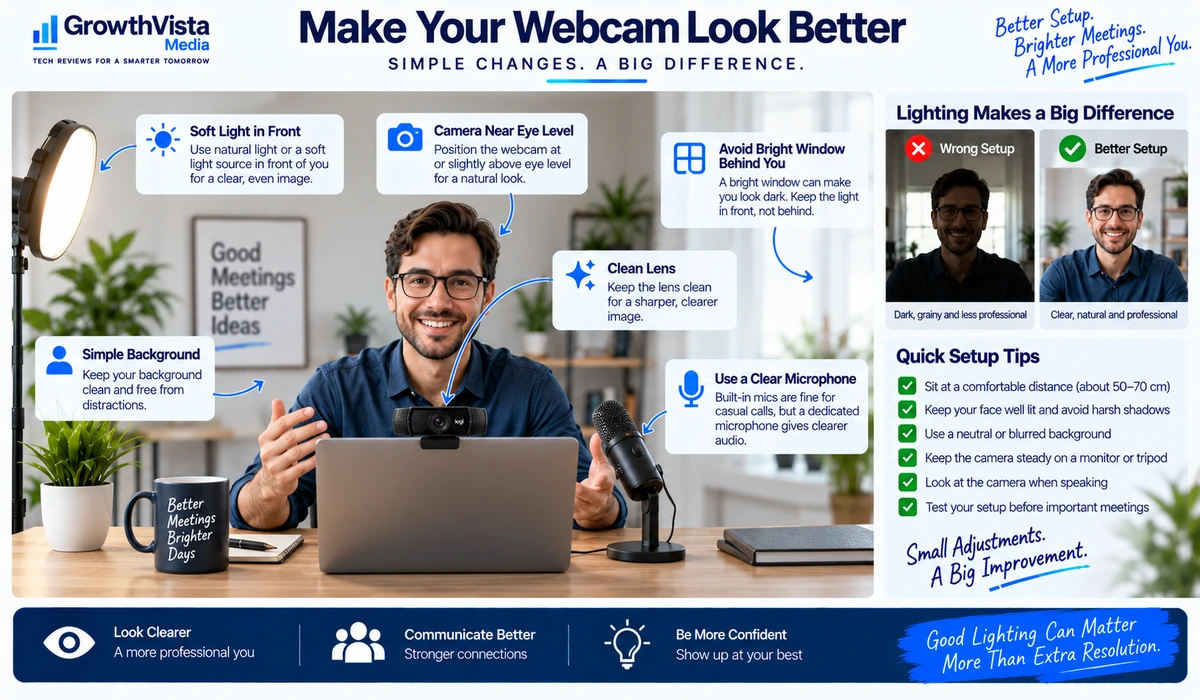
- Place the camera close to eye level instead of pointing sharply upward from a low laptop screen.
- Face a window or soft light source when possible; avoid putting a bright window directly behind you.
- Clean the lens regularly with an appropriate soft cloth.
- Use a simple, uncluttered background or a natural amount of separation between you and the wall.
- Connect through a reliable USB port and keep webcam firmware or companion software current when appropriate.
- Use a headset or dedicated microphone if room echo or keyboard noise is distracting.
- Check your framing before important calls rather than relying on last-minute automatic adjustments.
Webcam vs Laptop Camera
Modern premium laptops can have capable built-in cameras, so an external webcam is not automatically necessary. The strongest reason to add one is flexibility: you can place an external camera at a better height and angle without moving the laptop itself.
A dedicated webcam can also offer better optics, autofocus, framing controls, tracking or low-light performance. If your current laptop camera already looks good and sits at eye level on a stand, the upgrade may be less significant.
Who Should Consider a Dedicated Webcam?
- Remote and hybrid employees
- Consultants and sales professionals
- Online teachers and trainers
- YouTube creators and streamers
- Managers who spend hours in video meetings
- Users with older laptops or poorly positioned built-in cameras
Frequently Asked Questions
What is the best webcam resolution for Zoom?
For most users, 1080p is a sensible target. A 4K webcam can improve source quality and cropping flexibility, but Zoom settings, bandwidth and meeting conditions can limit transmitted resolution.
Do I need a 4K webcam for Microsoft Teams?
No. A good 1080p webcam is sufficient for most Teams meetings. Consider 4K for premium image capture, content creation or additional framing flexibility.
Is an external webcam better than a laptop camera?
Often, but not always. External webcams provide more positioning freedom and may offer better image processing or features. Some newer premium laptops already have capable built-in cameras.
Do webcams have microphones?
Many do, but microphone quality varies. A headset or dedicated USB microphone can be a better choice when voice clarity is important.
What field of view is best for video calls?
A moderate field of view works well for one person at a desk. Wider views are useful for small rooms, demonstrations or multiple people.
Can I use the same webcam for Zoom, Teams and Google Meet?
Most standard USB webcams can work across major conferencing applications, but advanced features may depend on the operating system, software and platform.
Does better lighting matter more than 4K?
In many home-office situations, yes. Good front lighting can improve how even a modest webcam looks, while a high-resolution camera can still look poor in difficult lighting.
Final Thoughts
The best webcams for Zoom are not necessarily the cameras with the largest resolution number.
For most home offices, a dependable 1080p webcam with good autofocus, sensible framing and decent lighting performance is enough. Premium 4K models make more sense for professionals who spend a large amount of time on camera or who also create video content.
Tracking webcams are particularly useful for presenters and educators, while budget models can still work well for occasional meetings when the room is properly lit.
Before buying, decide what problem you are actually trying to solve: poor image quality, bad camera placement, weak low-light performance, limited framing or the need to move during presentations. That will narrow the choices much faster than comparing specifications alone.