Laptop Buying Checklist: Match Specs to Everyday Work

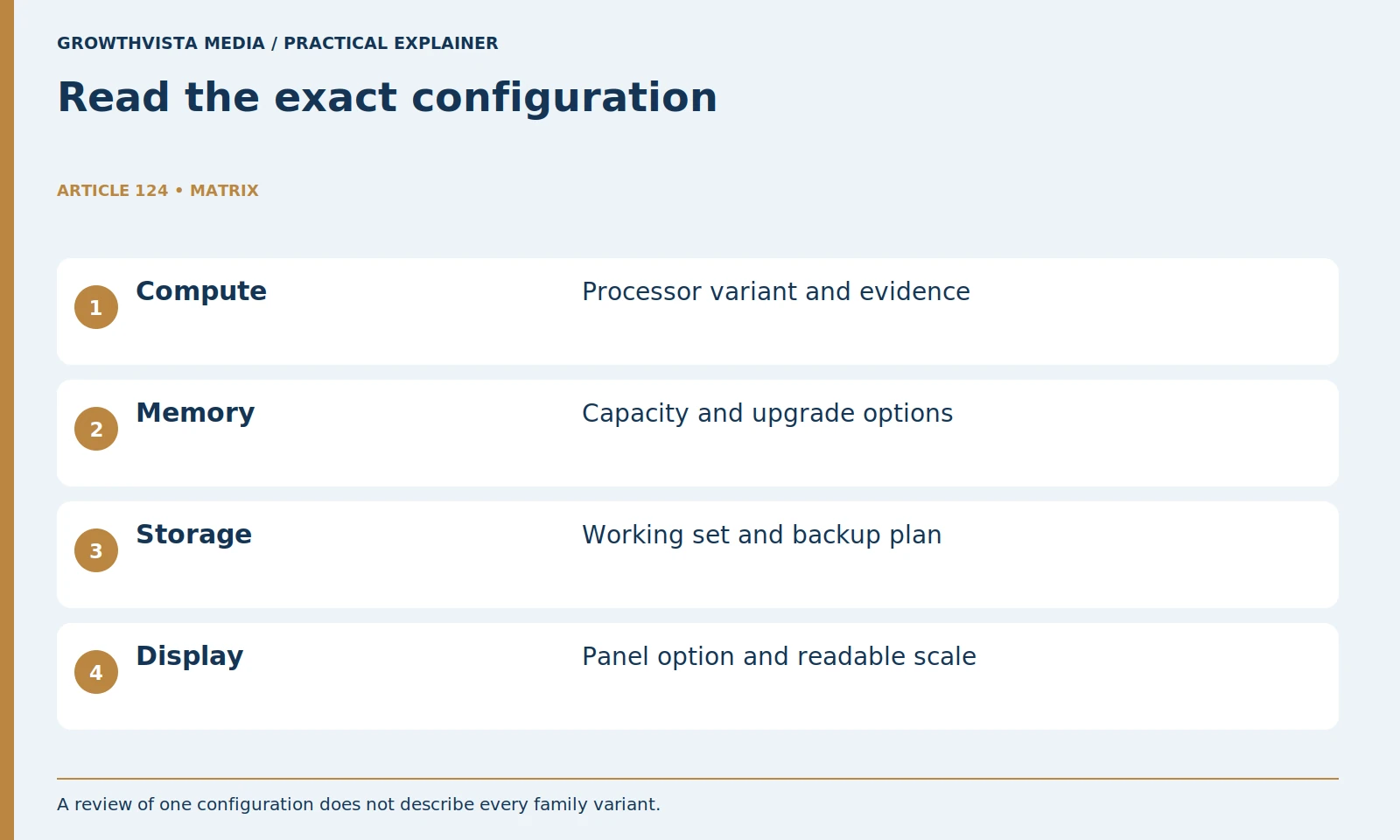
A laptop buying checklist should connect the exact configuration to the work you need to complete. Begin with representative sessions, verify software compatibility, and compare memory, storage, display, input controls, ports, battery use, service terms, and the complete accessory cost. A processor badge or product-family name cannot answer every requirement.
Use the same work brief for each candidate, then test actual apps and peripherals during the allowed evaluation period. This guide is a researched decision framework, not an original benchmark or a universal specification list. Its examples explain planning decisions without inventing a RAM or battery requirement for every buyer.
Your decision checklist
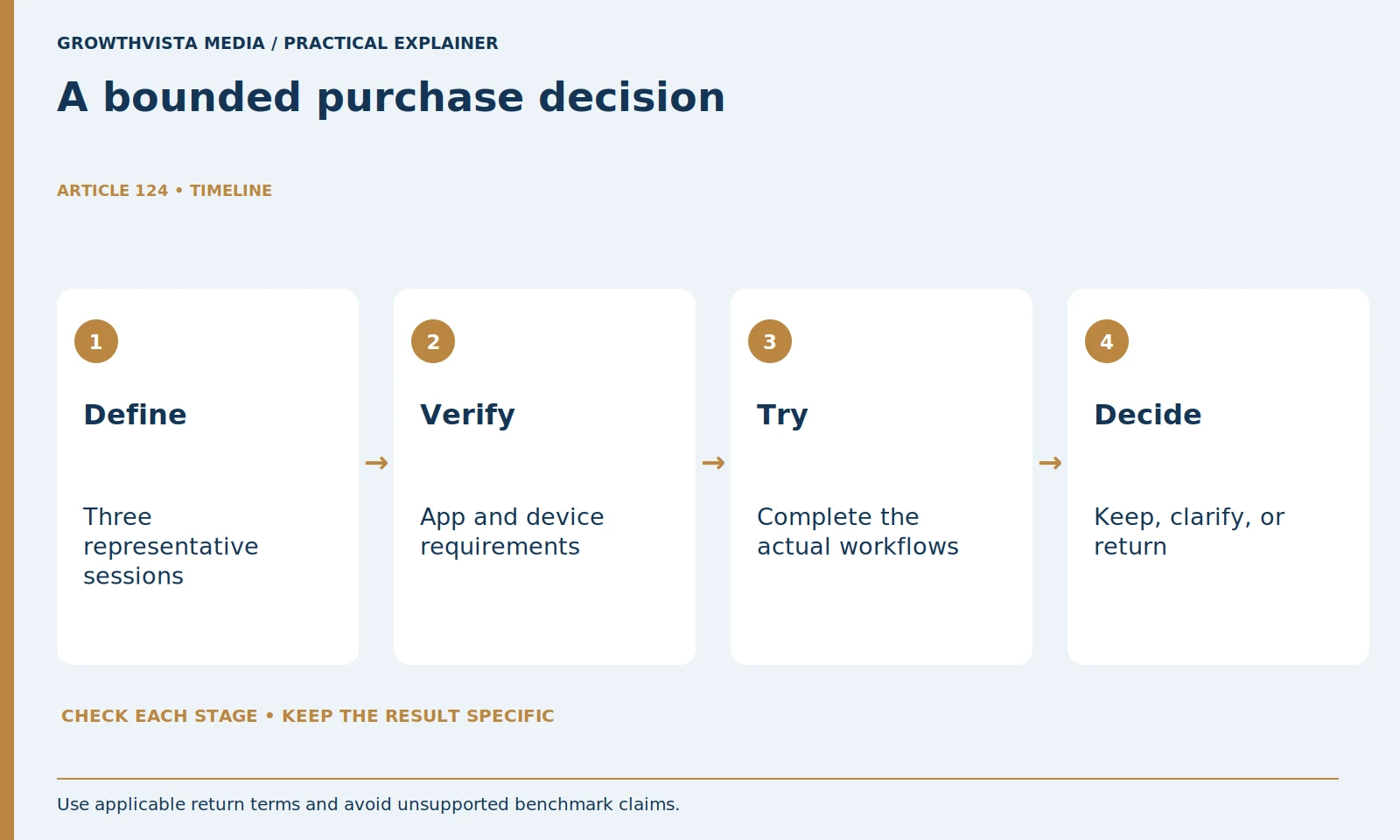
- Define three representative work sessions.
- Verify software and the exact configuration.
- Include desk and travel accessories in the cost.
- Run actual tasks within the evaluation period.
How do you build a useful laptop buying checklist?
Start with three representative sessions and list concurrent apps, working files, peripherals, and location. Define concrete blockers and must-have outcomes. That work brief gives specifications a purpose and prevents optional features from outranking an essential requirement.
For an illustrative office user, the specialist session might involve a large local dataset and an external screen. A student using mostly browser applications may have different constraints. Record the tasks first so the shortlist reflects a real workload rather than an assumed professional category.
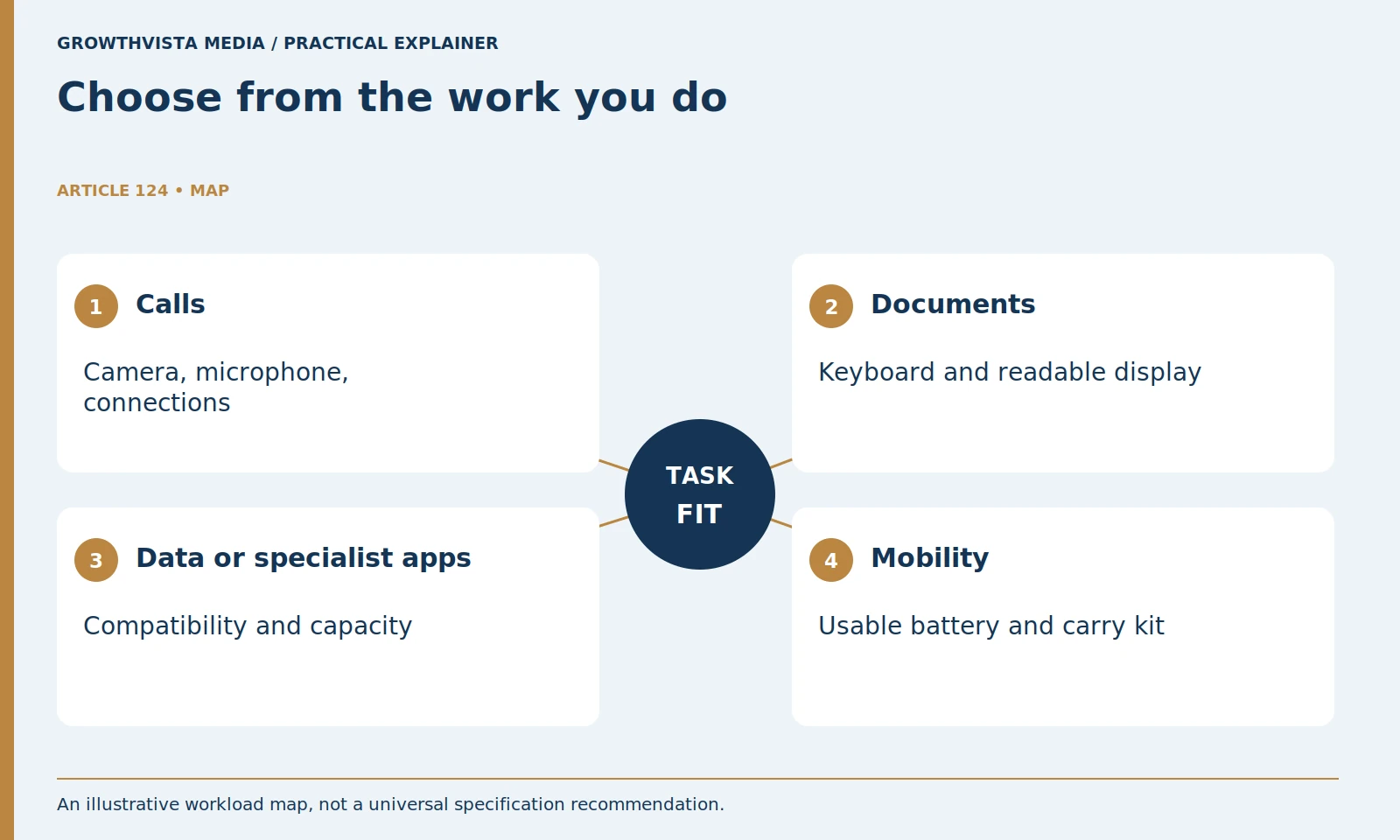
Write one acceptance statement for each session. Examples include completing a call without awkward camera framing, editing the normal workbook with other required apps open, and connecting the intended display. These are checks to perform, not measured claims about a particular laptop.

What software compatibility should you check first?
Verify current application, driver, operating-system, and processor-architecture requirements where relevant. Include organizational restrictions and peripheral support. Do not assume a web edition has every desktop function or that an attractive device will run a required workflow without changes.
If considering a different platform, make a compatibility list before purchasing. Mark what is native, what uses an approved alternative, and what remains unverified. Avoid filling a gap with a vague promise that emulation or an adapter will solve it.
Ask the application vendor about the exact workflow when the requirement is unclear. A laptop is unsuitable if it cannot run a necessary tool reliably, even when its screen and battery look excellent. Keep that non-negotiable requirement separate from preferences you can compromise on.
| Task | Required evidence | Acceptance check |
|---|---|---|
| Calls plus research | App and camera setup | Normal call with required apps |
| Local files and spreadsheets | Capacity and software support | Representative workbook session |
| Desk work | Ports and dock compatibility | Intended screen and peripherals |
| Travel | Battery conditions and carry kit | Usable mobile session |
Does the laptop family name identify the configuration?
No. Confirm the exact processor, memory, storage, panel option, ports, and chassis in the listing. Intel’s buying guidance discusses several system components, reinforcing the need to evaluate the whole configuration rather than one badge. Intel: choosing a gaming laptop
Do not rank processors only by a generation label, core count, or advertised clock. Use evidence from comparable workloads and the actual chassis where available. Power settings and sustained operation can affect the complete experience.
Keep the model identifier and configuration in your notes. If the seller offers a discounted variant, compare it against your acceptance criteria rather than assuming it differs only in color. An omitted memory or display detail deserves confirmation before payment.
How should memory and storage be planned?
Use the workload’s requirements, concurrent activity, local files, and documented upgrade options. Keep operating-system and application storage needs in the budget. A nominal capacity or minimum app requirement does not establish comfortable headroom for every session.
For a hypothetical user carrying 300 GB of working files, a nominal 512 GB drive is not automatically 212 GB of comfortable spare space. The operating system, applications, formatting, and other data also consume capacity. Estimate the full working set and backup arrangement.
Check whether memory and storage are replaceable or fixed for the exact model. Read the service documentation before planning an upgrade. A low initial configuration is less flexible if the part you expected to change cannot be upgraded through an approved procedure.
How do you assess the display and keyboard?
Try ordinary documents, spreadsheet cells, controls, calls, and typing rather than a colorful demonstration alone. Check readable scaling and reflections at the intended desk. The usable experience should be described with concrete tasks instead of an unexplained comfort score.
Type a representative paragraph and use shortcuts, the touchpad, and any required number-entry method. Check camera placement, microphone behavior, and the controls used during calls. These everyday details can matter more than a small benchmark difference.
Use an appropriate store demonstration or return-period trial when available. Record specific problems such as a cramped key layout or unreadable sidebar. Avoid converting a brief subjective impression into an unsupported claim that a model is best for everyone.
What should the mobility and desk check include?
Include charger, adapters, dock, displays, and simultaneous peripherals. Microsoft’s USB-C guidance shows why capabilities must be checked separately from connector shape. Verify your intended desk path as well as battery-powered use. Microsoft: USB-C capabilities and troubleshooting
Map your desk connections: display, keyboard, storage, network, audio, and charging. Verify the laptop's exact port capabilities and the intended dock. A USB-C shape does not establish every display or charging feature.
For a hybrid worker, test both configurations. The machine should work as a portable tool and connect predictably at the desk. Do not evaluate only one arrangement and assume the other will be effortless.
What is the complete purchase price?
Add the exact machine and required accessories, then read local warranty, return, and service terms. Separate included support from paid options. A price comparison is incomplete when one candidate still needs equipment to perform the agreed work.
Build a complete basket with required memory or storage configuration, charger, dock, adapters, software, and any essential peripherals. Compare that total rather than only the advertised base-model price. Keep optional items separate so the decision remains clear.
For a refurbished machine, inspect the seller's grading, battery description, return policy, and exact specification. A lower price can be useful, but unknown condition or missing accessories should not be treated as equivalent to a documented new configuration.
How should you test a newly bought laptop?
Complete the representative sessions with actual apps and approved equipment within the evaluation period. Record concrete blockers, relevant settings, and the configuration. Decide whether to keep it, seek clarification, or return under the applicable terms rather than collecting specs indefinitely.
Do not stress-test outside the device's instructions or present an ordinary session as a laboratory benchmark. The aim is to confirm task fit. Keep the result specific to the configuration and conditions you used.
Define three representative work sessions. Verify software and the exact configuration. Include desk and travel accessories in the cost. Run actual tasks within the evaluation period. Keep verified facts, examples, and unanswered questions distinct when making the final decision.
Frequently asked questions
Is there one RAM capacity every buyer needs?
No. Compare application requirements, concurrent work, and the exact machine’s upgrade options with your own sessions.
Does a processor name describe the whole laptop?
No. Verify memory, storage, panel, ports, chassis, and the exact processor variant in the listing.
Should accessories be included in the purchase budget?
Yes. Count the approved equipment required for the actual desk and travel workflows rather than comparing the laptop price alone.
What is a useful acceptance test?
Run representative sessions with your real apps and peripherals during the allowed period, then record concrete blockers and relevant settings.
Does an app’s web version guarantee desktop feature parity?
No. Verify the required functions and supported operating system or architecture directly with the software documentation.
Does a nominal drive size equal usable working space?
No. Account for formatting, the operating system, applications, other files, and the backup plan.
Sources and further reading
Official documentation supports the technical guidance. Examples and worksheets are editorial methods, not hands-on product benchmarks. Reviewed October 2026.
- Microsoft: USB-C capabilities and troubleshooting
- Microsoft: caring for your battery in Windows
- Intel: choosing a gaming laptop