Monitor Resolution and Scaling: Choose a Clear Setup
Monitor resolution and scaling solve different problems. Resolution describes the output pixel dimensions; scaling changes the size of interface elements. For readable work, start with the recommended resolution, adjust scale to suit your screen and needs, and test your actual applications through the complete computer-to-monitor connection.
A higher-density panel does not require accepting tiny text, and a familiar connector does not prove support for every display mode. This guide explains density, logical workspace, and mixed-screen setup using transparent calculated examples. It focuses on practical readability rather than an untested ranking of monitors or a universal scaling percentage.
Your decision checklist
- Keep resolution, scale, and app zoom separate.
- Check density alongside physical screen size.
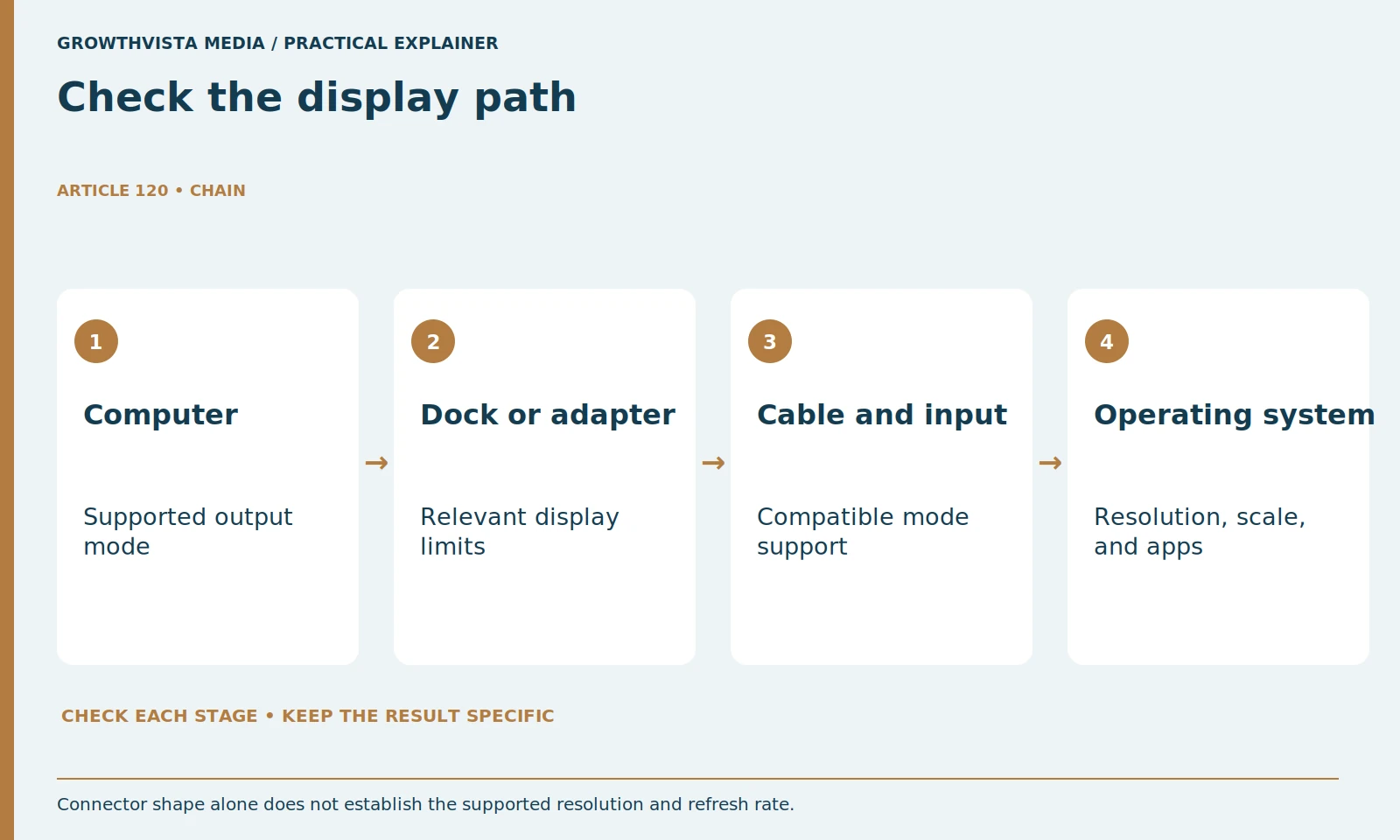
- Verify the whole display connection path.
- Test actual apps and configure each display.
How do monitor resolution and scaling differ?
Resolution defines the displayed pixel dimensions, while scaling changes interface sizing. They should be adjusted and recorded separately. Microsoft’s Windows guidance recommends beginning with its recommended display settings; lowering resolution is not the same operation as making text and controls larger through scale. Microsoft: resolution and display layout
Microsoft's display guidance recommends using the display's recommended resolution and explains that lower-than-native settings can make text less sharp. For readability, investigate appropriate scaling before reducing the output resolution simply to make everything larger.
Distinguish operating-system scaling from app zoom. A browser's zoom changes page presentation inside that app. A spreadsheet zoom changes the sheet view. These can complement system scaling, but they do not replace checking the monitor's resolution and connection.
What does pixel density tell you about a monitor?
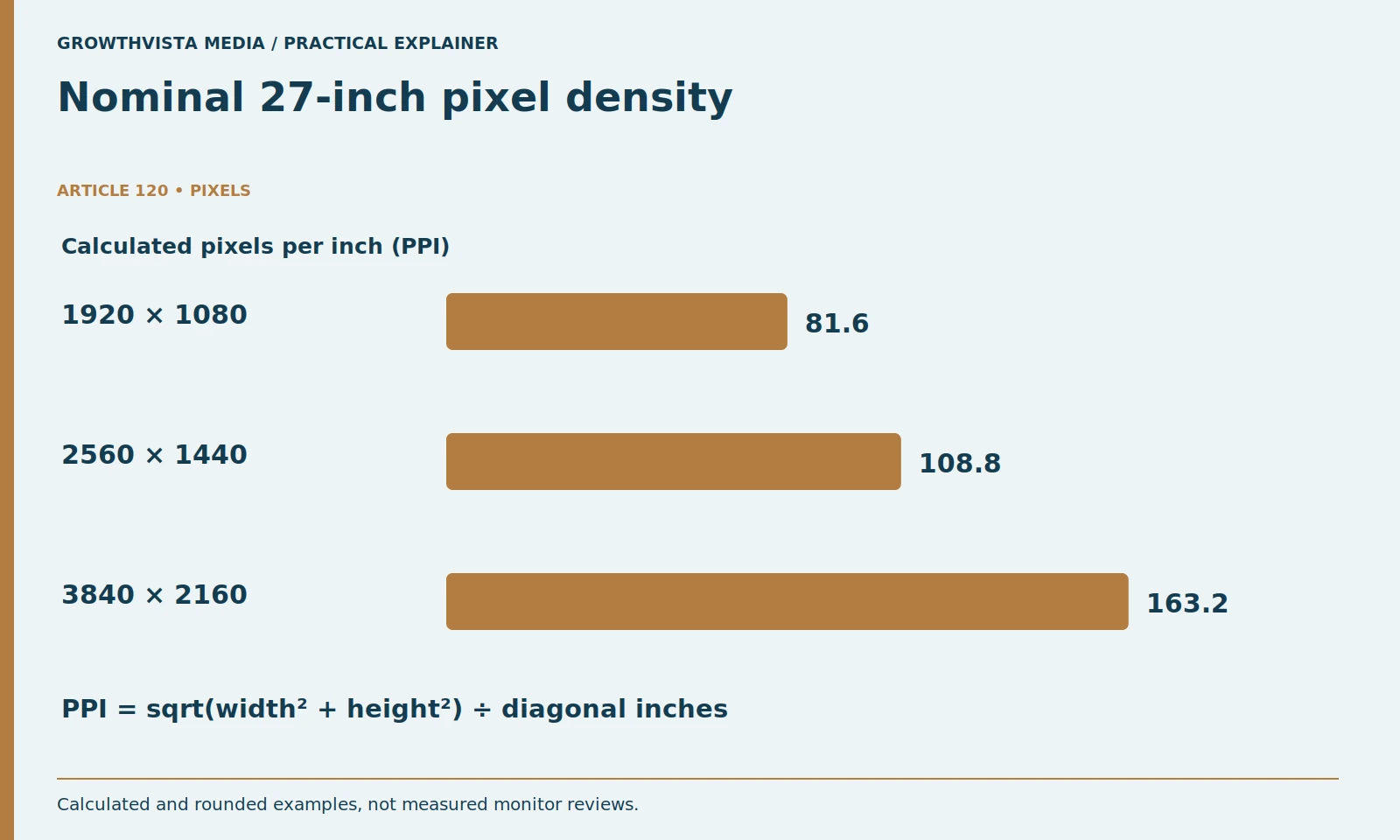
Pixels per inch relates pixel dimensions to physical diagonal size. It helps compare nominal displays of different sizes or resolutions but does not alone establish readable text or a better work setup. The following 27-inch examples are calculated values, not measured product reviews.
Pixel density combines resolution and physical diagonal size. For a conventional pixel grid, calculate pixels per inch as the square root of width squared plus height squared, divided by diagonal inches. This is arithmetic, not a subjective sharpness score.
For illustrative nominal 27-inch displays, 1920 by 1080 gives about 81.6 PPI, 2560 by 1440 about 108.8 PPI, and 3840 by 2160 about 163.2 PPI. These values are independently calculated and rounded. Actual quoted diagonals and panel details should be checked for a specific product.
Higher density can support finer rendering, but the usable result also depends on viewing conditions, operating-system behavior, and the application. Do not use PPI alone to rank monitors. It helps explain why the same unscaled interface can look physically smaller on one screen.
| Pixel dimensions | Approximate PPI | Meaning |
|---|---|---|
| 1920 × 1080 | 81.6 | Fewer pixels across the same diagonal |
| 2560 × 1440 | 108.8 | Intermediate density |
| 3840 × 2160 | 163.2 | Higher density; check readable scaling |
How does scaling affect usable workspace?
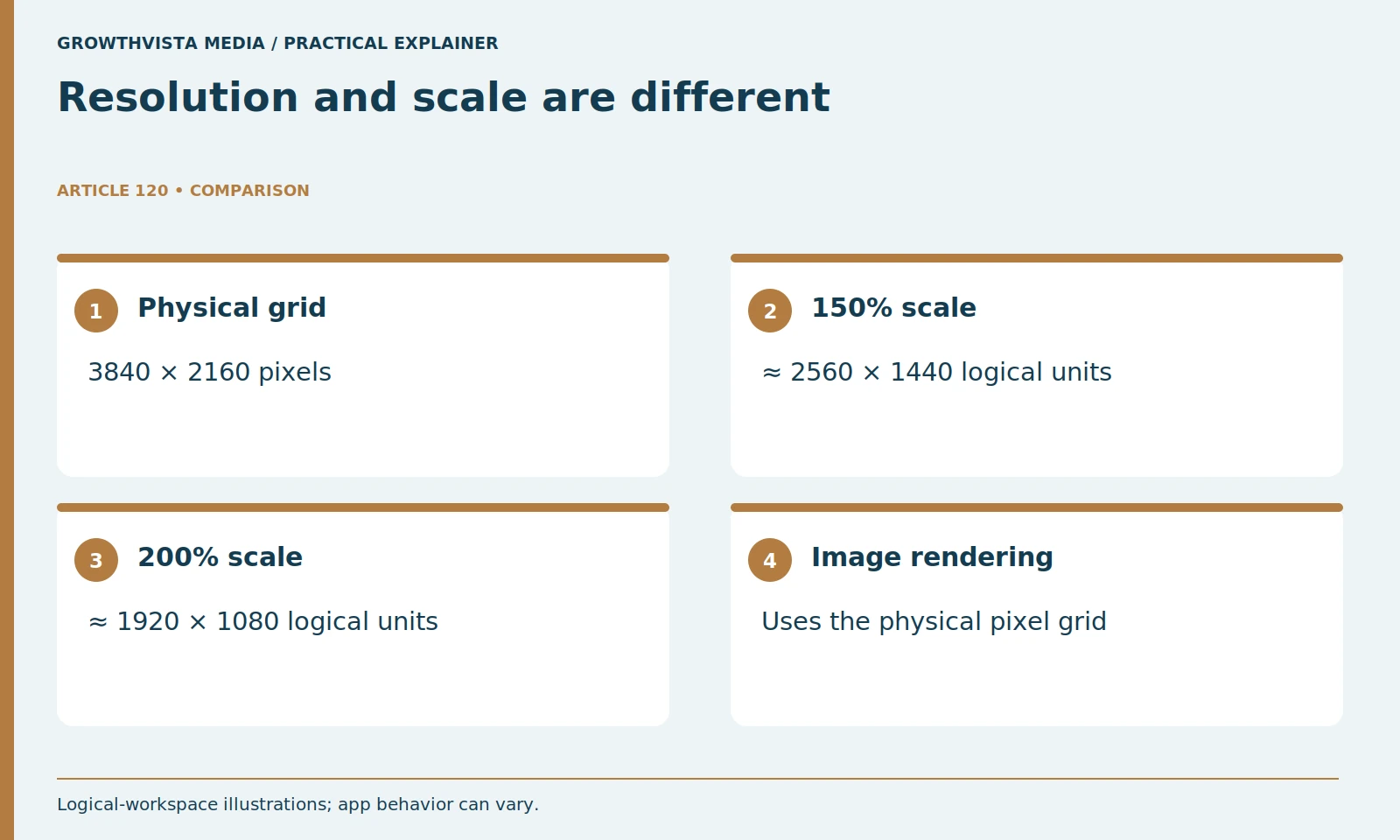
Larger interface scaling generally leaves fewer logical units across the same pixel grid. Dividing the pixel dimensions by the scale factor gives a useful simplified illustration. Actual app layouts can vary, so the calculation explains the relationship rather than guaranteeing an exact window arrangement.
For a rough logical-workspace illustration, divide the pixel dimensions by the scaling factor. A 3840 by 2160 display at 150% corresponds to about 2560 by 1440 logical units. At 200%, the rough logical dimensions are 1920 by 1080. Applications do not all handle layout identically, so these are explanatory approximations.
The display still uses its physical pixels to render the scaled content. That is different from outputting a lower resolution. More readable interface elements can be a good choice even if they reduce the amount of content visible at once.
Compare your own task. A dense spreadsheet may benefit from a different balance than a document editor. Set a comfortable interface size, then evaluate window arrangement and app zoom. Do not force a smaller setting merely because a specification suggests that more workspace should be available.
Will any USB-C cable or dock support your desired display mode?
Do not infer support from connector shape. Verify the computer output, dock or adapter, cable, monitor input, and selected mode together. Dell’s connection guidance distinguishes different display arrangements and limits. Check the exact devices rather than a generic port label. Dell: multi-monitor connection and scaling guidance
If the expected mode is absent, identify where the limitation might be. Dell's multi-monitor guidance includes checking dock display limits and distinguishing scaling issues from connection problems. Begin with an appropriate direct connection where feasible to narrow the cause.
Do not replace several components at once without a reason. Record the available settings before and after a supported change. A readable lower-resolution fallback can keep work moving temporarily, but it should not be confused with verifying the intended high-resolution setup.
How should you test readability in everyday applications?
Open the documents, spreadsheets, browser pages, and tools you actually use. Compare normal tasks rather than only wallpaper or video. Keep operating-system scale, app zoom, and output resolution separate when one window behaves differently from the rest.
Avoid evaluating only a wallpaper or video. Those do not reveal whether your everyday interface is readable or whether a legacy dialog becomes awkward. Check normal tasks such as selecting a cell, reading a sidebar, and comparing two documents.
If one app has a problem, investigate its supported settings and updates rather than assuming the panel is faulty. Keep operating-system scaling, app zoom, and output resolution separate in your notes so troubleshooting does not become a sequence of unrelated adjustments.
Can two monitors use different scaling settings?
A mixed setup may need different settings for each display. Select and configure the intended screen, then test moving ordinary windows between them. Microsoft documents selecting a display before changing its settings. Equal percentages are not the goal if physical readability differs. Microsoft: resolution and display layout
Arrange displays in the settings to match their physical positions so pointer movement feels predictable. Test moving a normal app between screens, opening menus, and returning to the primary display. Revisit the app behavior if it does not render consistently.
For an illustrative setup, a high-density laptop may use a larger scaling percentage than a lower-density external screen. The correct values depend on the displays and your needs. Do not copy percentages from another desk without checking the result.
What should you check during a monitor return window?
Use a normal work session to check readable text, usable workspace, app behavior, input switching, and the supported connection mode. Also assess the stand and desk arrangement. Identify whether a persistent problem belongs to the panel, app, or connection before choosing the next change.
During an appropriate return period, use a normal work session rather than only a quick showroom impression. Record readable text, usable workspace, app behavior, expected connection mode, and any persistent problem. Keep generated editorial pictures separate from this real trial evidence.
If the setup fails, identify the reason before changing products. A dock limitation, an app issue, and a panel characteristic are different findings. Choose the change that addresses the actual problem.
What is a practical final display setup?
Use a supported resolution and refresh mode, readable scaling, and a layout that fits your tasks. Record the monitor, computer connection, dock if present, resolution, refresh rate, scale, and important app settings. This makes future troubleshooting more reliable than repeatedly copying another desk’s percentages.
Keep a short configuration note with monitor model, connection, resolution, refresh rate, scale, and important app settings. That makes troubleshooting after a dock or computer change easier.
Keep resolution, scale, and app zoom separate. Check density alongside physical screen size. Verify the whole display connection path. Test actual apps and configure each display. Keep verified findings separate from expectations, and revisit the decision after a material change.
Frequently asked questions
Does increasing scale lower a monitor’s physical resolution?
No. Interface scaling and the display’s physical pixel grid are different. Record output resolution and scale separately.
Is 4K always the clearest office setup?
Not automatically. Consider physical size, readable scale, supported connection mode, application behavior, and your actual tasks.
What does 4K at 150 percent mean for workspace?
Dividing 3840 × 2160 by 1.5 gives an illustrative 2560 × 1440 logical workspace. Actual applications can lay out content differently.
Can two screens have different scale settings?
Yes, supported systems provide per-display settings. Check each screen and normal application behavior rather than forcing matching percentages.
Does USB-C shape guarantee 4K at my desired refresh rate?
No. Verify the supported mode through the computer, dock or adapter, cable, and monitor input together.
What settings should I record for troubleshooting?
Keep monitor model, connection path, output resolution, refresh rate, scaling, and relevant app zoom or display settings.
Sources and further reading
Official documentation supports the technical guidance. Examples and worksheets are editorial methods, not hands-on product benchmarks. Reviewed October 2026.
Related guides
- Outdoor Security Cameras: 8 Checks Before You Buy
- Cordless vs Corded Vacuums: Choose for Your Floors
For mounting compatibility, see our monitor-arm guide.