Laptop Ports and Docks: Check Your Complete Setup

Laptop ports and docks should be checked as one complete path: laptop capability, dock functions, cable, power arrangement, displays, and peripherals. A USB-C-shaped socket alone does not establish video output, the desired display mode, or adequate host charging. Extra sockets cannot create a missing host capability.
Begin with the equipment that must work at the same time, then confirm the exact combinations in official documentation. This guide gives a desk-planning and acceptance method, not a tested dock ranking. A successful first connection is useful evidence, but sleep, reconnection, simultaneous use, and normal charging also belong in the decision.
Your decision checklist
- Map all simultaneous desk requirements.
- Verify host, dock, cable, and display capabilities.
- Confirm delivered charging power and approved supplies.
- Test transitions and record the working configuration.
How do you plan laptop ports and docks for a desk?
List the display modes, network, storage, input devices, audio, and charging you need simultaneously. Draw the path to the host port. Separate mandatory functions from convenience features so an attractive socket count does not hide an unmet requirement.
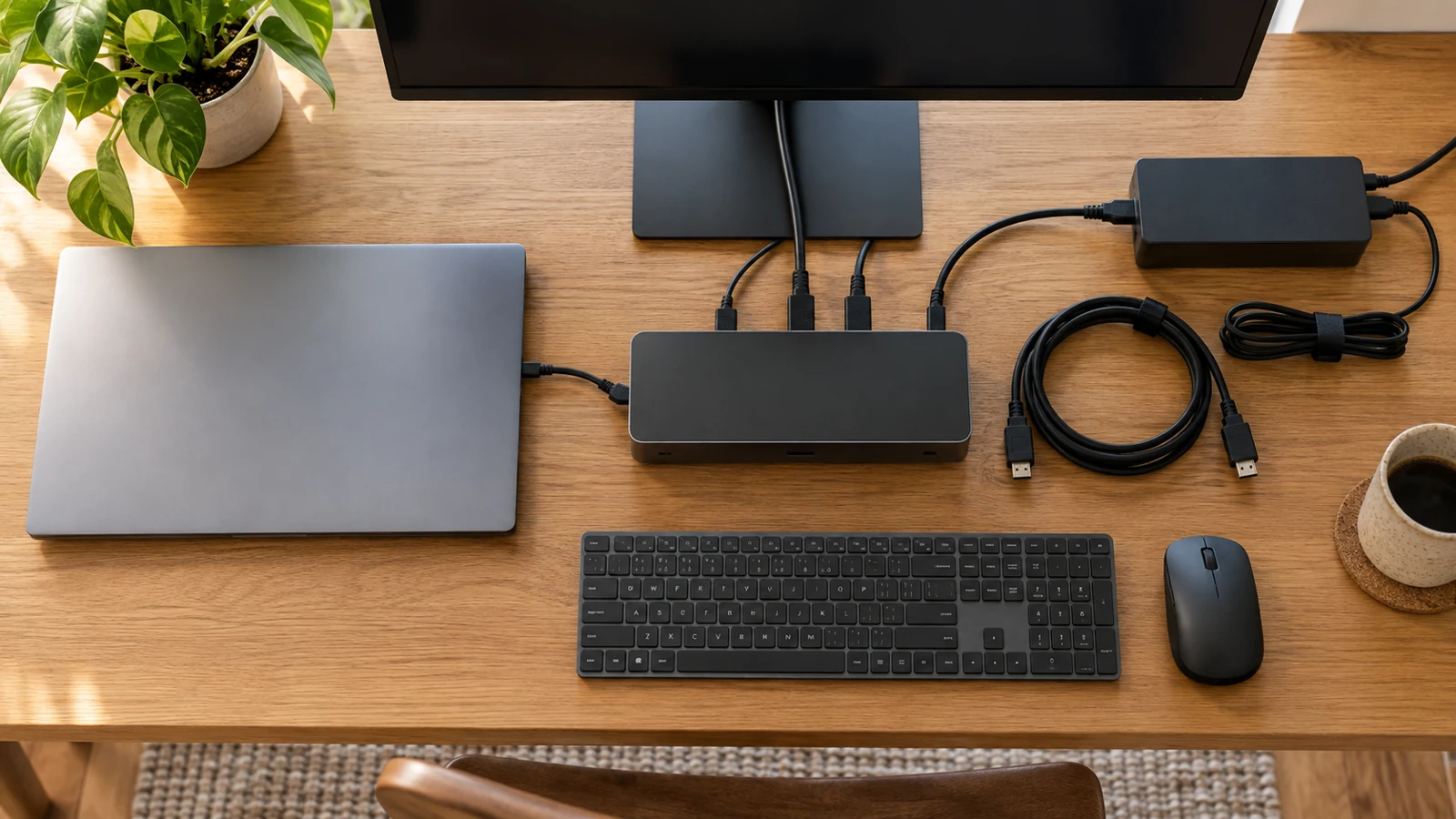
Include laptop charging and whether you expect one cable to connect the whole desk. That is a requirement to verify, not a benefit established by a dock photograph. Mark the peripherals that can remain connected directly if a one-cable setup is unnecessary.
For the illustrative desk, one display and a keyboard may be simple, while high-resolution displays plus fast storage can require more careful checking. Create the inventory before buying adapters so each purchase has a clear purpose.
Does every USB-C laptop port support the same features?
No. Read the host’s actual data, display, and charging capabilities. Microsoft’s troubleshooting guidance distinguishes USB-C compatibility and capability issues. Connector fit is only a physical check, not evidence that every intended function is available. Microsoft: USB-C capabilities and troubleshooting
Microsoft's USB-C troubleshooting guidance explains why the host, device, and cable need compatible features. Use the model manual to confirm your own port rather than assuming all ports on the chassis behave identically.
If a capability is undocumented, ask the manufacturer or seller before treating it as present. A dock cannot automatically add an unsupported native display path or make the laptop accept charging through a port that is not designed for it.
| Function | What to record | What to test |
|---|---|---|
| Display | Host, dock, cable, mode | Intended resolution and refresh |
| Charging | Host-delivery specification | Normal working session |
| Data | Port and upstream limits | Simultaneous required peripherals |
| Transitions | Supported software and settings | Sleep and reconnect |
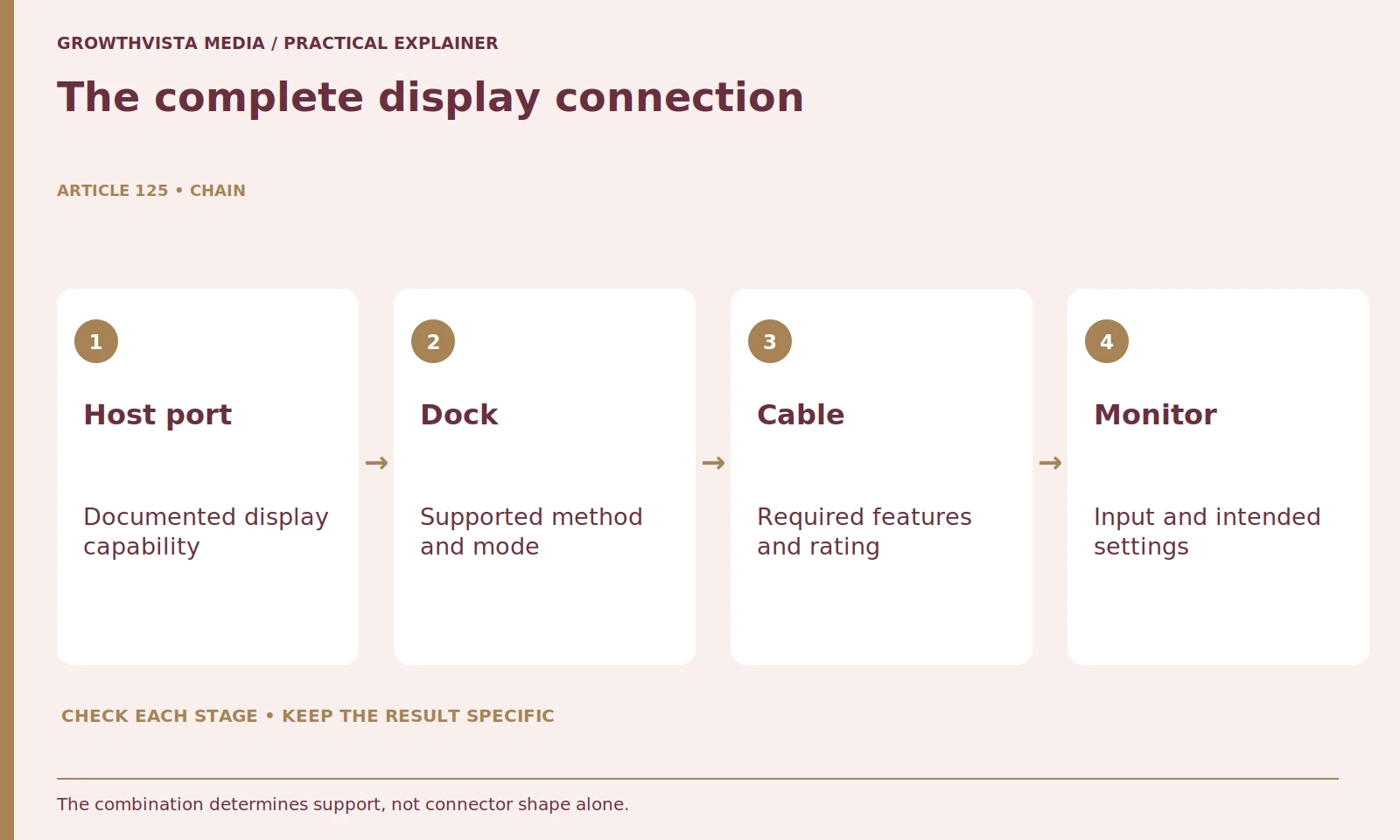
How do you verify dock display support?
Check the exact host, dock, cable, operating system, display count, resolution, and refresh combination. Dell’s multi-display guidance distinguishes connection arrangements and limitations. Do not transfer a one-screen maximum to a different multi-screen setup without verification. Dell: multi-display connections and compatibility
Read whether the dock uses a native display path or another technology requiring software. That can affect compatibility and the applications you intend to use. Do not treat two docks with the same HDMI sockets as automatically equivalent.
Test a representative display session at the intended settings. Inspect text, motion, and the available output mode. If the requirement fails, identify the constrained component before replacing every cable and adapter in the chain.
Does the power-supply wattage equal laptop charging power?
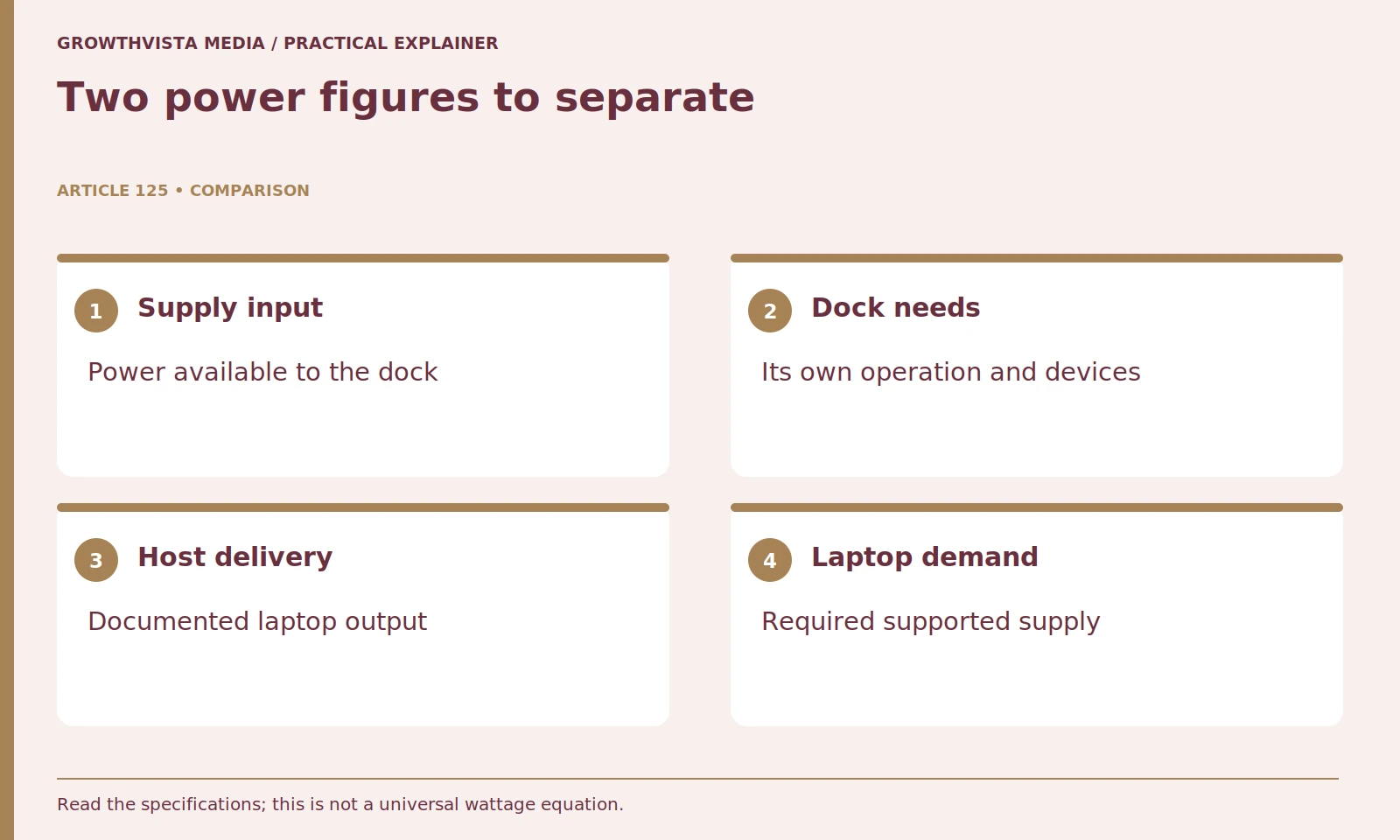
Not necessarily. Confirm documented host delivery and the laptop’s requirement separately from the accessory’s supply rating. Account for the approved power arrangement and cable. A charging icon alone does not prove support for every demanding operating mode.
Use approved supplies and cables with the documented capabilities. Microsoft lists compatibility and power mismatches among reasons for charging problems. Do not assume a phone charger or an arbitrary USB-C cable provides the intended laptop power.
During a normal demanding session, inspect whether the laptop behaves as expected on the dock. Keep the observation tied to that configuration. A charging symbol alone does not establish that every performance mode is supported or that the battery will never discharge under load.
Will every peripheral run at its advertised maximum together?
Do not assume independent unlimited capacity. Identify the shared connection and relevant host or dock limits, then test the simultaneous workflow. Keep storage, calls, networking, and displays in the same practical plan rather than judging each socket in isolation.
Read the dock's documentation for shared paths and specific port ratings. A set of connectors can share upstream capacity. The companion USB-hub guide explains why port count and data throughput are different questions.
Record actual symptoms: a camera disconnects during copying, an external drive is not recognized, or audio selects the wrong device after reconnecting. These findings help isolate the problem. Avoid describing every issue as simply a slow dock.
Why should you test sleep and reconnection?
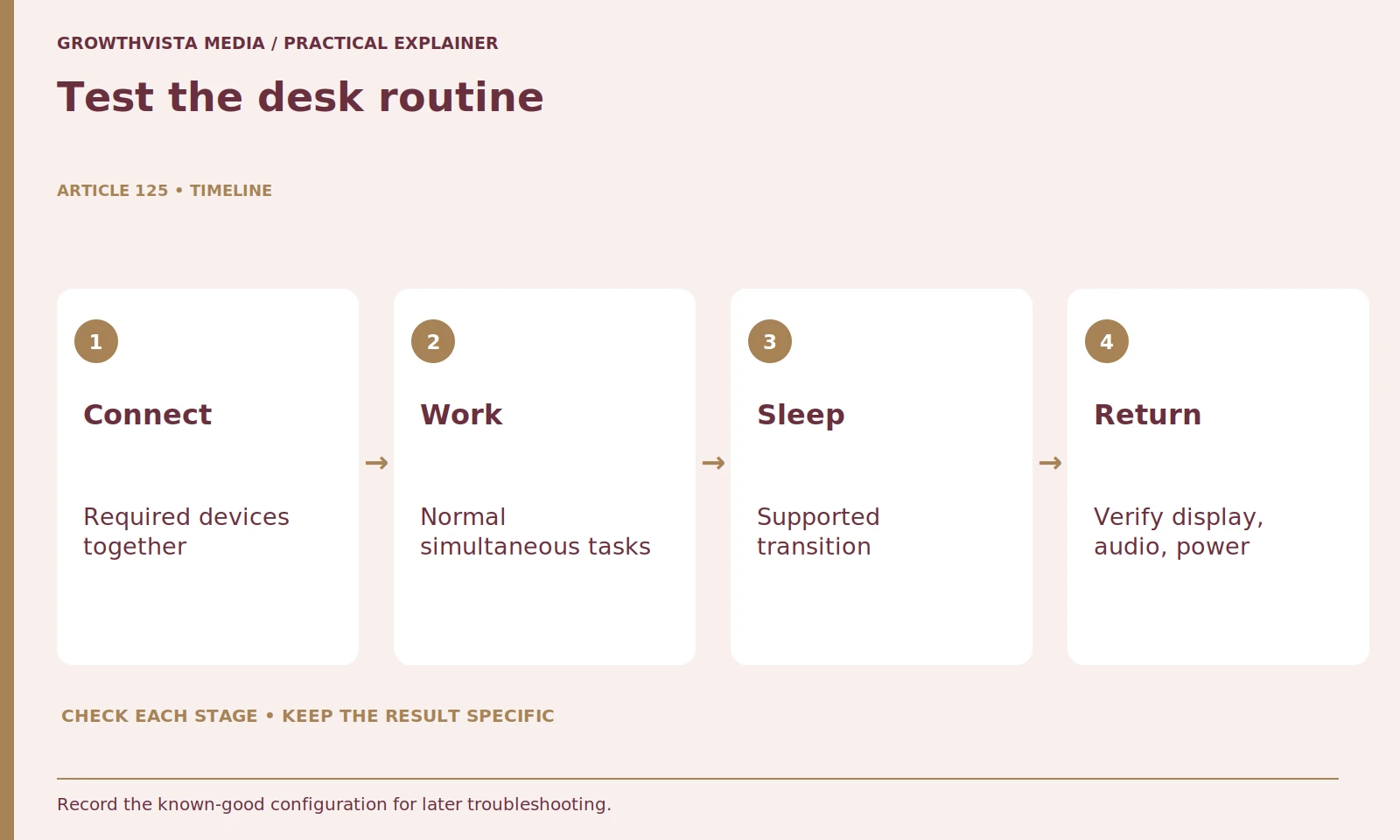
Because the desk routine includes transitions, not only a fresh startup. Follow supported sleep and disconnect behavior, then check display, audio, network, and power recovery. Document the known-good settings and relevant official firmware or driver guidance.
Follow vendor guidance for firmware, drivers, and supported operating systems. Keep updates specific to the hardware and obtain them from official sources. Do not install an unrelated utility merely because a search result promises to fix every dock problem.
Document the known-good configuration with the port, cable, display settings, and relevant versions. That reference makes a later computer or cable change easier to troubleshoot without repeating the original purchase research.
What should cable and travel planning include?
Use cables with the documented capabilities, a workable layout, and appropriate strain relief. Include power supplies and required adapters in the cost and carry burden. The desk arrangement and mobile kit should be evaluated as usable systems rather than separate product photographs.
Keep the complete desk dock separate from a travel accessory if the two serve different needs. A compact hub may be enough for occasional peripherals, while a powered dock can suit a permanent setup. The labels do not decide the choice; the inventory does.
Include required power supplies and cables in the cost and carry kit. Do not let an apparently inexpensive dock become a collection of unexpected purchases. Keep the supported equipment list with the setup.
How do you decide whether the dock solves the problem?
Mark each required function verified, unsuitable, or unresolved. If something fails, identify whether the limitation belongs to the host, accessory, cable, software, or peripheral. A more expensive dock is not automatically the correct change when the laptop lacks the required capability.
If the setup does not meet the requirement, identify the narrow limitation: host port, dock function, cable, software, or peripheral. Choose the change that addresses it. A more expensive dock is not automatically a fix for a laptop capability that is absent.
Map all simultaneous desk requirements. Verify host, dock, cable, and display capabilities. Confirm delivered charging power and approved supplies. Test transitions and record the working configuration. Keep verified facts, examples, and unanswered questions distinct when making the final decision.
Frequently asked questions
Does USB-C shape guarantee video and charging?
No. Verify those capabilities separately for the exact host, dock, supply, and cable.
Does the dock’s supply wattage all reach the laptop?
Not necessarily. Check the documented host-delivery figure and the laptop’s requirement rather than reading only the supply rating.
Can I copy one-screen specifications to two screens?
Do not assume that. Verify the actual display count, resolution, refresh, host, and operating-system combination.
Is one successful startup enough to accept a dock?
No. Check simultaneous use and supported sleep, disconnect, and reconnect behavior.
Will a more expensive dock fix a missing host capability?
Not automatically. Identify the narrow limitation before choosing another accessory.
What should I record after a setup works?
Keep host port, dock, cable, display modes, power arrangement, and relevant official firmware or driver versions.
Sources and further reading
Official documentation supports the technical guidance. Examples and worksheets are editorial methods, not hands-on product benchmarks. Reviewed October 2026.