USB Hubs vs Docks: Choose the Right Expansion
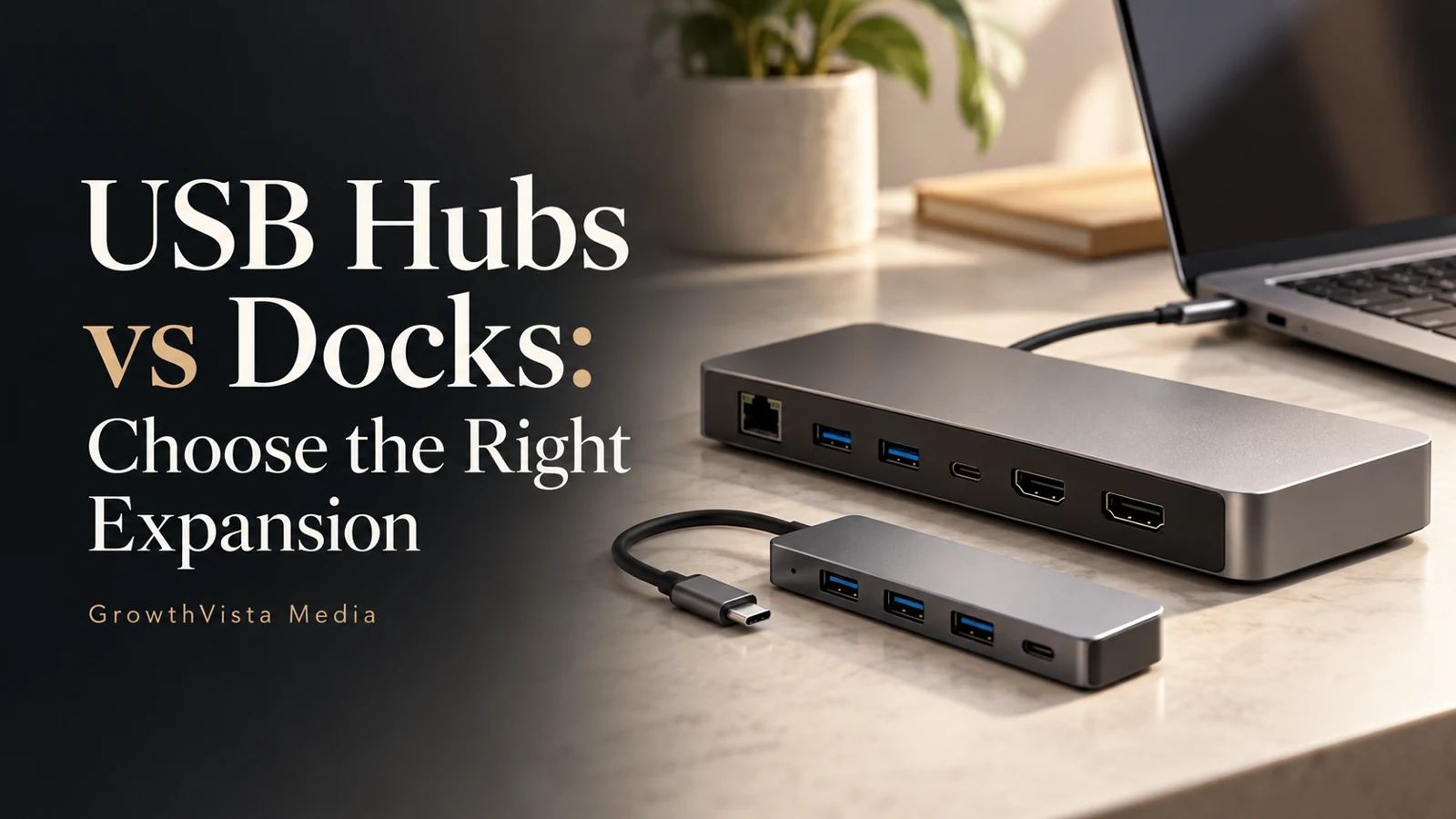
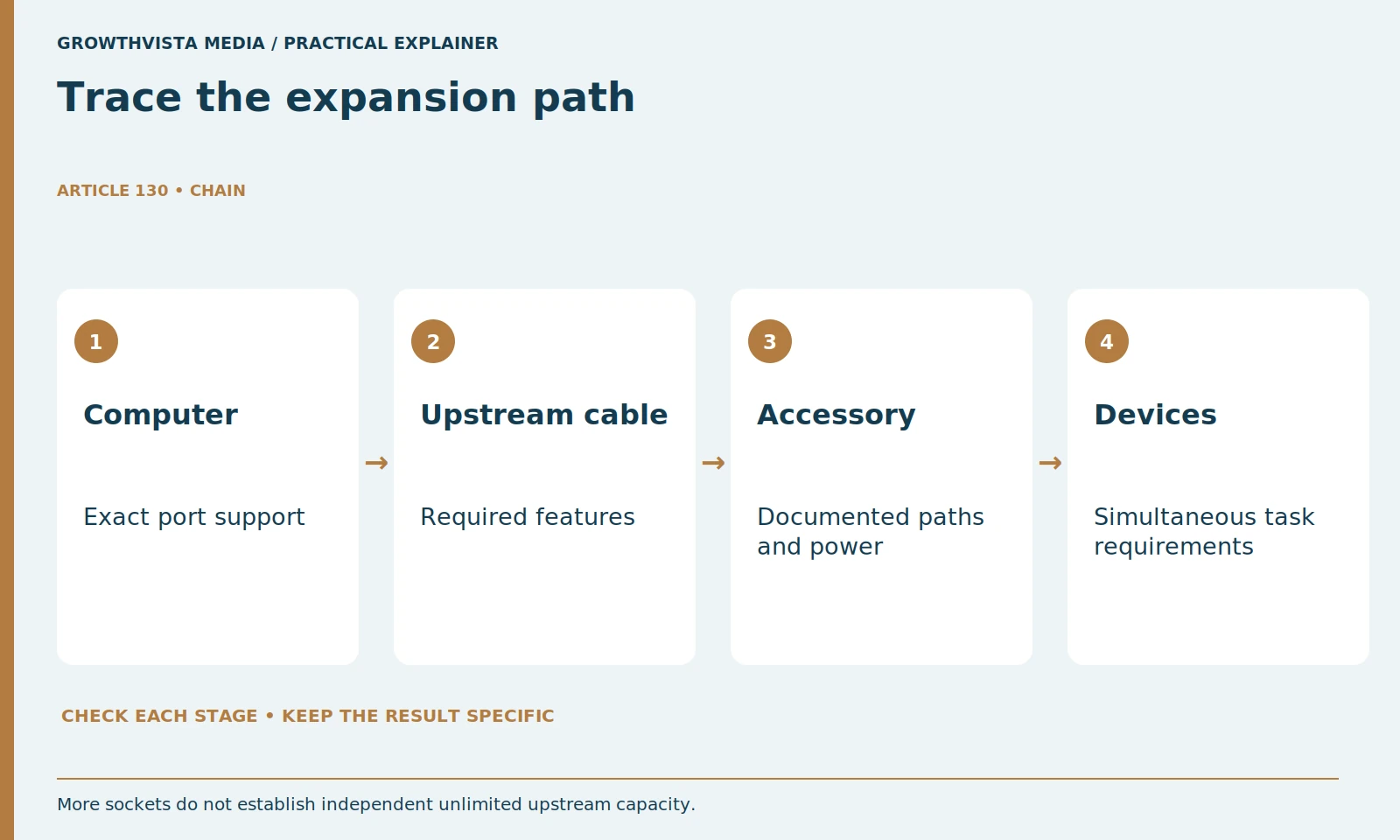
USB hubs vs docks should be decided by the functions you need and the complete host connection, not the accessory label. A hub may add data sockets; a dock may combine data, displays, network, and power, but products differ. Verify the host, upstream cable, display method, power delivery, and simultaneous tasks for the exact arrangement.
Additional sockets do not create unlimited independent capacity, and a power input does not necessarily charge the laptop. This guide explains those distinctions with transparent raw-rate arithmetic. It complements the laptop desk-setup guide and does not present invented transfer benchmarks or assume every operating system supports the same display workflow.
Your decision checklist
- List the missing functions and simultaneous tasks.
- Verify host and upstream connection capabilities.
- Check data, displays, and charging separately.
- Test the complete workflow and reconnect behavior.
How do you decide between USB hubs vs docks?
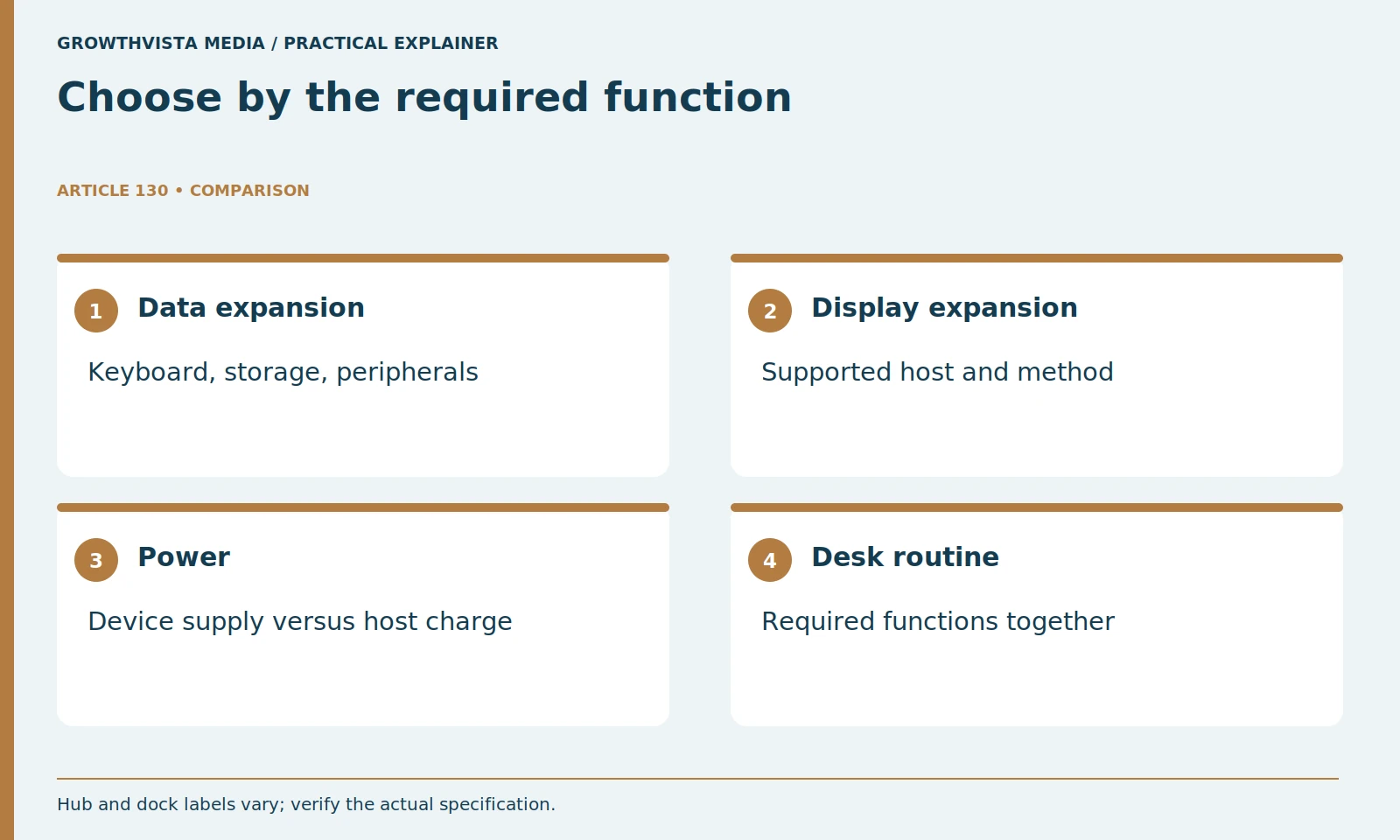
Start with the missing functions and the devices used together. Choose the simplest documented arrangement that meets those requirements. Mouse-and-keyboard expansion and a multi-display desk with charging are different tasks; the category name does not prove either will work.
For an illustrative traveler, a compact hub may serve a keyboard and storage device. A permanent desk may need monitor support, network, audio, and charging. These are examples of requirements, not universal definitions of the product categories.
Choose the smallest complete arrangement that meets the inventory. Avoid adding a large dock because it has more sockets when most will remain unused. Equally, do not expect a simple data hub to perform undocumented display or host-charging functions.
What is the upstream connection of a hub or dock?
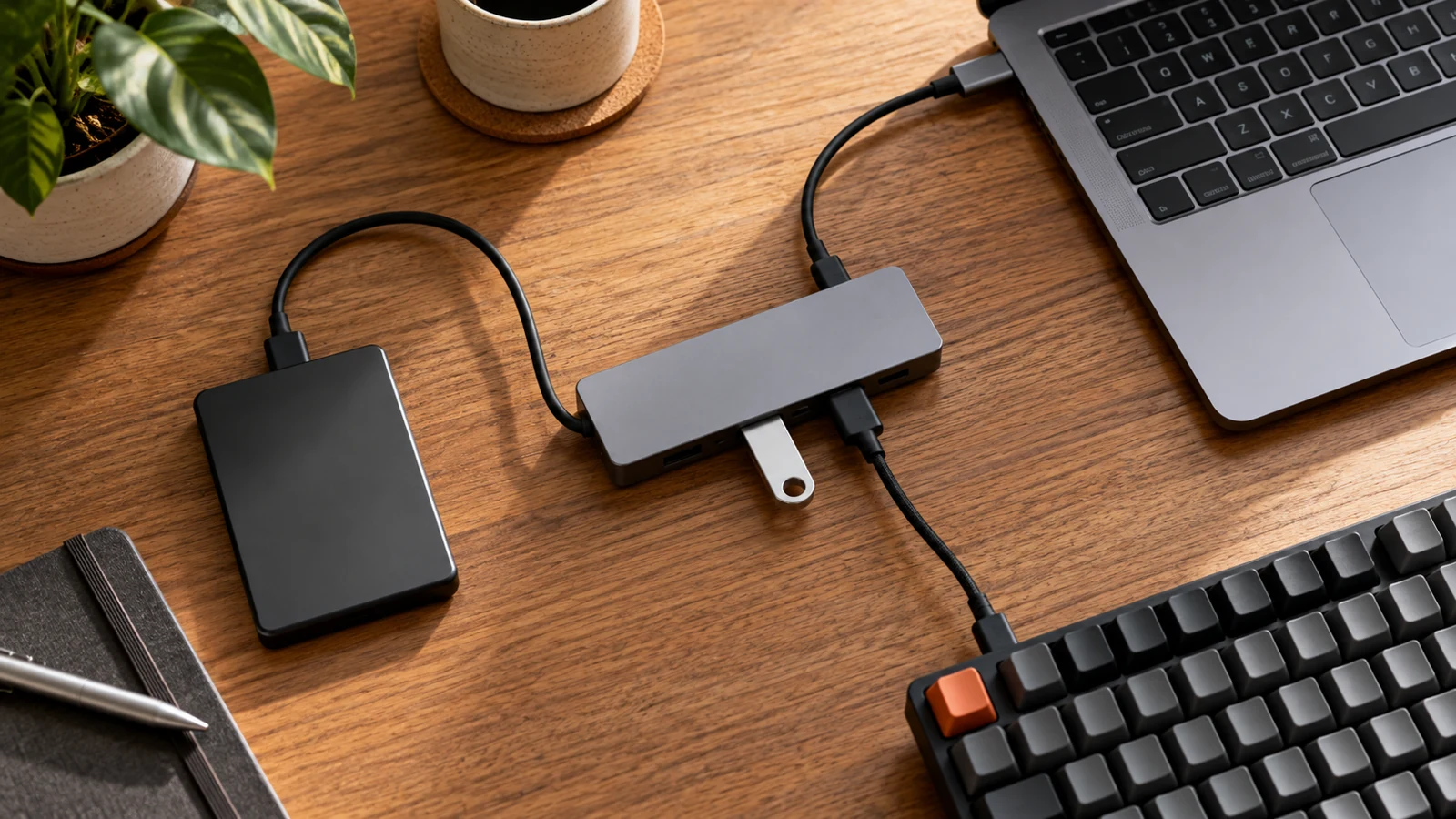
It is the path from the expansion device to the computer. Verify the host capability and supported cable before counting downstream sockets. Microsoft’s USB-C guidance distinguishes data, power, and feature compatibility, so connector shape should not stand in for the actual specification. Microsoft: USB-C capabilities and troubleshooting
Microsoft's USB-C guidance explains why compatible host, device, and cable features matter. A connector that fits physically is not proof that every advertised function of the accessory is available on that computer.
Record data, display, and power support separately. If a requirement is not documented, ask the manufacturer. Keep that uncertainty in the shortlist instead of assuming an adapter can automatically supply an absent host capability.
| Requirement | Documented check | Practical check |
|---|---|---|
| Data | Host and upstream rate | Required devices together |
| Display | Method and supported modes | Actual resolution and refresh |
| Power | Supply and host-delivery terms | Normal approved workload |
| Transitions | Software and supported behavior | Sleep and reconnect |
Does a 5 Gb/s link guarantee a 625 MB/s file copy?
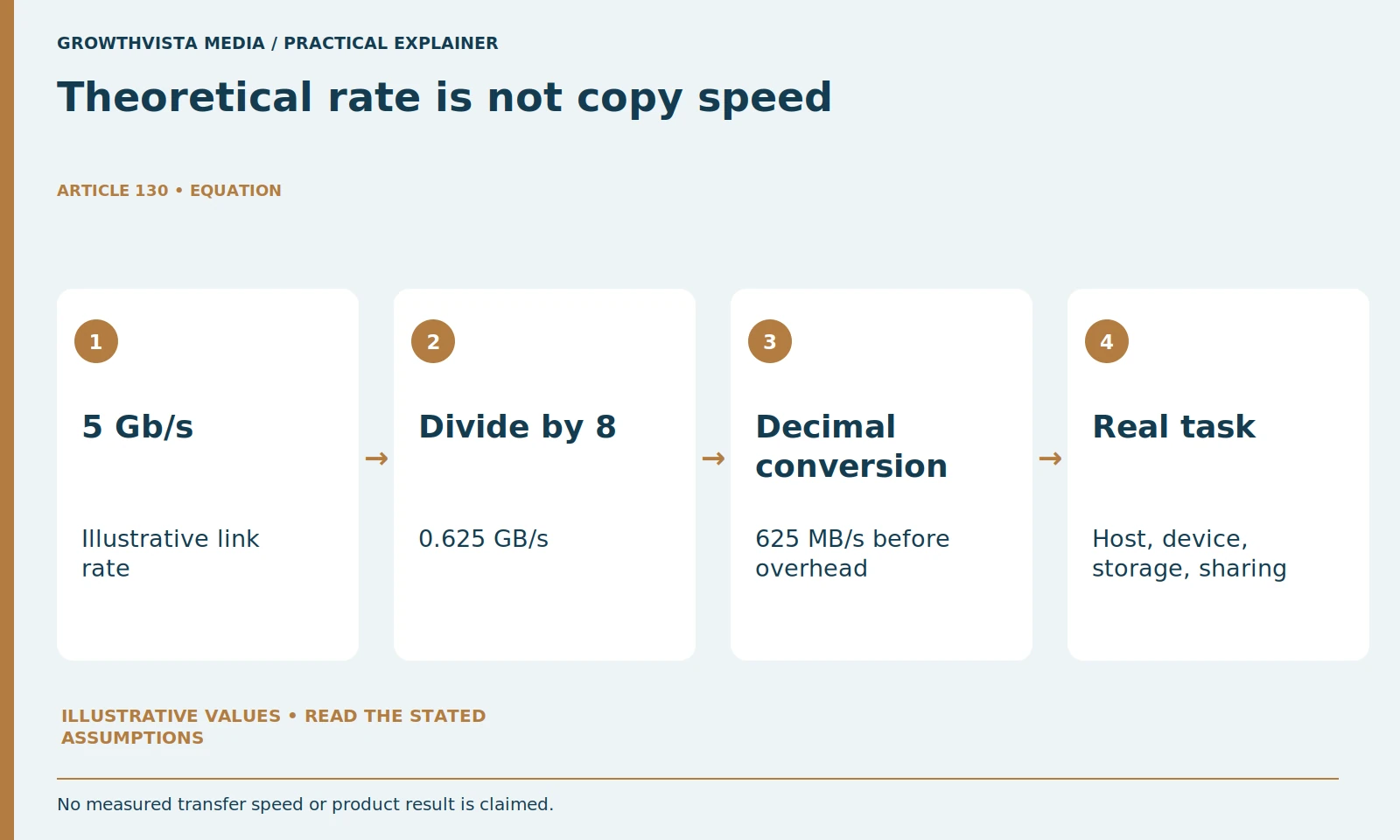
No. Dividing by eight gives a raw decimal conversion before protocol overhead and other limits. Actual copying depends on the complete host, accessory, storage, and workload. Keep the calculation labeled as explanatory rather than a measured product result.
A theoretical link rate is not a file-copy benchmark. For an illustrative 5 Gb/s rate, divide by eight bits per byte to obtain 0.625 GB/s, or 625 decimal MB/s, before protocol and other overhead. Actual transfer also depends on the host, device, storage, and workload.
If devices share the same upstream path, they do not each gain the full headline capacity simultaneously merely because there are several ports. Read the accessory's layout and limitations. Some functions can follow different paths, so do not infer a detailed allocation from appearance alone.
Use the conversion to interpret units, not to guarantee that an SSD will copy at 625 MB/s. Test the actual task with the required devices connected when transfer performance matters.
Does a display socket guarantee monitor compatibility?
No. Verify the host requirement, display method, operating system, and supported modes. Microsoft’s Surface travel-hub instructions provide a specific example of accessory requirements; those details are not universal specifications for all hubs. Microsoft: Surface USB-C Travel Hub requirements
Microsoft's Surface travel-hub instructions provide a concrete example of an accessory with specific host requirements. Use such requirements as a model for reading your own product, not as a universal specification for every hub.
For multiple screens, confirm the number, independent-display behavior, resolution, and refresh combinations. Test the intended configuration. Do not silently transfer a one-screen maximum to two screens or a different operating system.
Does a powered accessory automatically charge the laptop?
No. Connected-device power and host charging are separate features. USB-IF describes USB Power Delivery as a defined power arrangement; support must still be checked across the actual host, accessory, supply, and cable. A power input alone does not establish delivered host power. USB-IF: USB Power Delivery overview
Check the power delivered to the host and the required charger and cable. A nominal supply figure can include power used by the accessory and peripherals. Keep those definitions clear rather than using the largest printed number as the laptop-output figure.
Use approved components and test the normal workload. Avoid adding unverified supplies or chained adapters to work around a mismatch. Power planning is part of compatibility, not a secondary detail to solve after purchase.
What should you check about cables and desk layout?
Confirm the upstream cable supports the intended features and fits the physical routine. Include the accessory and supply placement, strain, controls, and travel burden. Do not create a chain of adapters merely to reach a socket count without checking the supported topology.
Plan where the accessory, power supply, and attached cables will sit. A larger powered dock needs its own space and ventilation according to its instructions. Include that equipment in the complete cost and travel burden.
Do not chain several accessories merely to reach the desired socket count without checking the documented topology. Each added link can introduce another capability or power limitation. A simpler verified arrangement is easier to troubleshoot.
Why test a hub or dock with devices used together?
Single-device success does not verify the simultaneous workflow. Run the normal storage, call, display, or network task with the required devices, then test supported transitions. Record the configuration so a later failure can be investigated against a known working arrangement.
Check reconnect and supported sleep behavior, not only the first successful connection. Inspect whether audio, displays, and storage return normally. Use official drivers or firmware where the product requires them.
If a symptom appears, describe it precisely and isolate the relevant component. A drive disappearing under load, a missing display mode, and an underpowered charging arrangement are different problems. Avoid solving all three by buying an unspecified faster hub.
When is a dock worth the additional cost?
When its verified extra functions meet requirements a simpler accessory cannot, and the host supports the complete path. Include size, supply, cable, service, and transition behavior in the comparison. Pay for a solved task rather than a larger socket count.
Choose a hub when its actual functions meet the task. Choose a dock when the additional documented functions justify the cost, size, and dependencies. The category name alone cannot establish the result.
List the missing functions and simultaneous tasks. Verify host and upstream connection capabilities. Check data, displays, and charging separately. Test the complete workflow and reconnect behavior. Keep verified facts, examples, and unanswered questions distinct when making the final decision.
Frequently asked questions
Does a USB-C connector guarantee both display and charging?
No. Read the separate documented capabilities of the host, accessory, supply, and cable.
Does every hub socket get unlimited independent bandwidth?
Do not assume that. Check the shared upstream path and the simultaneous task.
Does 5 Gb/s guarantee a 625 MB/s file copy?
No. That value is a raw decimal conversion before overhead and the limits of the actual host, storage, and workload.
When should I choose a dock instead of a hub?
When its verified additional functions meet requirements a simpler accessory cannot, and the host supports the full arrangement.
Does a power input prove laptop charging?
No. Check explicit host-charging support and delivered power separately from connected-device power.
What should I test with an expansion accessory?
Use the required devices together and check normal tasks plus supported sleep and reconnect transitions.
Sources and further reading
Official documentation supports the technical guidance. Examples and worksheets are editorial methods, not hands-on product benchmarks. Reviewed October 2026.
- Microsoft: USB-C capabilities and troubleshooting
- Microsoft: Surface USB-C Travel Hub requirements
- USB-IF: USB Power Delivery overview
Related guides
- Laptop Buying Checklist: Match Specs to Everyday Work
- Laptop Ports and Docks: Check Your Complete Setup
For a complete laptop desk setup, read the laptop ports and docks guide.