AI Image Generation vs Editing: Pick the Right Workflow
Editorial scope: Researched practical guide. Examples are illustrative, not hands-on product benchmarks. Reviewed October 2026.
AI image generation vs editing begins with a simple question: do you need a new composition, or do you need to preserve something that already exists? Generation can explore a scene from a brief. Editing can change selected parts of a supplied image. Confusing the two often leads to unnecessary regeneration and loss of details you wanted to keep.
This guide explains the choice, shows how to specify preserved details, and provides a review method for publication assets. It describes conceptual workflows rather than identical controls in every app. Check the capabilities and terms of the exact tool and model you use.
Choose AI image generation vs editing by what must stay
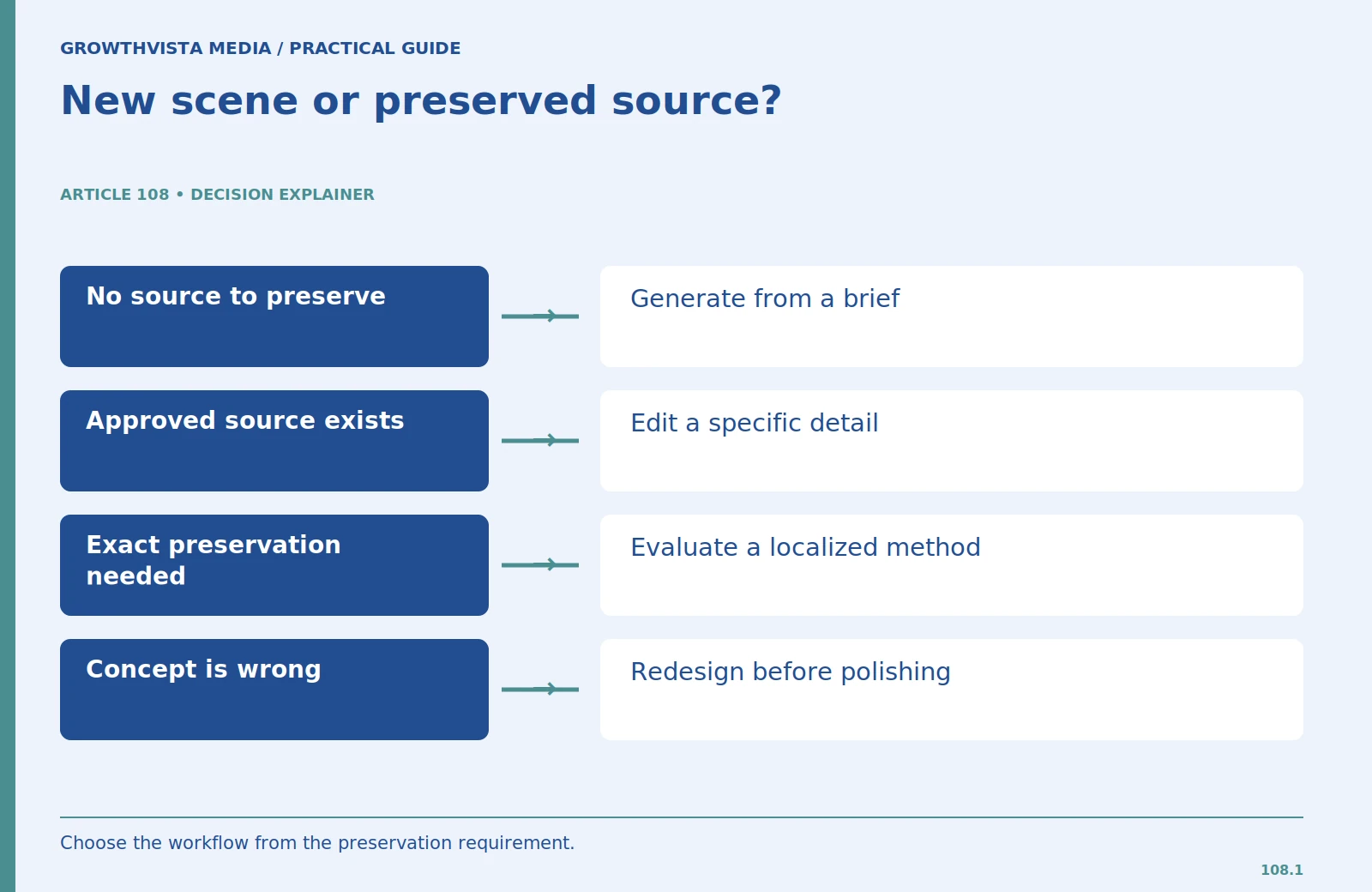
Use generation when the composition is open: a conceptual workspace, a new editorial illustration, or a scene with no existing subject to preserve. Write the required subject, environment, framing, style, and text. You can then explore several distinct concepts without pretending they document an actual event.
Use editing when an existing asset contains important details. These may include a product shape, a person's appearance, a room layout, or a previously approved cover composition. State those invariants explicitly. The edit request should identify the change and the details that must remain consistent.
If exact preservation is essential, assess whether the tool can meet that requirement. Some generative edits can alter nearby details or reinterpret the whole image. A conventional localized edit may be the better choice for a small factual correction or a brand asset that cannot tolerate variation.
Write a generation prompt as a new visual brief
Begin with the asset's purpose. For an article about reviewing code, an editorial illustration of an annotated manuscript can communicate scrutiny without fabricating a real developer's screen. Specify the composition and mood, then add any exact labels or title text.
Avoid contradictory instructions such as requesting a very busy scene and a large uncluttered headline area in the same space. Decide which element needs priority. For a featured cover, the title may require a dedicated panel; for an interior illustration, the subject may deserve the full frame.
Keep each candidate concept distinct. Change the visual idea, viewpoint, or information relationship instead of asking for ten nearly identical color variants. Select the concept that fits the article's purpose before polishing its details.
| Requirement | Suggested workflow | Main review question |
|---|---|---|
| New conceptual scene | Generation | Does the concept serve the article? |
| Approved image, new title | Focused edit | Did scene and crop stay consistent? |
| Exact factual product detail | Evaluate localized conventional editing | Was the required detail preserved? |
Write an edit request with clear invariants
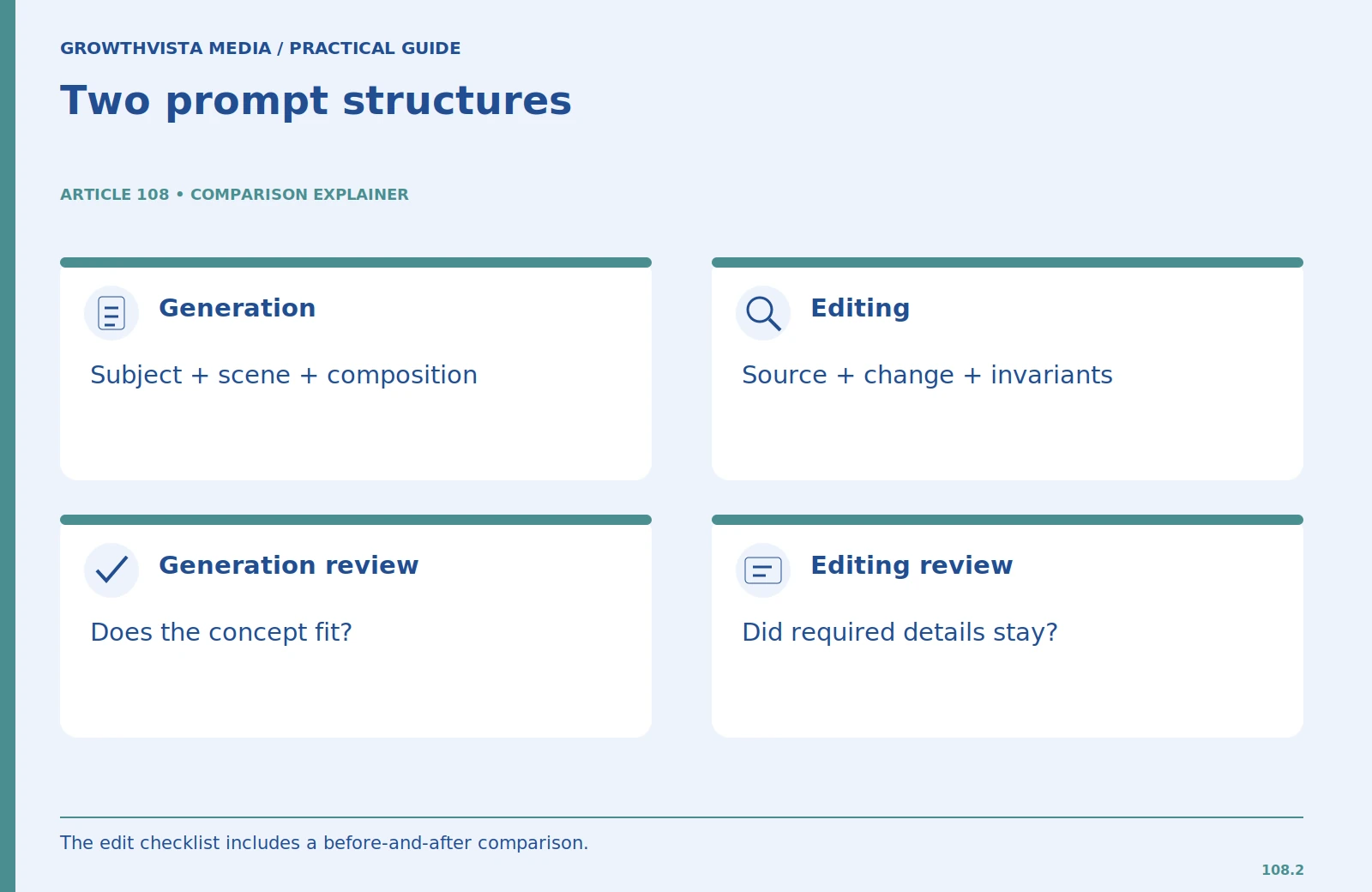
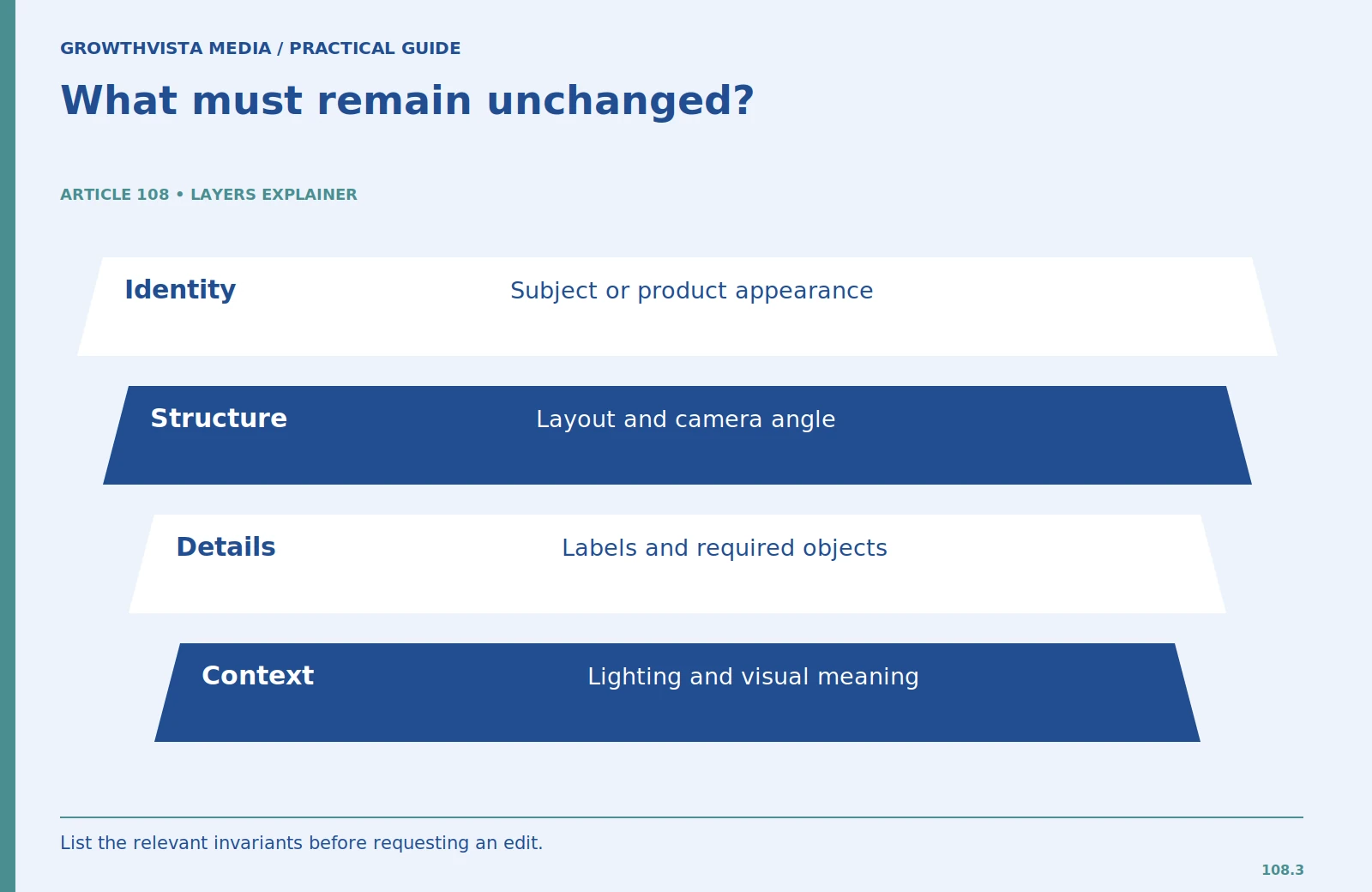
Name the source image and the requested change. Then list what must stay. An example is: “Replace the background with a neutral studio setting. Preserve the product silhouette, color, label placement, and camera angle. Do not add accessories.” These instructions make review easier because they define what success means.
For a publication cover, you might ask to replace a title while keeping the approved scene and crop. Compare the result with the original for accidental changes to the subject. If the edit also changes the lighting or removes a required object, it has not fully met the brief even when the new text is correct.
Work from a copy and retain the original. Request one targeted correction at a time when possible. Several unrelated changes can make it hard to identify which instruction caused an unwanted result.
Understand selection tools without assuming perfect boundaries
Some tools support masks or selections that indicate where an edit should occur. Learn how your tool interprets them. A selection can guide the change, but it does not necessarily guarantee pixel-identical preservation outside the selected area.
Inspect edges, shadows, reflections, and objects that cross the edited boundary. A background replacement can leave inconsistent lighting or incomplete edges. An object removal can create a plausible-looking surface that changes important details nearby.
For a factual product image, prioritize accuracy over an attractive blend. If the tool changes the product's shape or text, use a different method or keep the original asset. The article should not imply that a generated reconstruction is an exact photograph of the item.
Use a two-stage workflow for covers
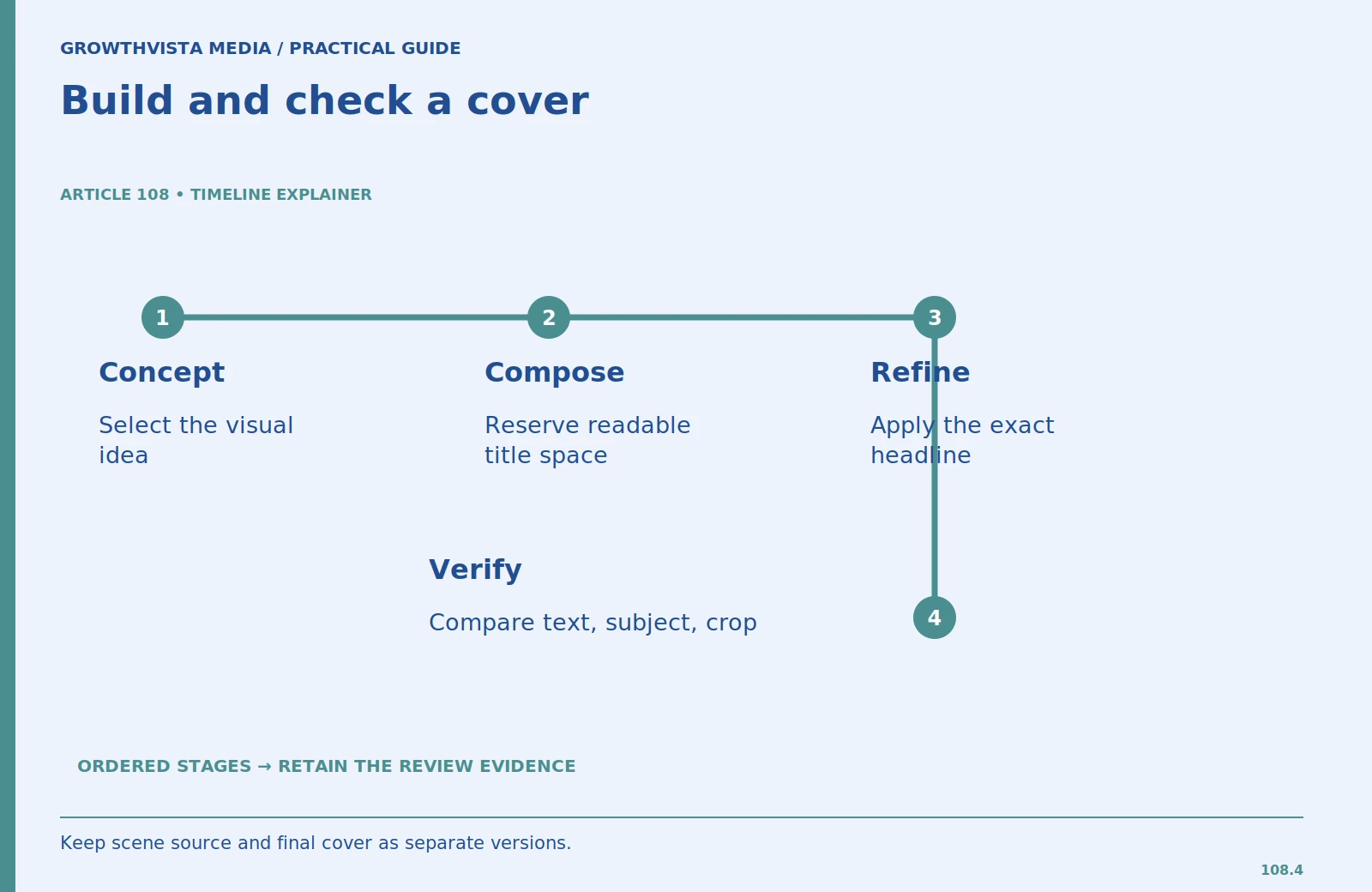
Start by choosing the scene and composition. Then add or refine the exact title within the approved layout. This helps avoid spending time correcting text on a scene that does not fit the article. Preserve the scene source and the finished cover as separate files.
For an illustrative cover titled “Choose a Coding Assistant,” the first stage might establish a workstation with open space on the left. The second stage adds the title in that space and checks legibility at card size. The example is a design process, not a requirement that every generator supports separate text layers.
Check the final crop in your theme. A title that fits a 16:9 image may be clipped in a square card. Choose the crop or composition deliberately so the text remains readable across the places where the cover will appear.
Review generation and editing with different checklists
For generation, inspect whether the scene communicates the intended concept, contains unwanted implications, and has readable required text. For editing, add a before-and-after comparison of the preserved details. The second checklist is stricter because the source creates specific expectations.
Use side-by-side views at both full size and the intended display size. Check object proportions, labels, edges, lighting, and any faces or hands. For a title edit, compare the wording with the approved article title, including punctuation and capitalization.
Document whether an image is conceptual, generated, or materially edited when that distinction matters to the reader. Do not use a synthetic scene as evidence of a test, an event, or a product outcome. Accurate framing is part of visual quality.
Keep usage rights and provenance in the workflow
Confirm that you may upload and modify the reference asset. Permission to use an image somewhere does not automatically grant every kind of transformation. Also review the current terms for the chosen generator and model, especially when using third-party models inside a larger platform.
Keep the original file, prompt, generated version, editing notes, and available provenance information together. Adobe documents Content Credentials for certain Firefly outputs, which illustrates one way a platform can record generative involvement. Preserve such information where supported.
If the output is important to a commercial identity or rights-sensitive campaign, review the use more carefully. The U.S. Copyright Office's report distinguishes human-authored contributions from purely generated elements. A polished edit does not by itself answer all ownership or permission questions.
Finish with export and article integration
Export the selected asset at dimensions suitable for the page and inspect the compressed file. Give it a unique descriptive filename and write alt text for its actual role. An edited cover and an interior explanation should not share an identical caption simply because they came from the same source.
Place the image where it supports the article. If the article compares generation and editing, show that relationship clearly in the caption and surrounding text. Keep the full explanation available as text so the reader does not depend on decoding tiny in-image labels.
Retain the source version for future updates. A carefully organized asset set makes a later title correction or crop change easier without forcing you to regenerate the complete article's visuals.
Frequently asked questions
When should I regenerate rather than edit?
Regenerate when the overall concept is wrong or no source detail needs preserving. Edit when a useful approved composition needs a focused change.
Can an edit keep everything outside a selection unchanged?
Do not assume it. Capabilities vary, and you should compare the result against the original when exact preservation matters.
Can I edit a downloaded product photo?
Check the permission and license for that asset first. Access to a file does not establish permission to transform or republish it.
How should I fix incorrect title text?
Use a focused text correction in the approved composition, then verify the full wording and crop. Keep the original so you can detect accidental changes.
Sources and further reading
Official documentation supports the provider-specific and publishing guidance above. Workflows, examples, and rubrics are editorial methods, not vendor performance findings.
- Adobe: Firefly FAQ and generation guidance
- U.S. Copyright Office: AI and human authorship
- Google: image publishing guidance
Related guides
Continue with these related practical guides.
- AI Images for Blogs: Plan, Generate, and Publish
- AI Writing Tools for Small Business: 7 Buying Checks
- Edit AI Writing: Turn a Draft Into a Useful Article
For a broader product overview, see GrowthVista’s AI image-generator comparison.