AI Images for Blogs: Plan, Generate, and Publish

Editorial scope: Researched practical guide. Examples are illustrative, not hands-on product benchmarks. Reviewed October 2026.
AI images for blogs work best when every visual has a job. A featured cover introduces the article. A process graphic explains a sequence. A comparison helps a reader choose. Repeating the same decorative scene in every section adds little information and can make a publication feel less considered.
This guide walks through a complete visual brief, generation and review, infographic production, and WordPress publishing. It is a workflow guide, not another ranking of image generators. The example article and asset plan are illustrative, and no generated scene should be presented as proof of hands-on testing.
Plan AI images for blogs around reader questions
Read the article outline and identify places where an image can make the explanation easier to use. A buying guide might need a compatibility diagram, a feature comparison, and a decision tree. A how-to guide might need a labeled example, a process sequence, and a final checklist.
Write the purpose before writing the image prompt. “Show the difference between storage capacity and transfer speed” is a useful brief. “Make a futuristic technology image” is only a style request. If a visual does not answer a question, orient the reader, or clarify a decision, reconsider whether the article needs it.
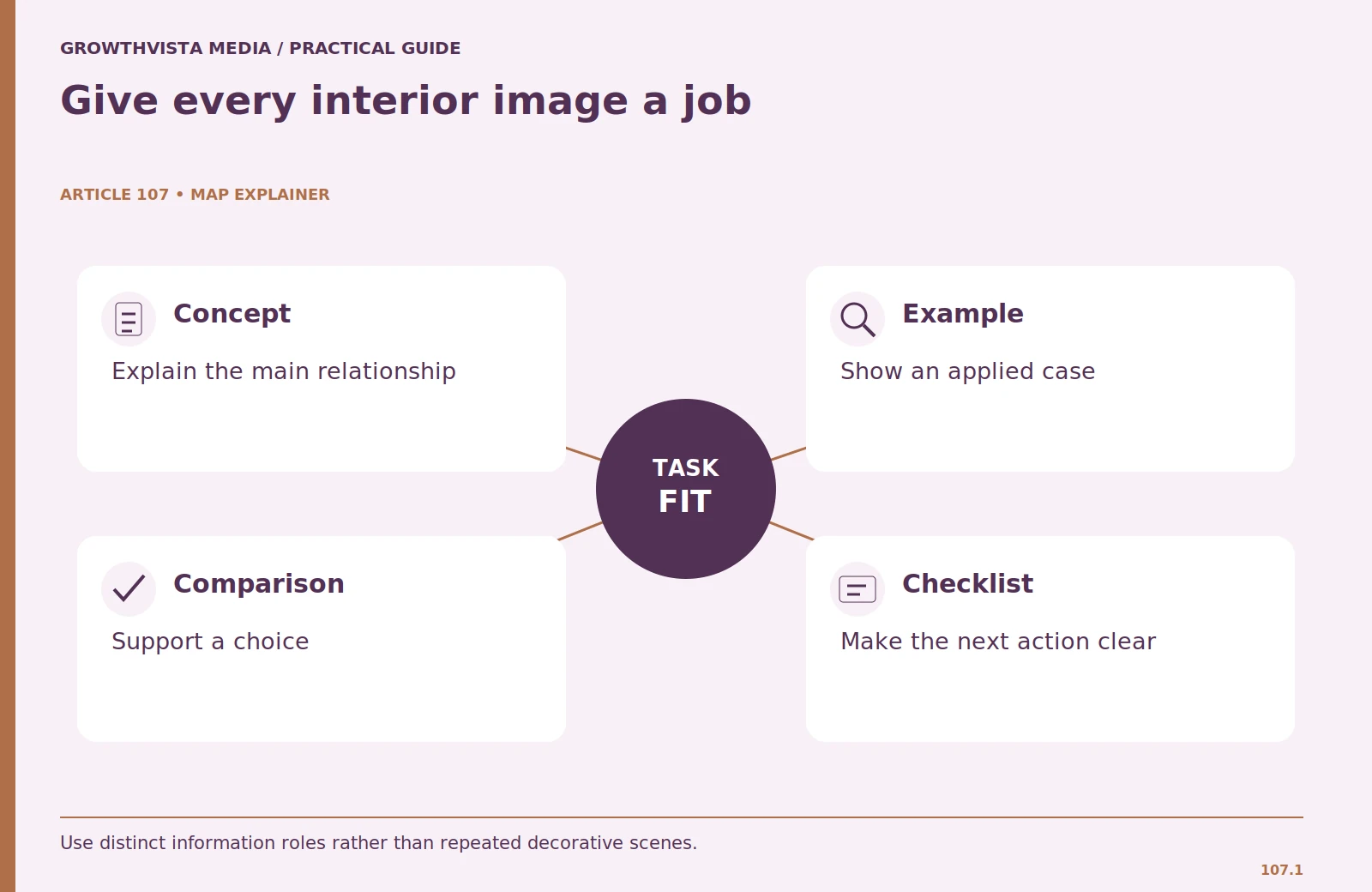
For an illustrative four-image interior plan, assign one graphic to the main concept, one to a worked example, one to a comparison, and one to the action checklist. Use different compositions so readers can recognize each role. Variety should come from the information, not random colors alone.
Write a brief with subject, context, and exclusions
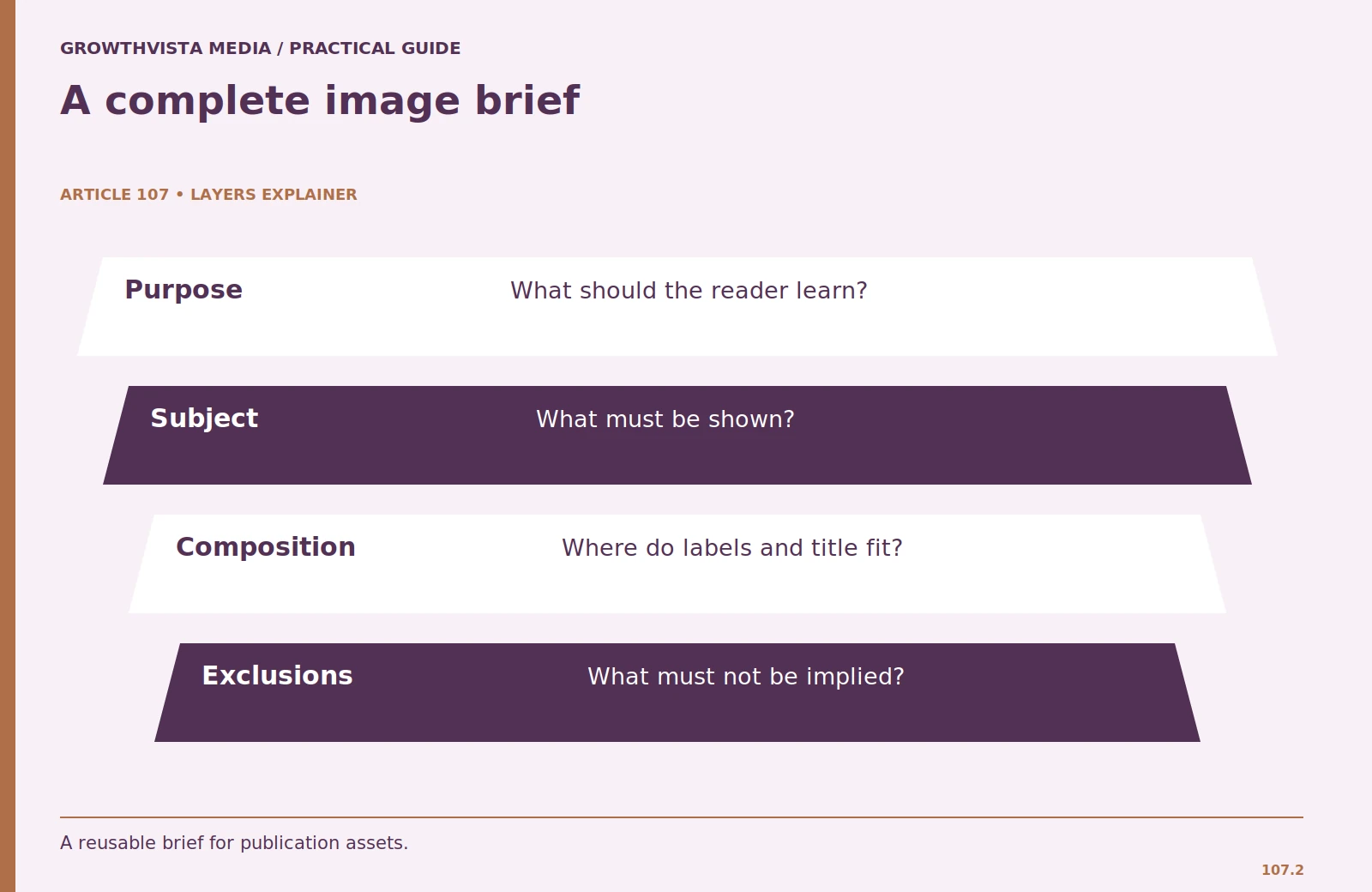
A useful prompt specifies the asset's role, subject, environment, framing, style, and required text. For a cover about selecting an assistant, you might request an editorial workspace with a notebook and task cards, plus space for the exact headline. Avoid asking for a real product interface unless you can verify the interface and have an appropriate reason to show it.
State what the image must not imply. An invented workshop scene should not look like a photograph of your actual testing team. A conceptual software illustration should not contain fabricated benchmark numbers, customer logos, or certifications. These details can create misleading impressions even when the underlying article is careful.
Keep the asset brief and final prompt in your project folder. If a reviewer finds a wrong label or distracting subject, you can request a targeted correction without recreating the entire concept. Consistent records also help avoid repeating the same visual pattern across later articles.
Design a featured cover for small screens
Put the full article title on the featured image only if it remains legible at the size readers will see. Use a strong contrast area, a restrained type treatment, and enough space around the text. A long title may need several lines; shrinking it into a single line is usually a poor trade-off.
Preview the cover at a small card width, not only at full resolution. Check the first and last words, punctuation, and line breaks. Also test the crop used by your theme. Text near the edges can disappear when a landscape image is displayed in a square or differently proportioned card.
Keep the article title as real HTML text on the page even when it also appears in the cover. The image is an introduction, not a replacement for the accessible heading. If the crop cannot preserve the full title, adjust the image composition or use a theme setting that displays the intended ratio.
Choose precise graphics for factual explanations
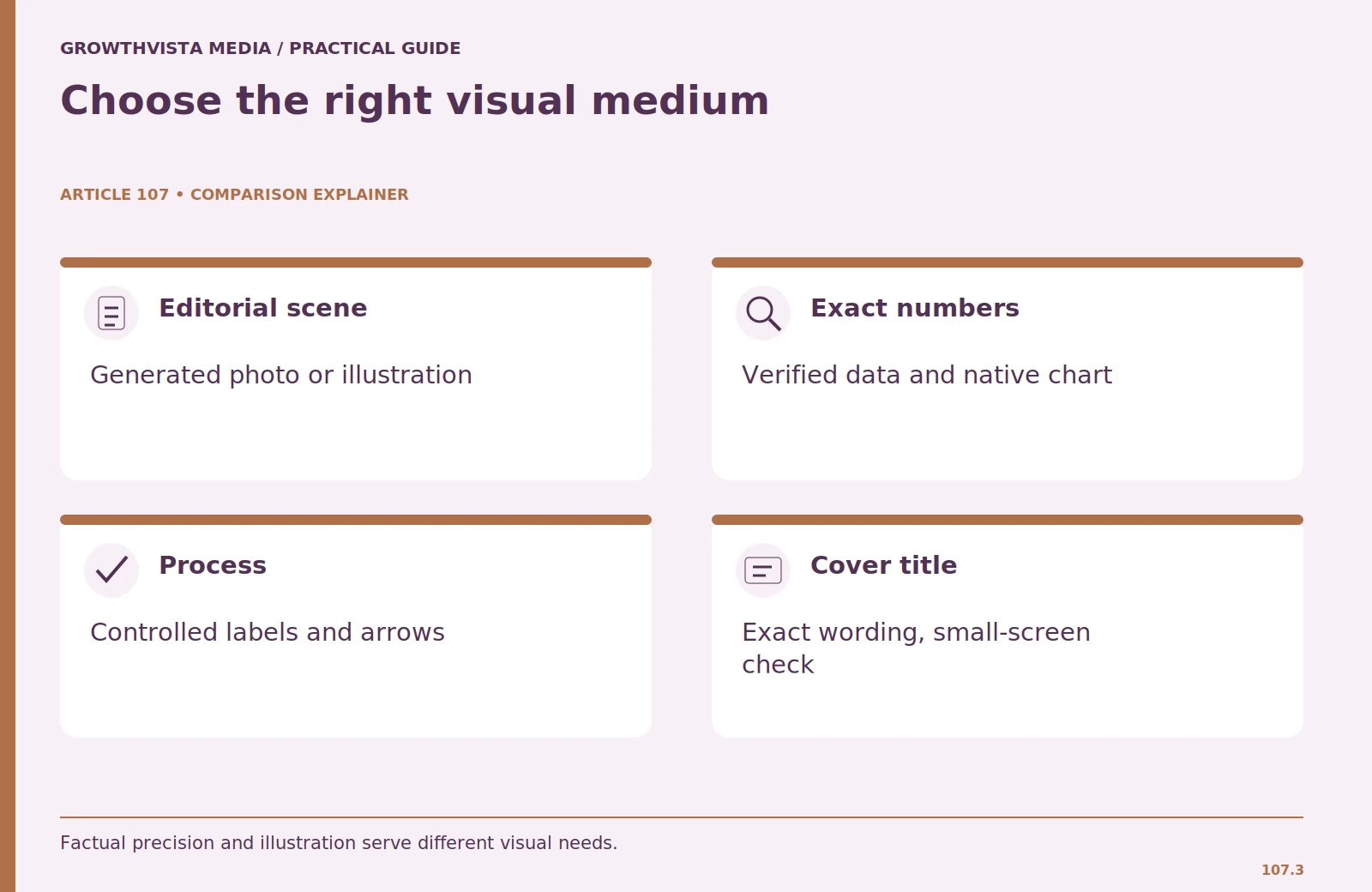
A diagram showing an exact process or calculation should be created from verified text and values. Use native graphic tools when they give you reliable control over labels, arrows, units, and alignment. An AI-generated illustration can support the concept, but it should not invent data or determine the mathematics of a chart.
For a hypothetical cost example, calculate the values first and place them into the graphic afterward. Mark the example as hypothetical inside the image or caption. If you show a comparison without measurements, use a qualitative rubric rather than bars that imply a numerical ranking.
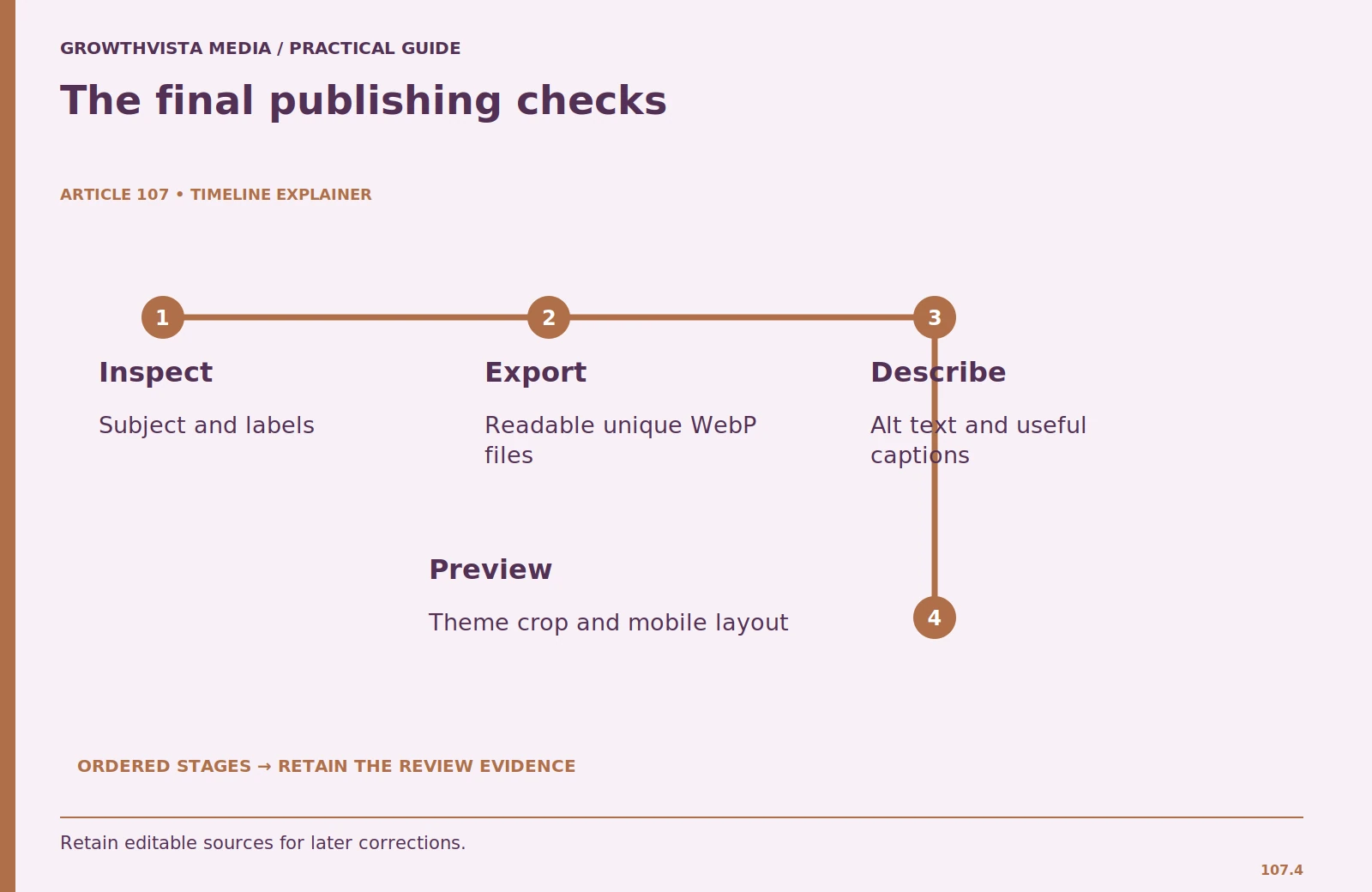
Match the layout to the relationship. Use a timeline for ordered stages, a matrix for criteria, a decision tree for branches, and an annotated example for a concrete output. This produces meaningful variety and reduces the temptation to reuse four identical boxes for every topic.
Review generated scenes and text carefully
Inspect the subject, physical details, and any in-image text. Generated illustrations can contain plausible-looking but incorrect labels, malformed objects, or mismatched interface elements. If the image includes a headline, compare it character by character with the article title.
Check visual implications as well as spelling. Does a financial scene imply an endorsement? Does a health illustration appear to demonstrate a treatment outcome? Does a product image look like a specific model with invented features? Use conceptual imagery when a literal depiction would require facts you cannot verify.
Review all images together before export. Two individually attractive visuals may repeat the same angle and composition. Keep a simple contact sheet for internal quality control so you can see whether the article's visual sequence has distinct roles and a consistent publication feel.
Check usage terms and keep provenance records
Review the current terms for the generator, model, and account used. A platform may offer several models with different conditions. Commercial-use permission, ownership claims, reference-image permissions, and available provenance features are separate questions. Keep links and the date of your review with the asset brief.
Adobe's Firefly documentation describes Content Credentials for certain generated exports. Such credentials can provide information about an asset's creation, but they do not establish that every depicted claim is accurate. Preserve provenance information where your tools support it.
In the United States, the Copyright Office's 2025 report distinguishes human-authored expressive contributions from purely generated material. Do not assume that a provider's permission to use an output guarantees copyright protection for that output. For an ordinary publication workflow, keep your original composition, editing, and asset records and obtain specific advice when a rights question affects a significant use.
Export WebP without sacrificing useful detail
Choose dimensions based on the publishing layout. Export a suitable WebP version, then inspect the result at actual reading size. Compression can damage small labels and fine lines before it visibly affects a large photograph. Use a higher-quality setting for infographics when needed, while keeping file sizes reasonable.
Give every file a descriptive, unique name. An example set might use an article identifier and roles such as featured, decision-tree, workflow, and checklist. Record width and height so the page can reserve space while images load. Retain editable source graphics separately for future corrections.
Open every exported file before packaging. Confirm it decodes, matches the intended content, and is not a duplicate copied under a different name. A folder containing five filenames is not enough evidence that an article has five distinct images.
Publish with captions, alt text, and a mobile check
Write alt text describing the image's useful content. For a diagram, summarize the relationship and ensure the full explanation also appears in the article text. Do not repeat the focus keyword mechanically in every alt field. A decorative image may need different handling from a substantive graphic.
Place each visual near the relevant explanation and add a caption when it clarifies scope or assumptions. Google's image guidance supports descriptive filenames, relevant surrounding text, and useful alt text. Keep the implementation consistent with your theme and accessibility needs.
Preview the final page on a narrow screen. Check labels, image crops, table overflow, and spacing. If a detailed graphic is unreadable on a phone, simplify it or make its key information available as adjacent text. The final test is whether the visual helps the reader use the article, not whether it fills a section attractively.
Frequently asked questions
Should every section include an image?
No. Add visuals where they explain or orient. Four distinct interior graphics can be useful for a detailed guide, but decorative repetition does not improve the explanation.
Can AI generate an exact data chart?
Calculate and verify the data separately. Use a precise graphic workflow for values, scales, and labels rather than accepting invented chart details.
Is WebP always the smallest suitable format?
Compare exports for your particular asset. The goal is a readable, efficiently delivered image; inspect the final file rather than assuming a format guarantees quality.
Does a cover title replace the page heading?
No. Keep a real text heading on the page and use the cover as a visual introduction.
Sources and further reading
Official documentation supports the provider-specific and publishing guidance above. Workflows, examples, and rubrics are editorial methods, not vendor performance findings.
- Google: image SEO best practices
- Adobe: Firefly FAQ
- U.S. Copyright Office: AI copyrightability report announcement
Related guides
Continue with these related practical guides.
- AI Image Generation vs Editing: Pick the Right Workflow
- AI Writing Tools for Small Business: 7 Buying Checks
- Edit AI Writing: Turn a Draft Into a Useful Article
For a broader product overview, see GrowthVista’s AI image-generator comparison.